Intro
Hyperflow Library was a new kind of ‘media knowledge base’ designed for creative professionals, combining aspects of knowledge management tools Notion and Obsidian, file management tools like Finder and Dropbox, and visual bookmarking apps like mymind and Are.na.
The goal was to help creatives be more productive by centralizing all their creative assets, web clippings, as well notes and knowledge from across all their siloed apps and giving them tools to search, annotate, and collaborate across it.
We prototyped a bunch of different features and user flows in Figma to validate demand - the main ones are expanded upon below, and in this short demo video (also 100% Figma).
Inbox
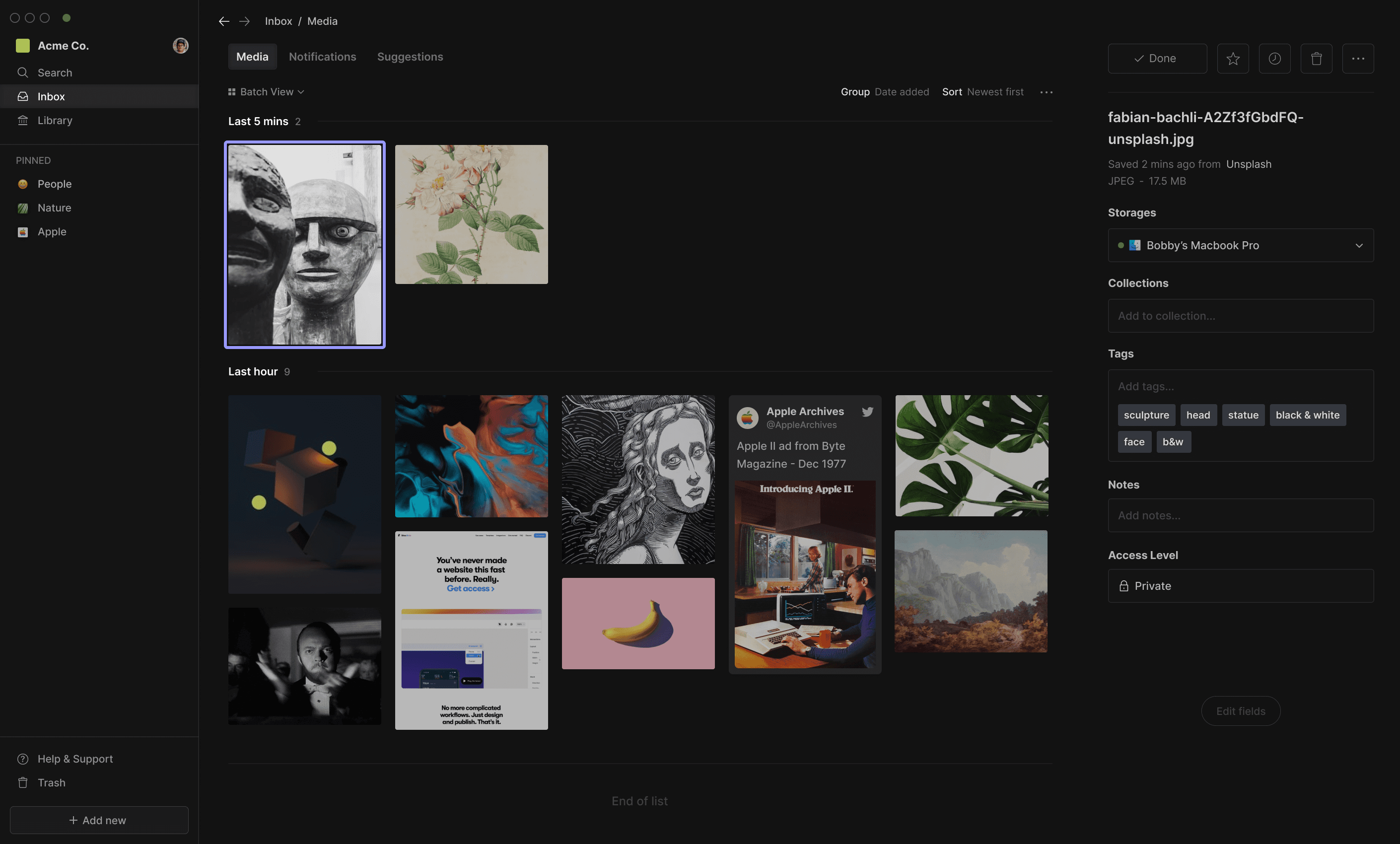
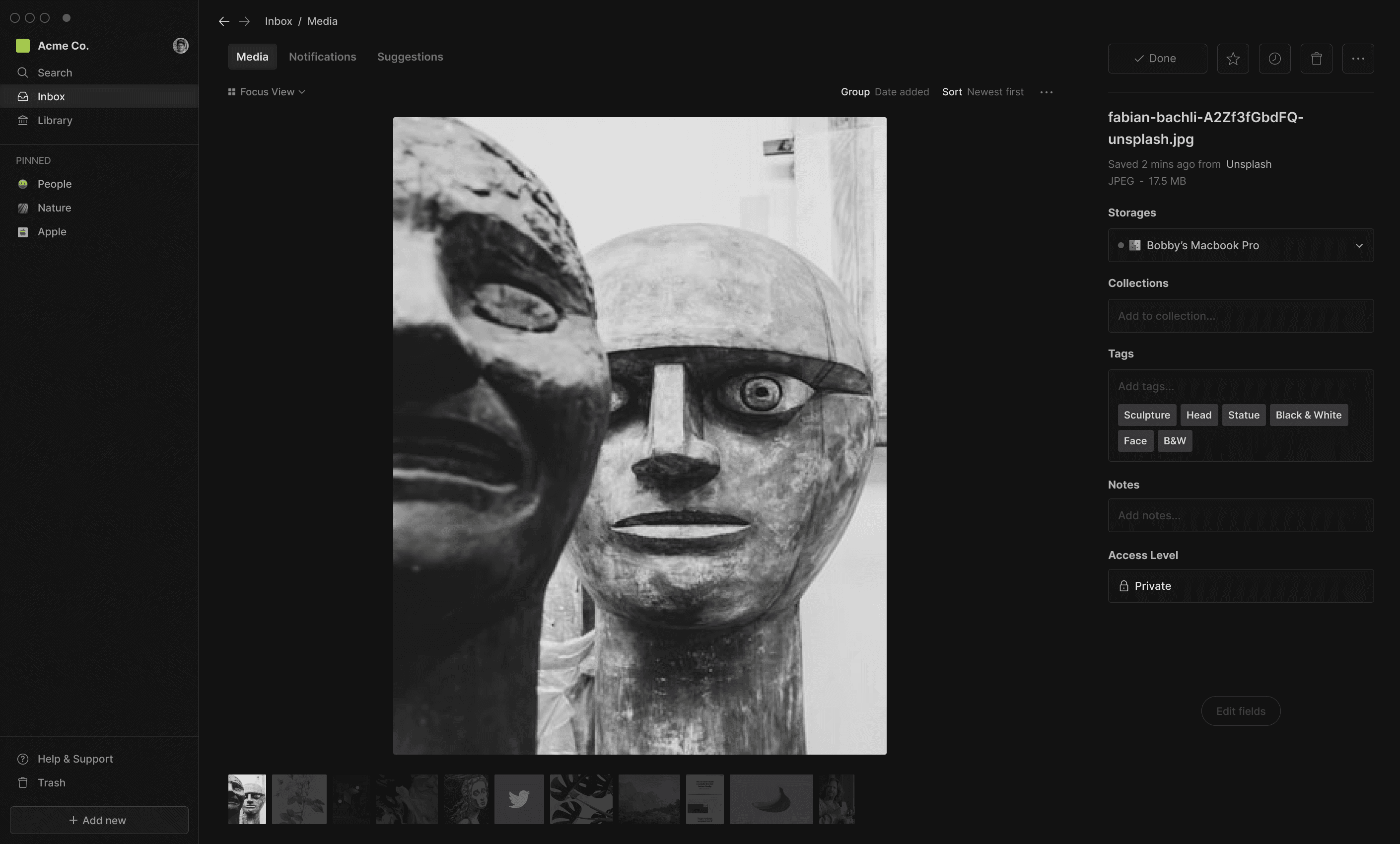
Inbox was a feature designed to help users organize media that they’d captured via a peripheral app (mobile app, browser extension, API integration etc.) while still remaining in creative flow.
With Inbox, all the media that you’ve imported or bookmarked across any touchpoint is funneled into a single feed which you can quickly process and triage when you have time (using a combination of automated and manual methods).
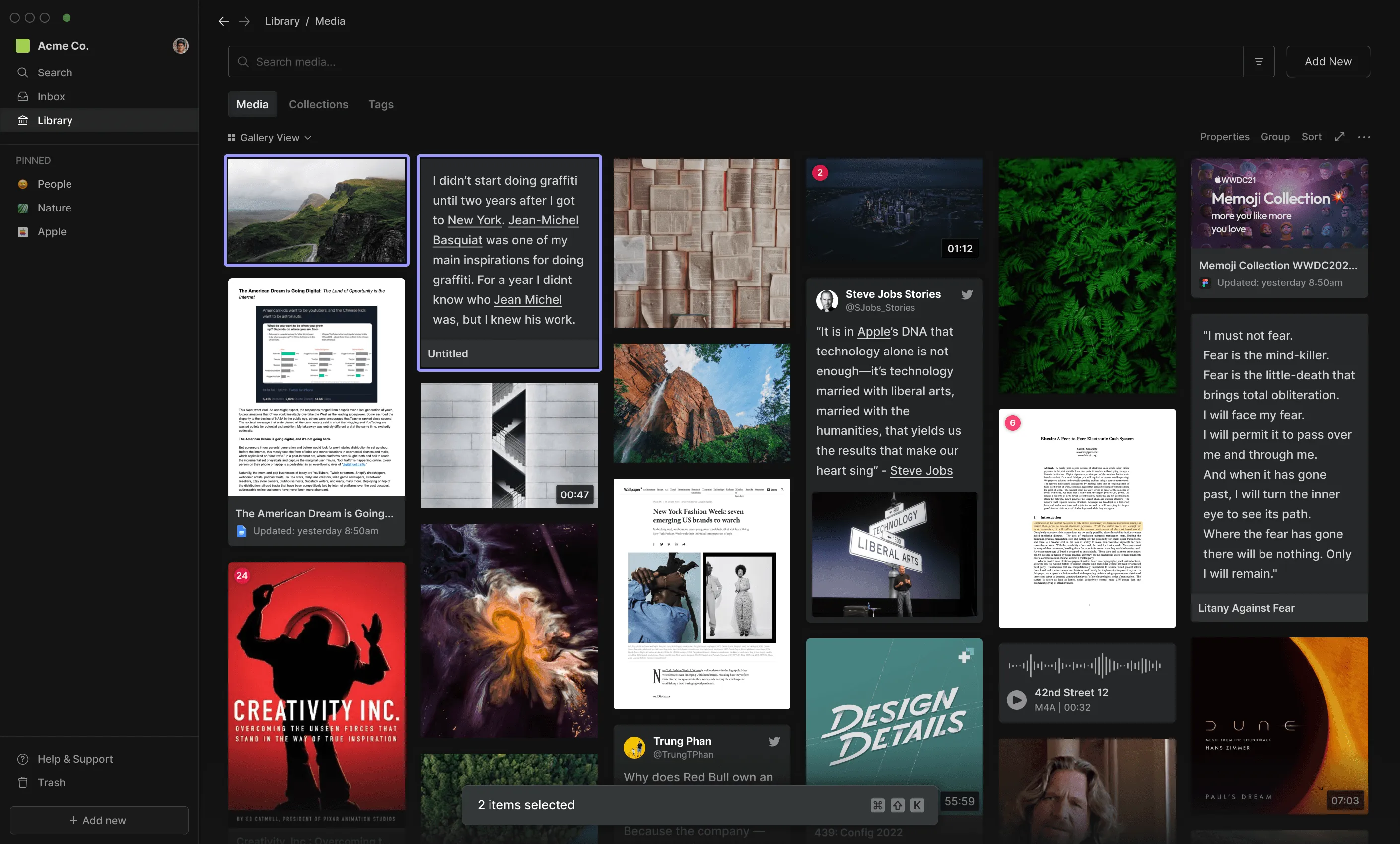
Media Library
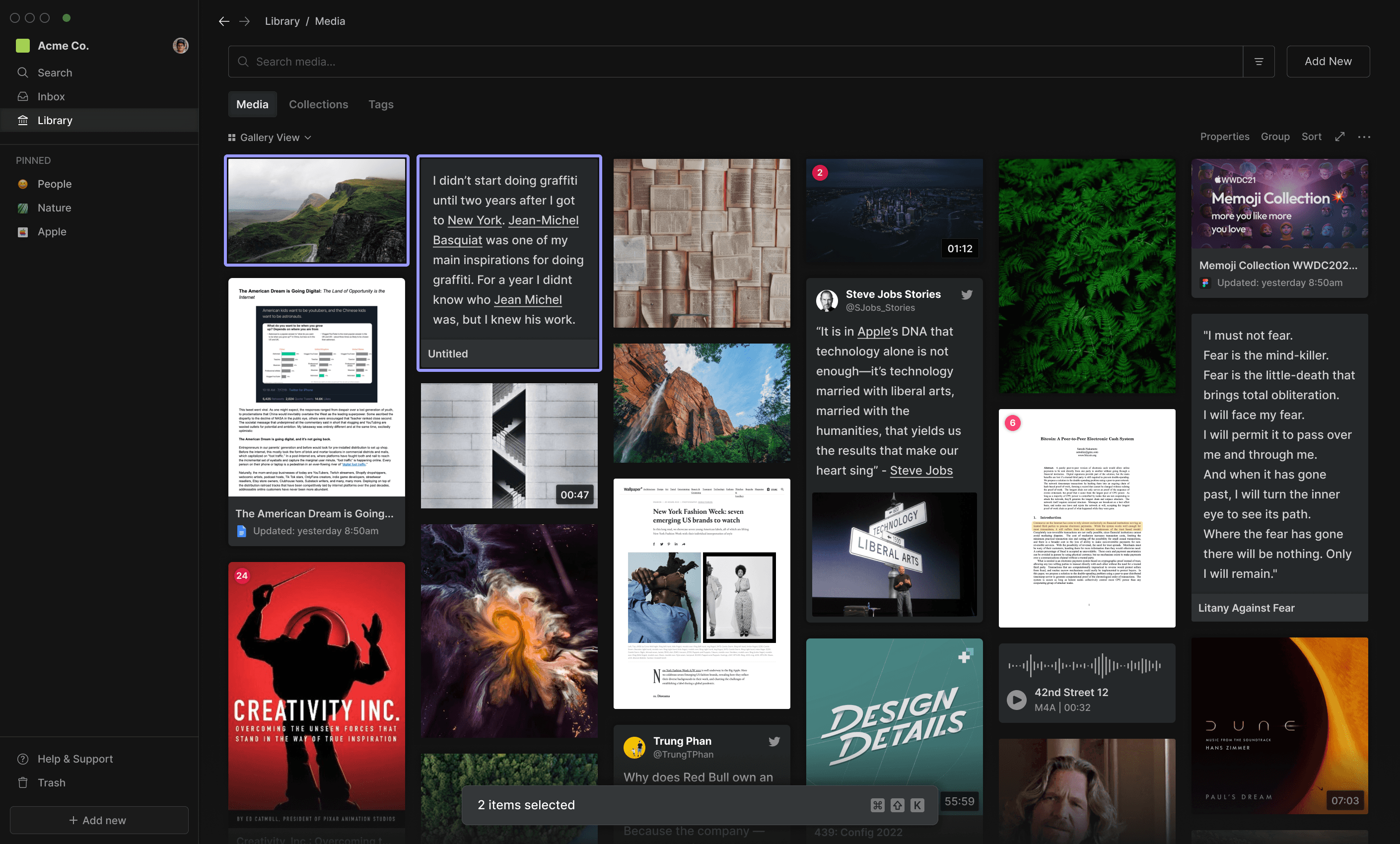
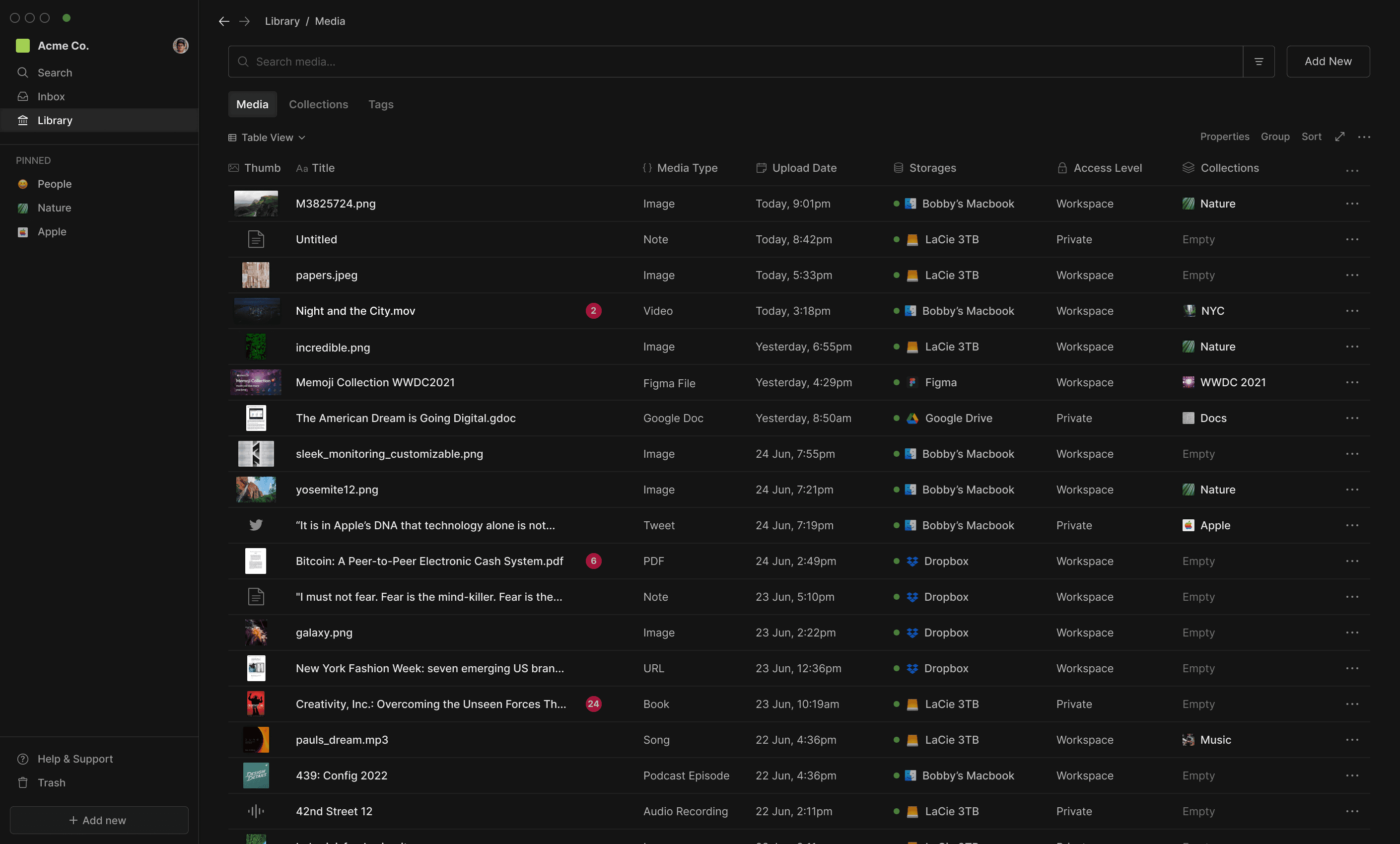
The Media Library was a unified view of all the media a user had added to their Hyperflow workspace, with end-user database features for organizing and visualizing media (eg Views and Layouts, Properties and Relationships, Sorting and Grouping etc.) as well as robust search and retrieval features (more below).
Quick Look
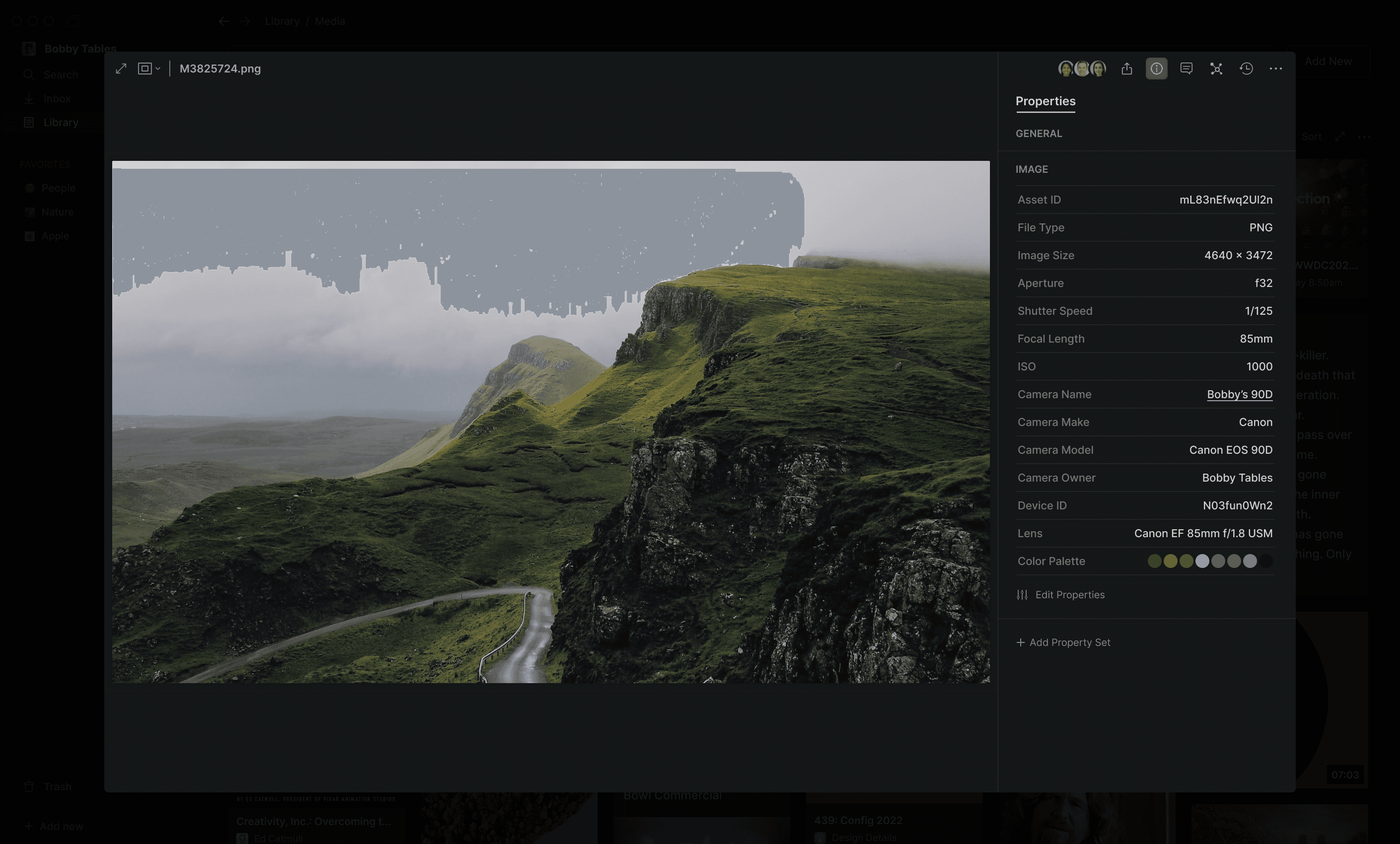
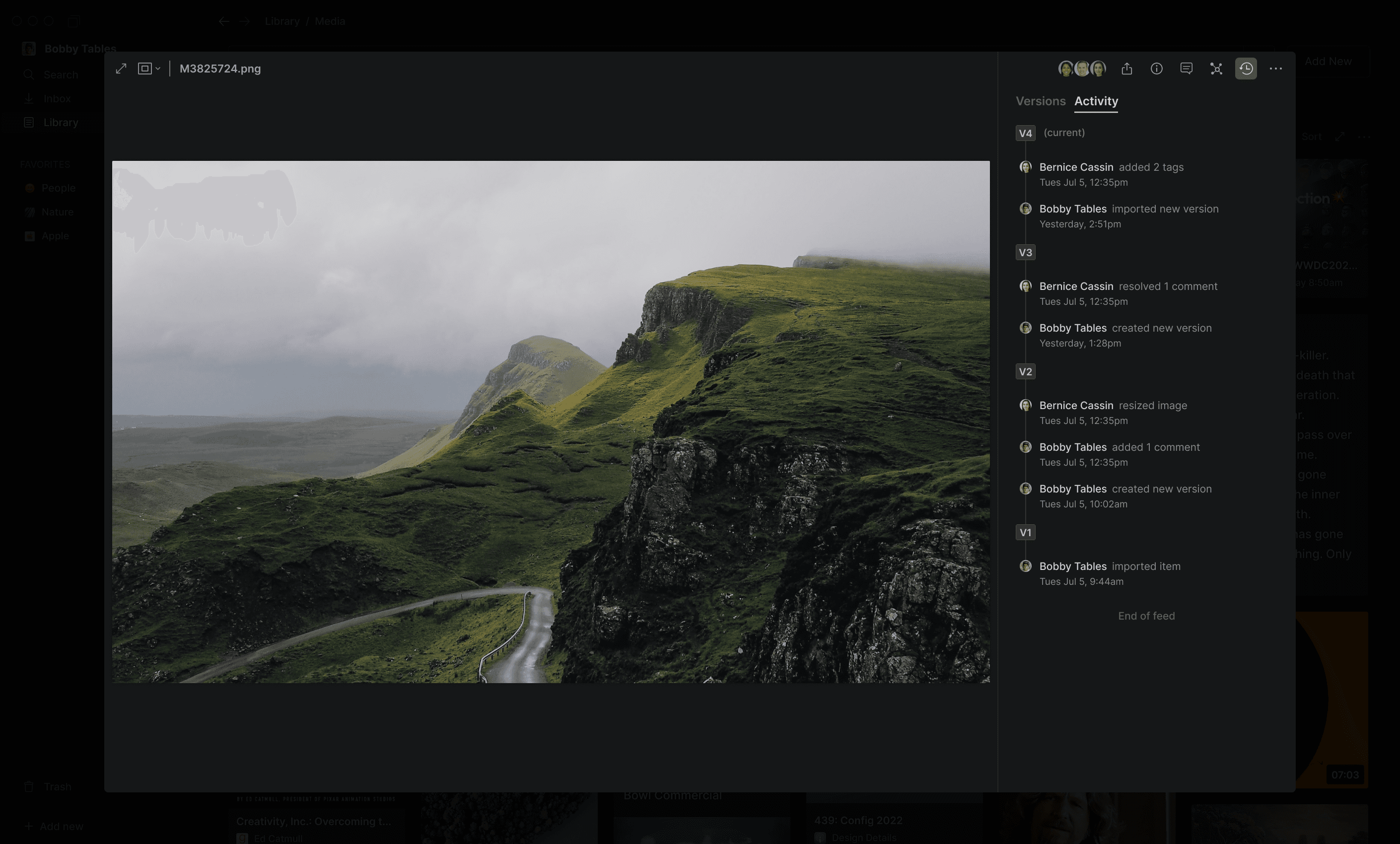
Quick Look was a modal window for quickly viewing (and interacting with) items in your Library (without having to navigate away from the current page).
By default, items open in full-width for a distraction-free view of the content ...
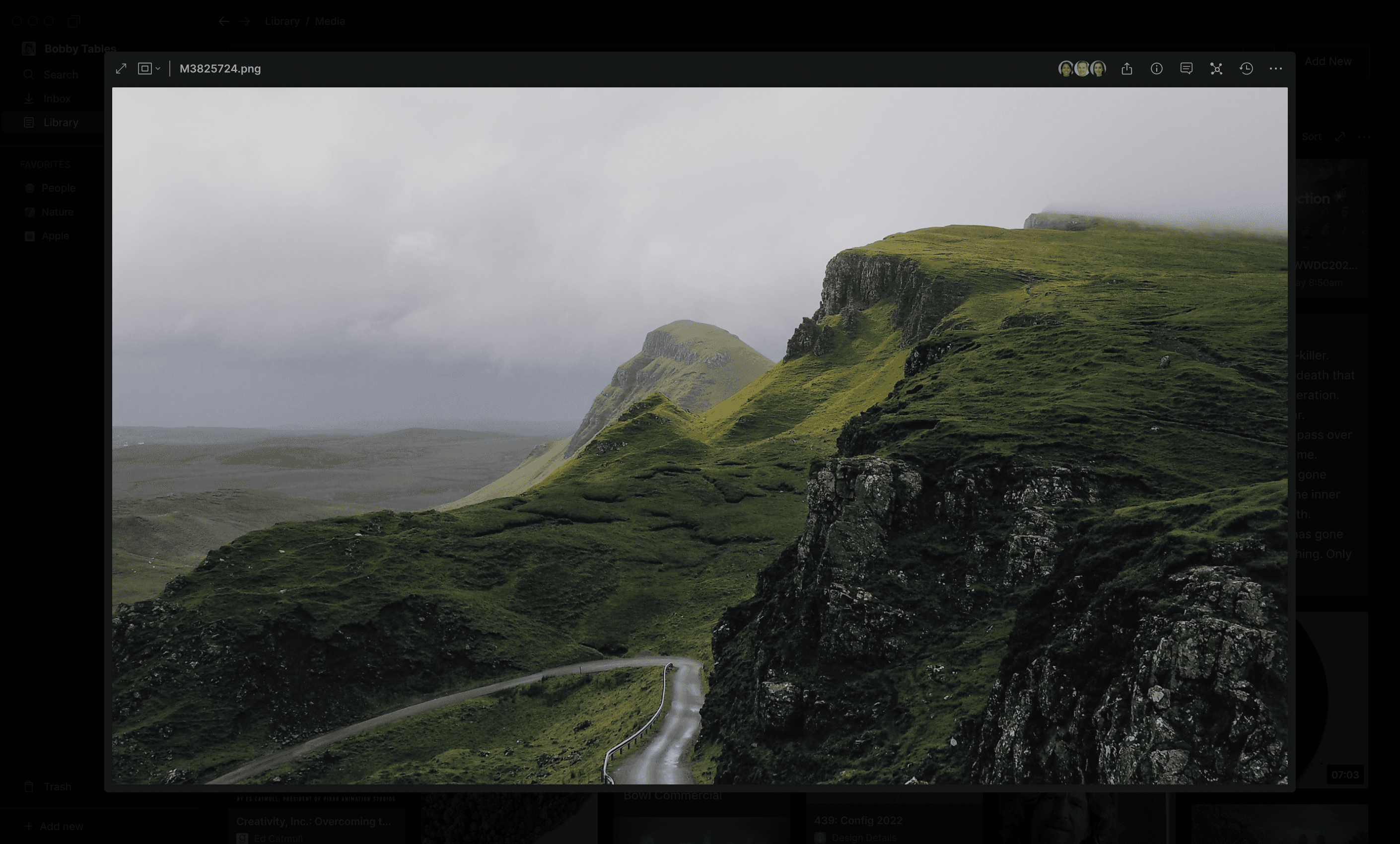
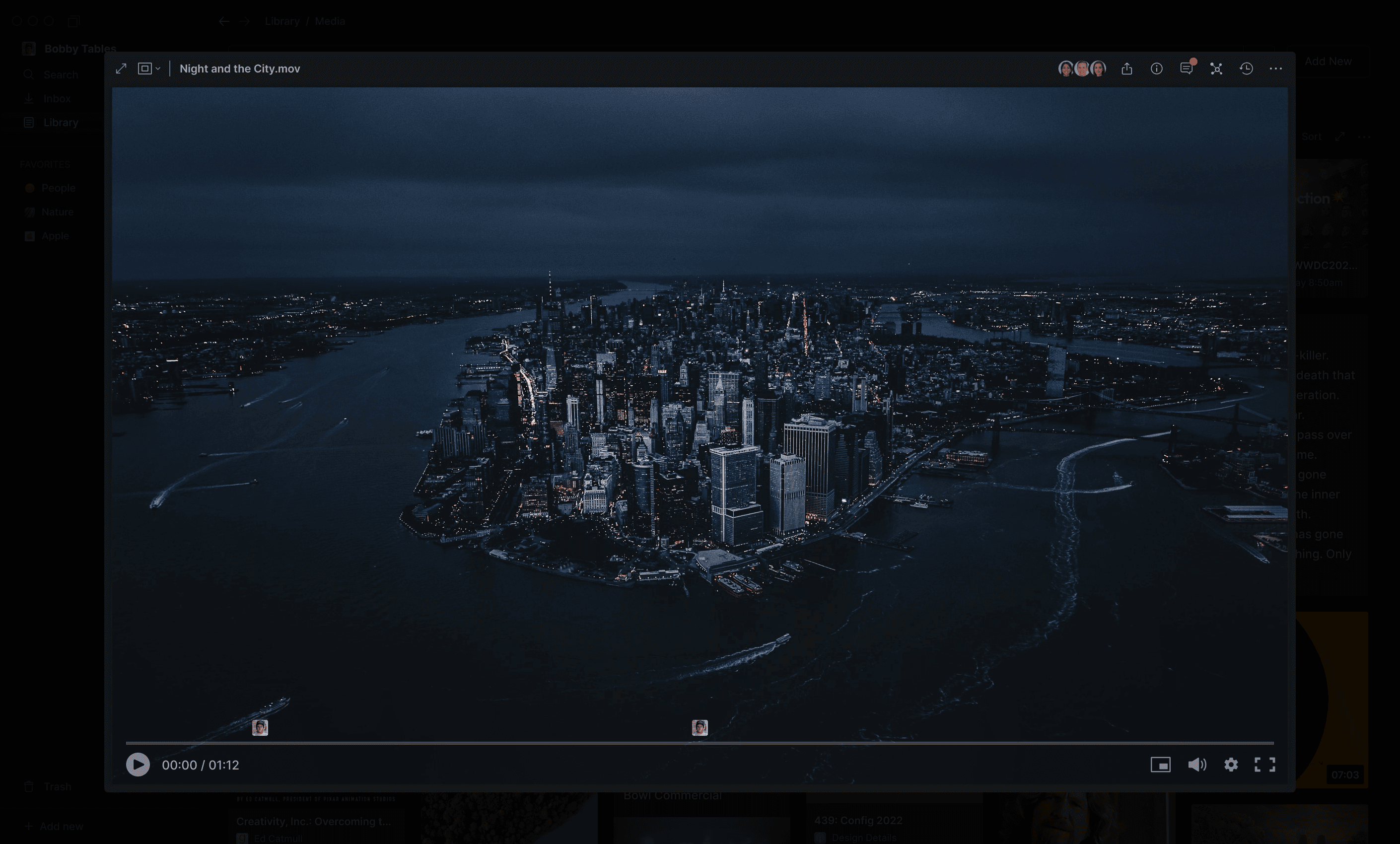
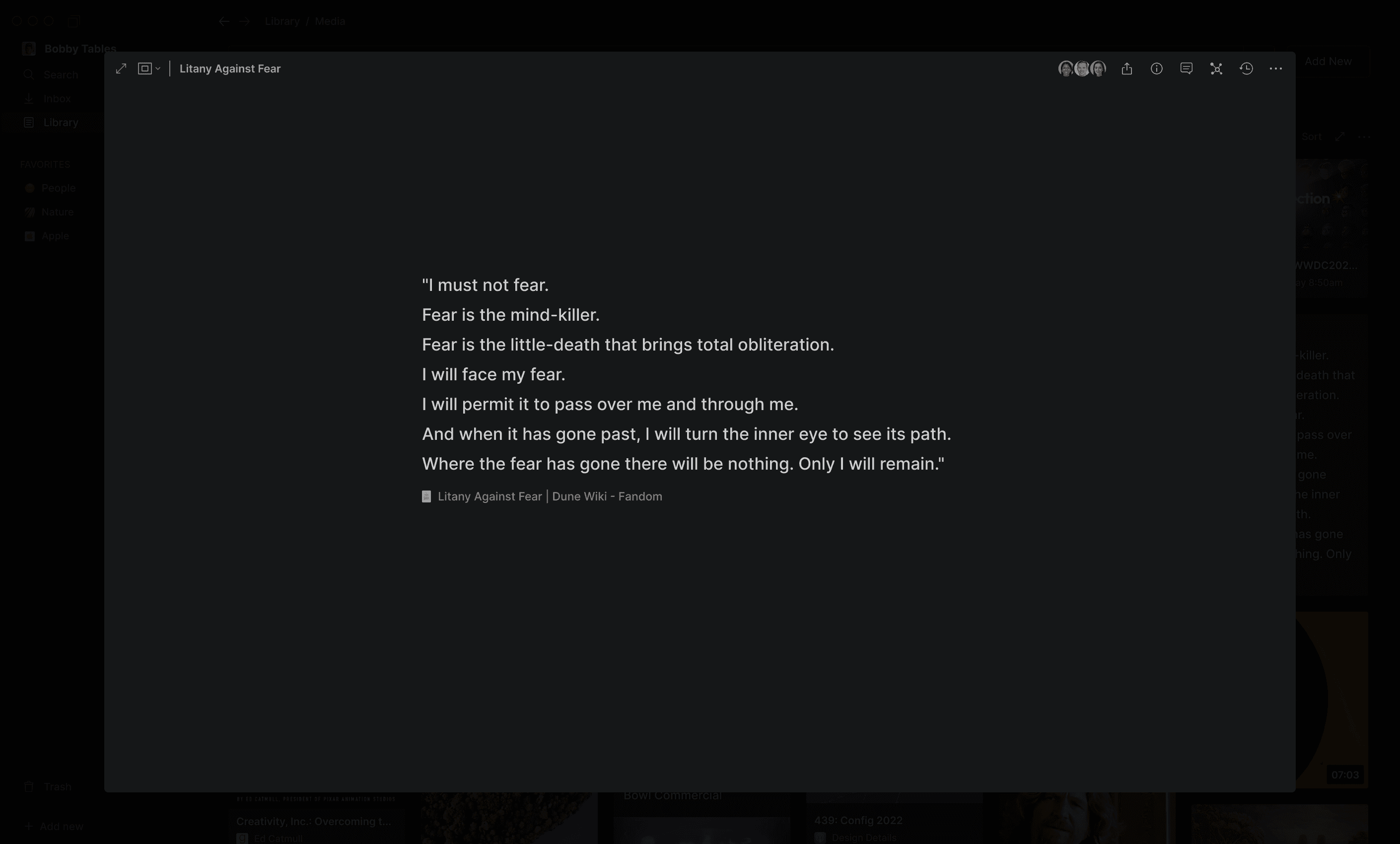
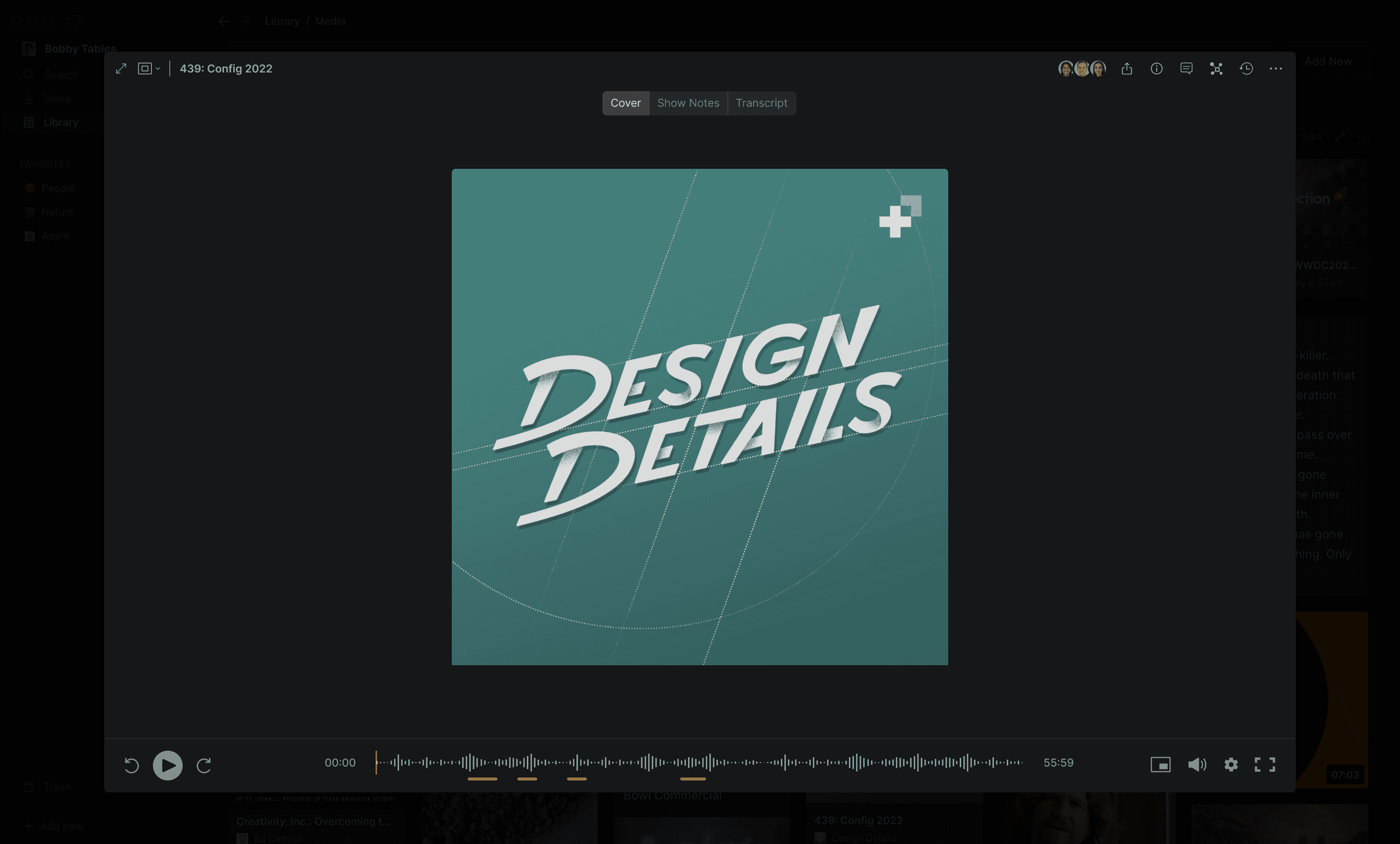
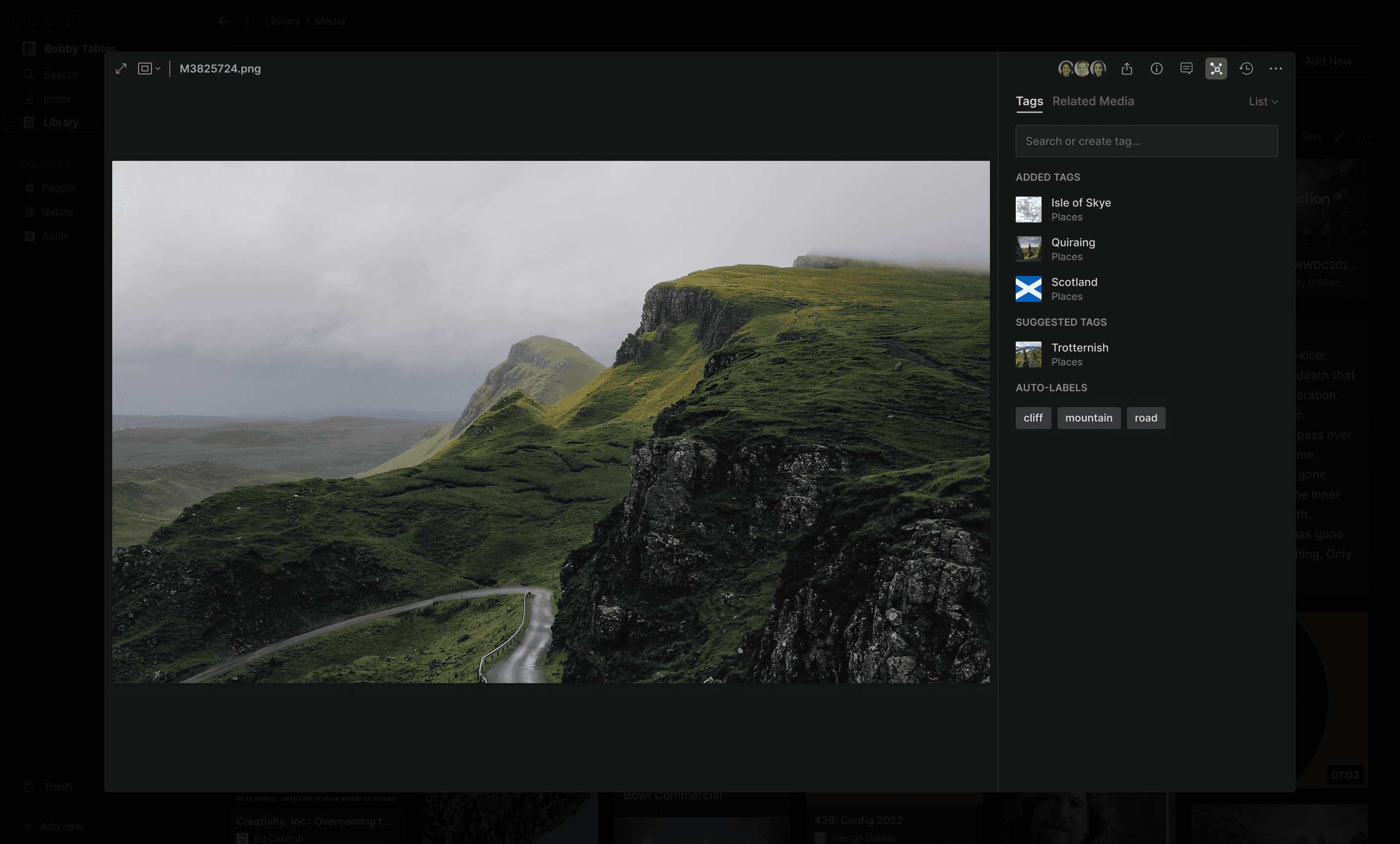
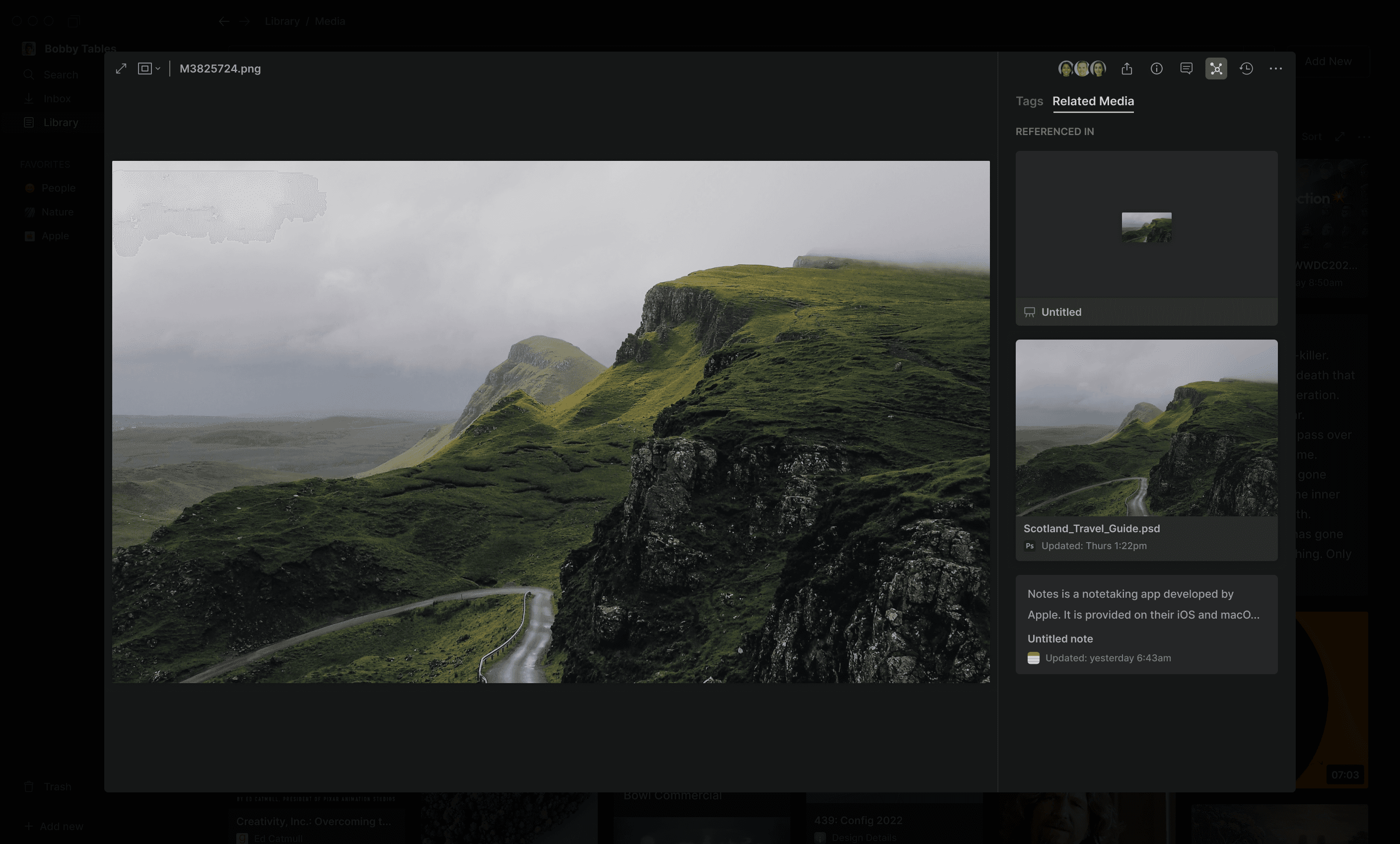
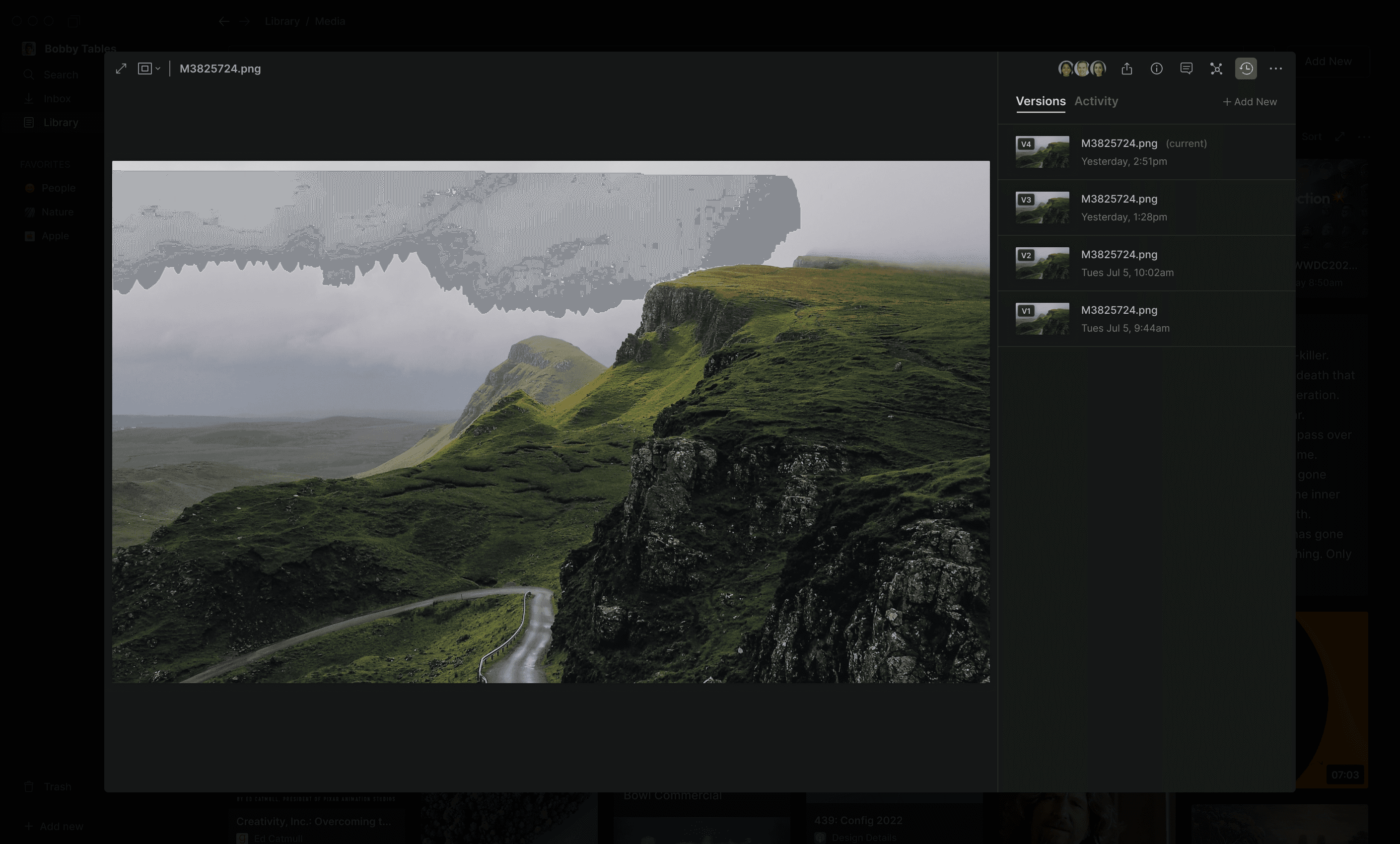
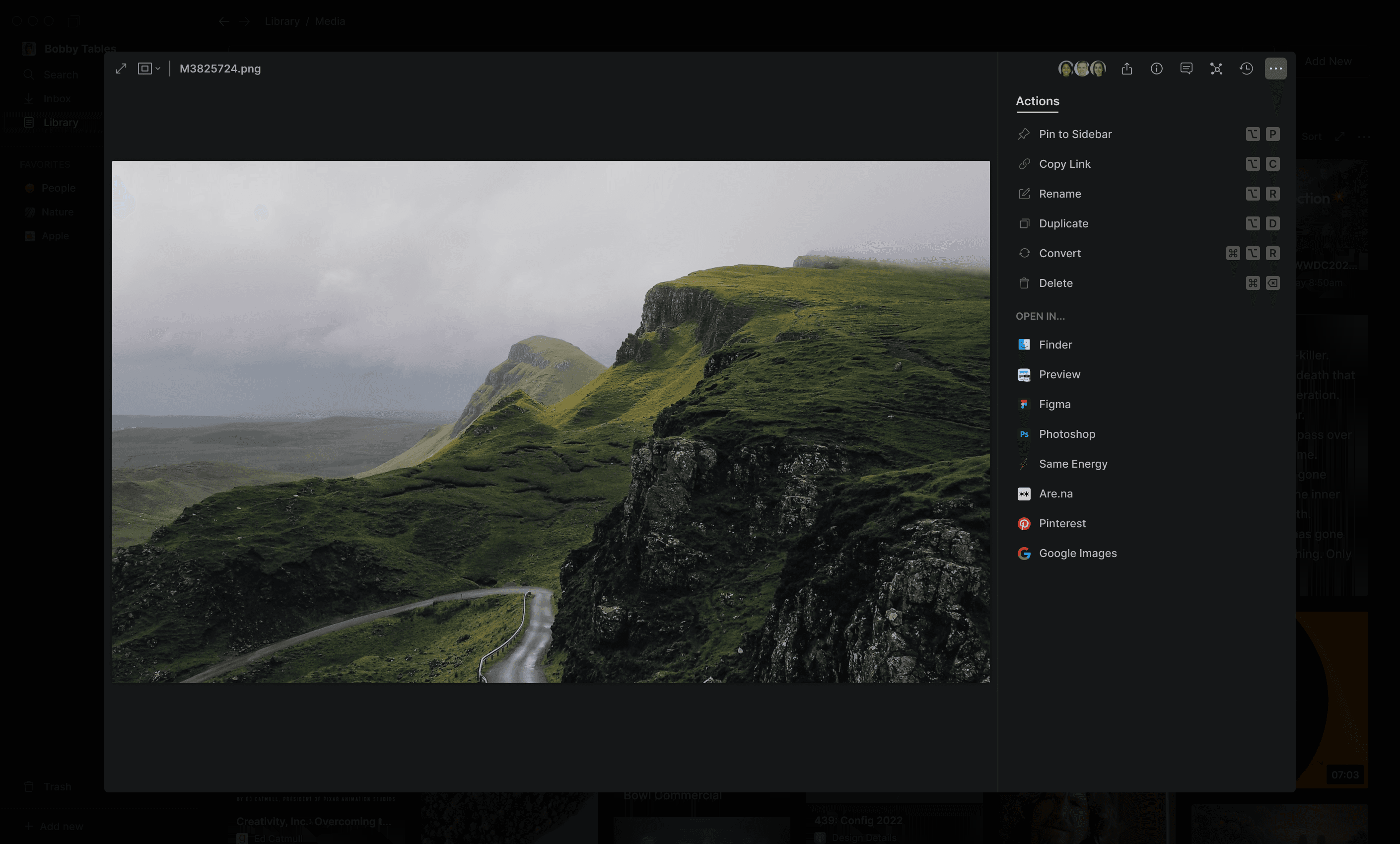
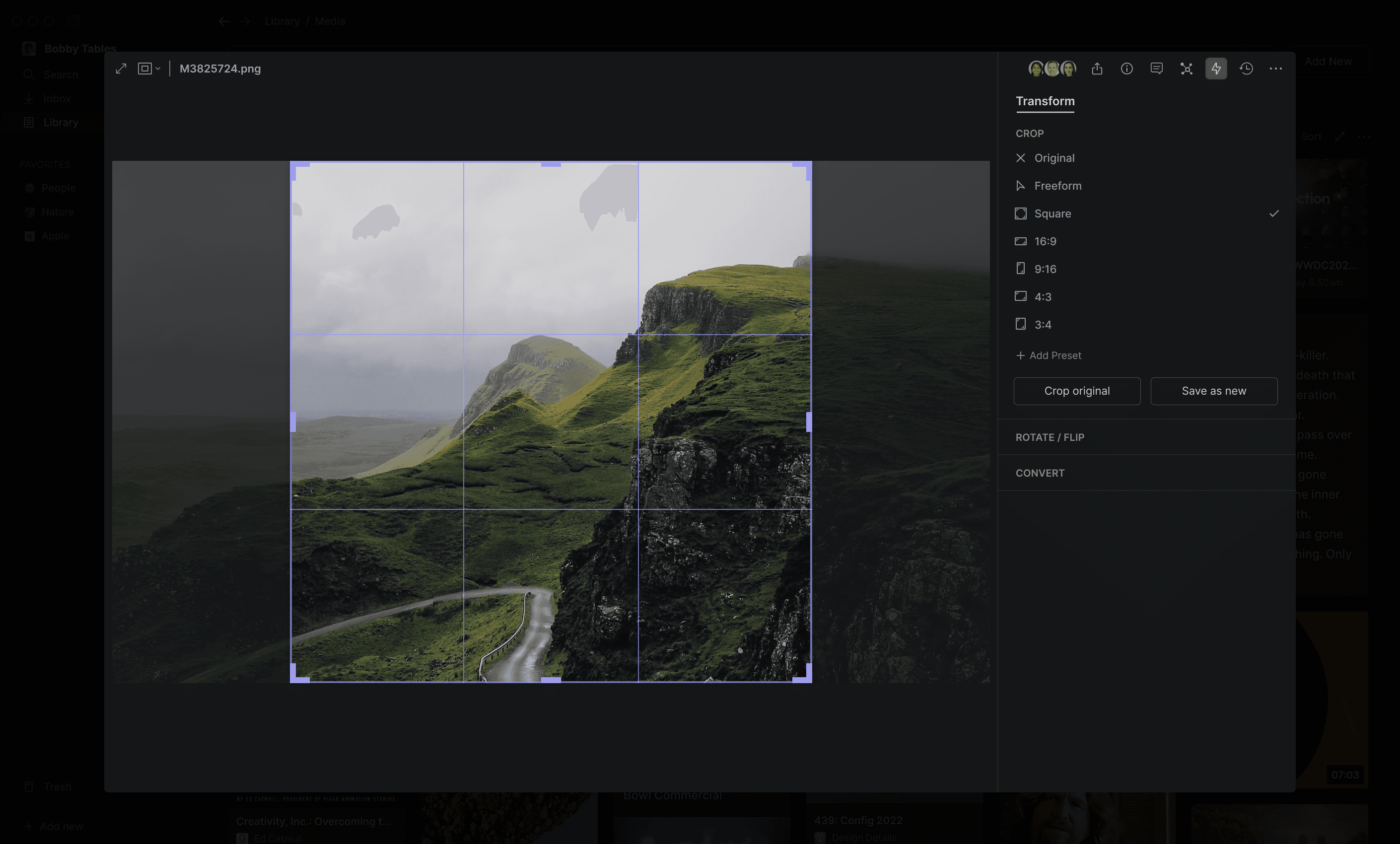
... and users can access relevant information about an item via the ‘Inspector’ sidebar (with tabs for things like Properties, Comments and Annotations, Tags and Related Media, Versions and Activity, Actions, and 'Transform').
Collections
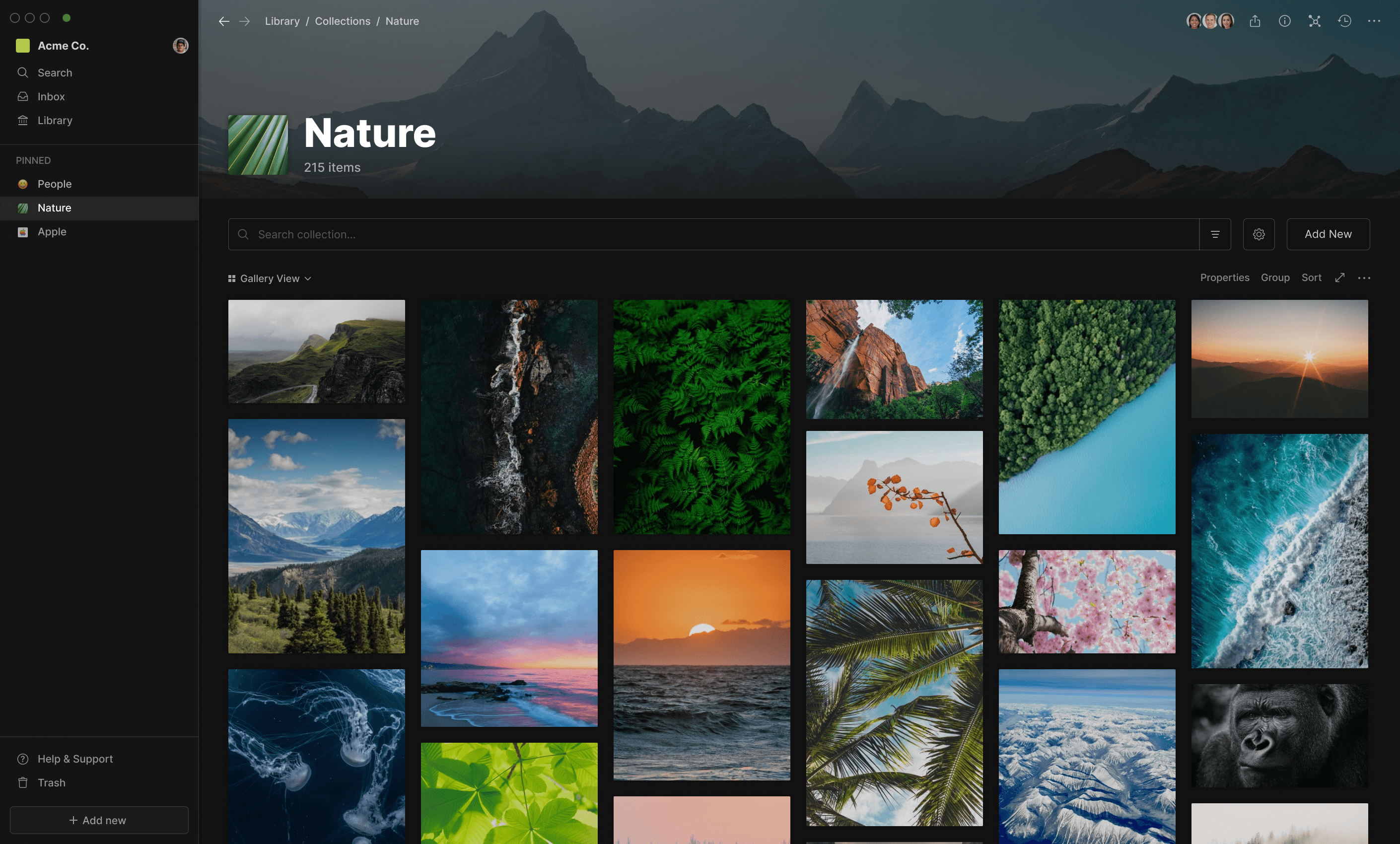
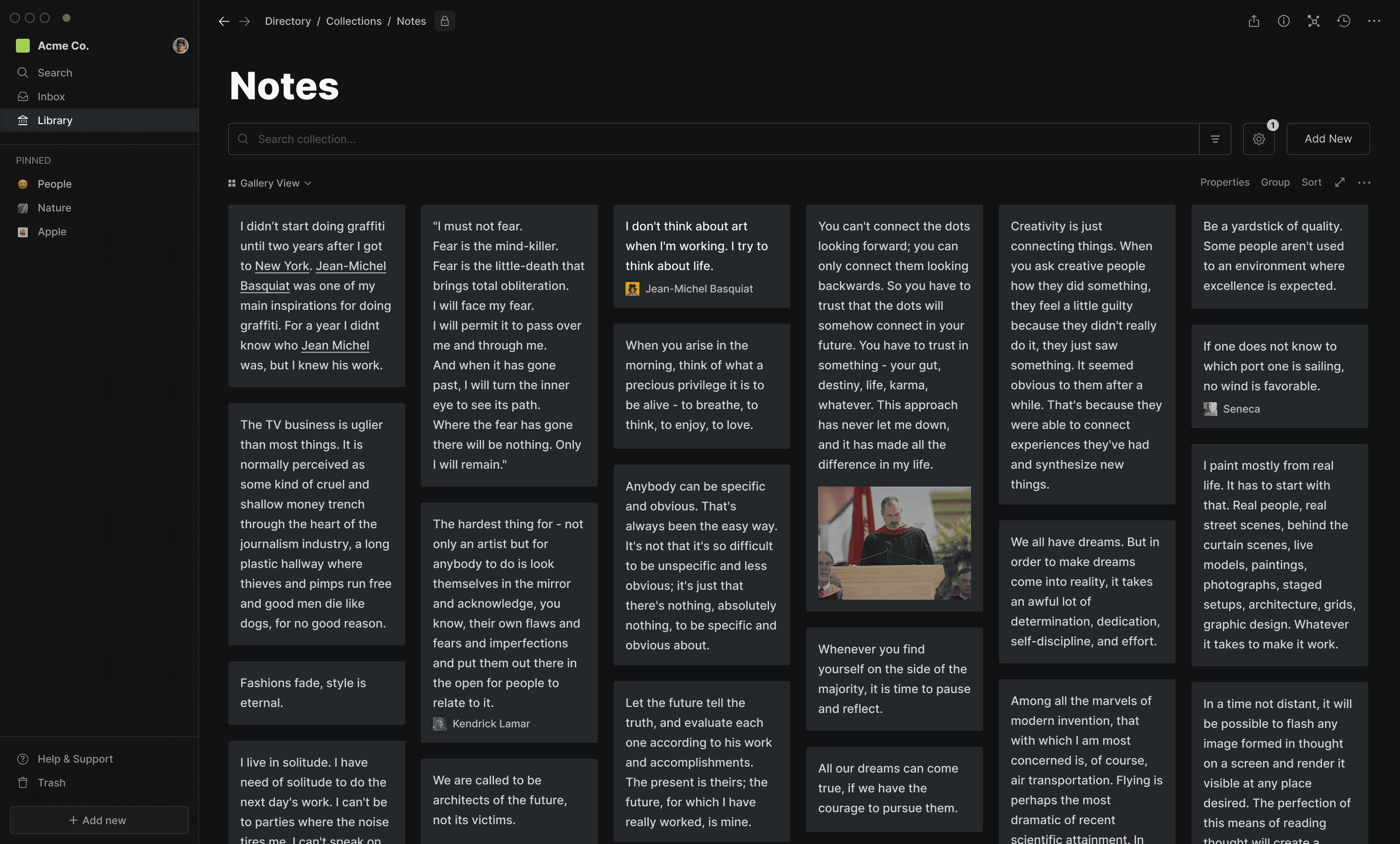
Collections were a way of grouping media in a more flexible way than traditional hierarchical folders, with added benefits like more granular permissions and access controls for team collaboration.
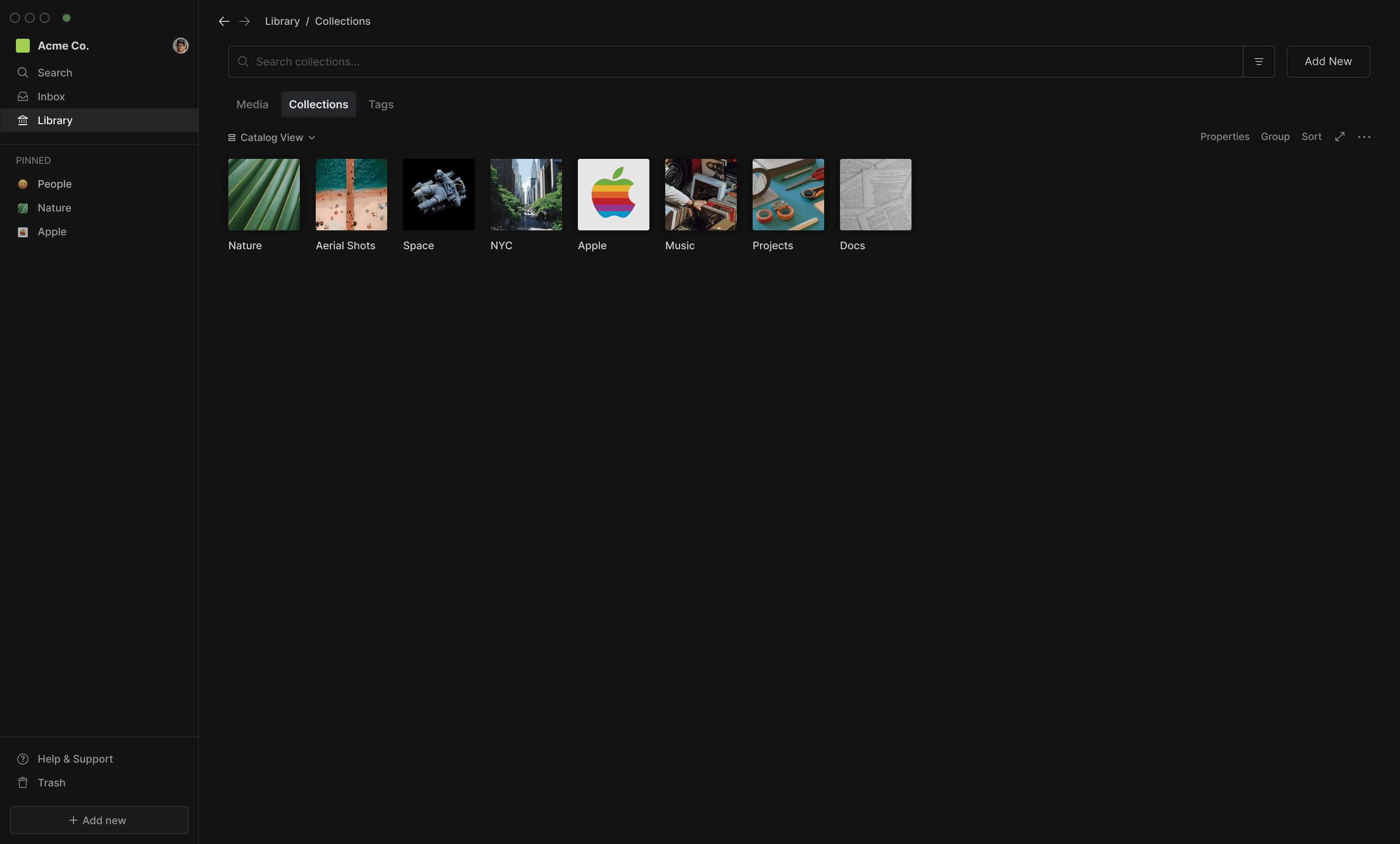
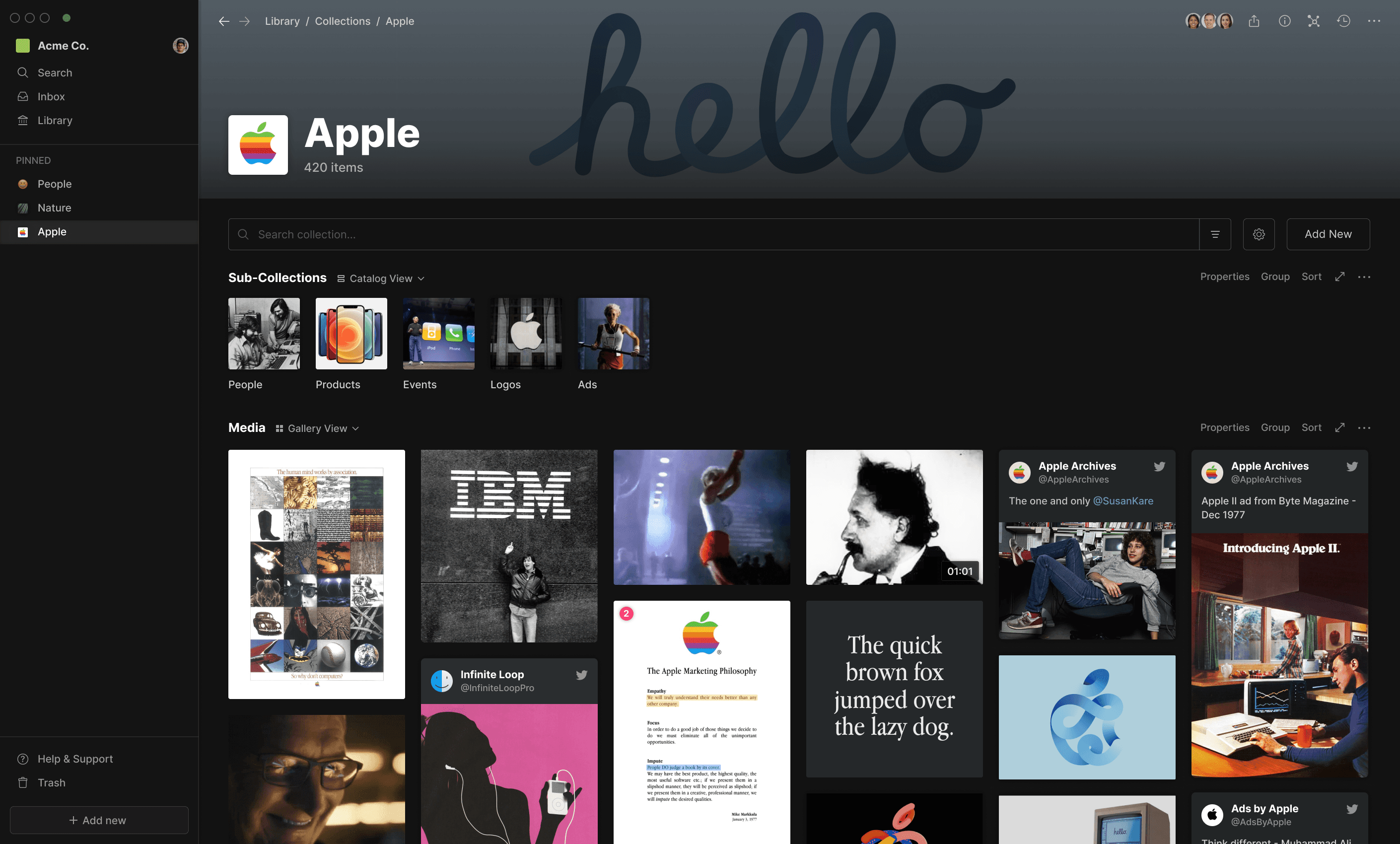
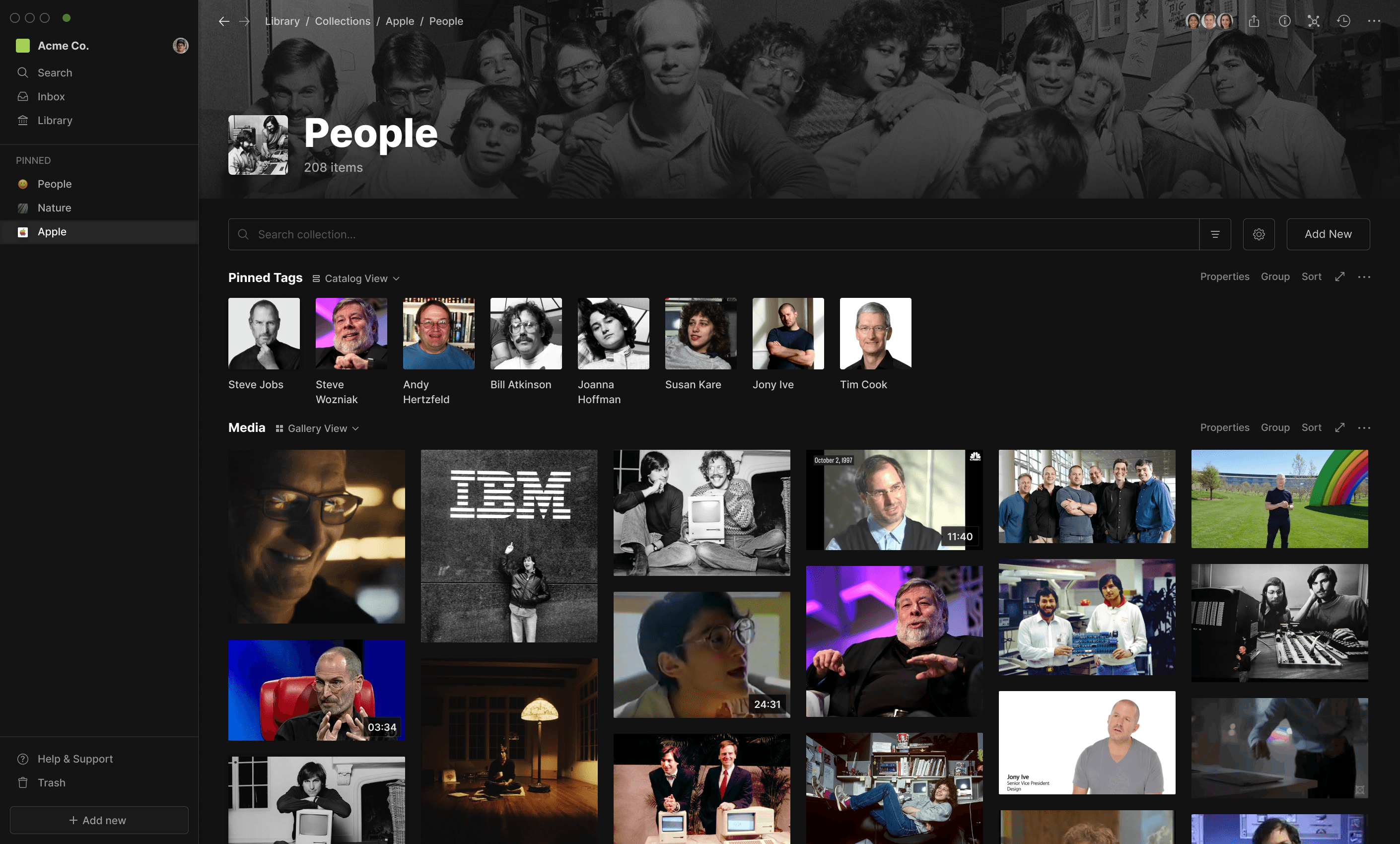
Collections could also contain nested Sub-Collections - a way of combining the benefits of top-down and bottom-up organization (as well as enabling support for users’ existing folder-based workflows).
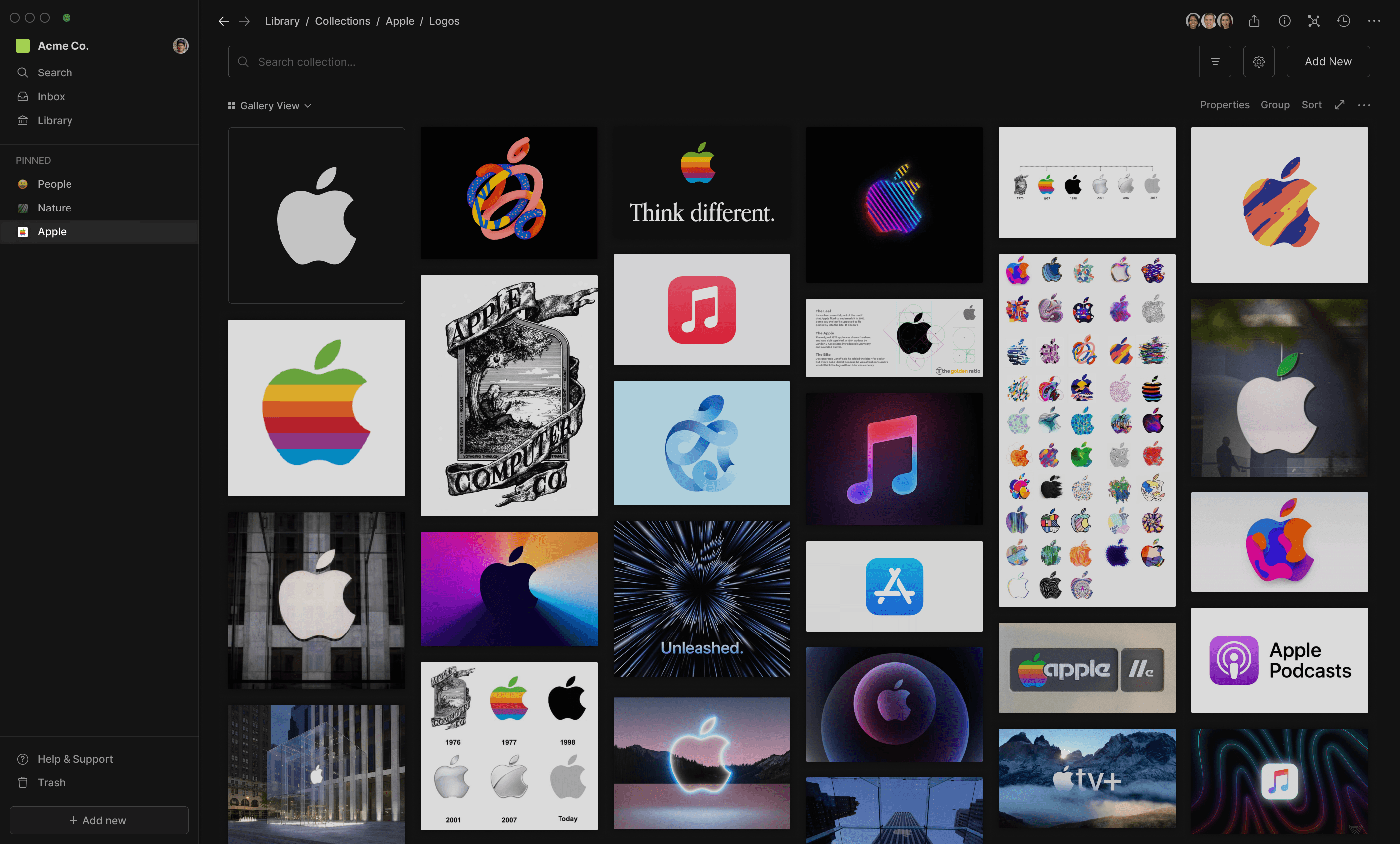
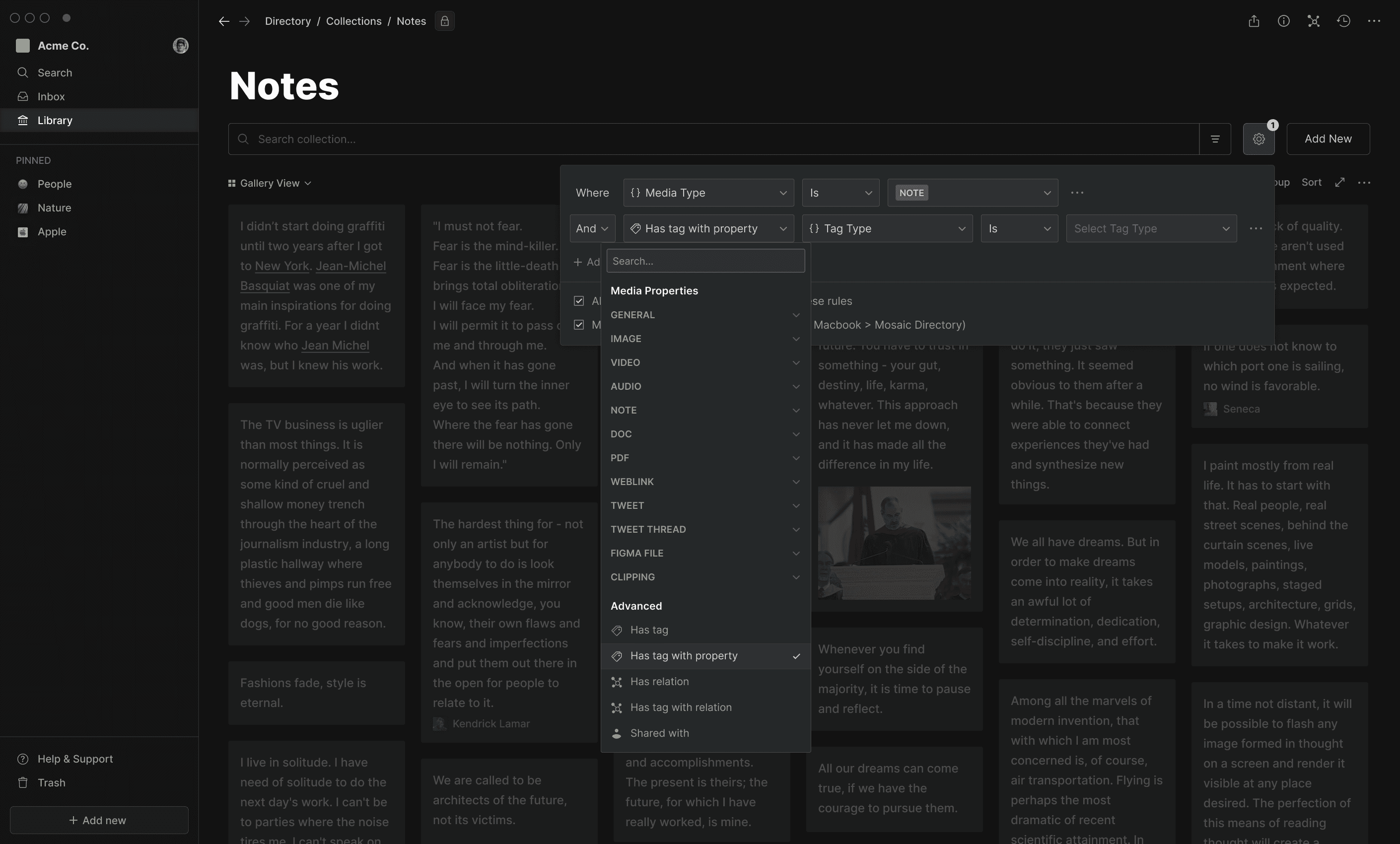
Lastly, Smart Collections were a way of semi-automatically adding items to Collections via user-defined rules.
Tags / Knowledge Management
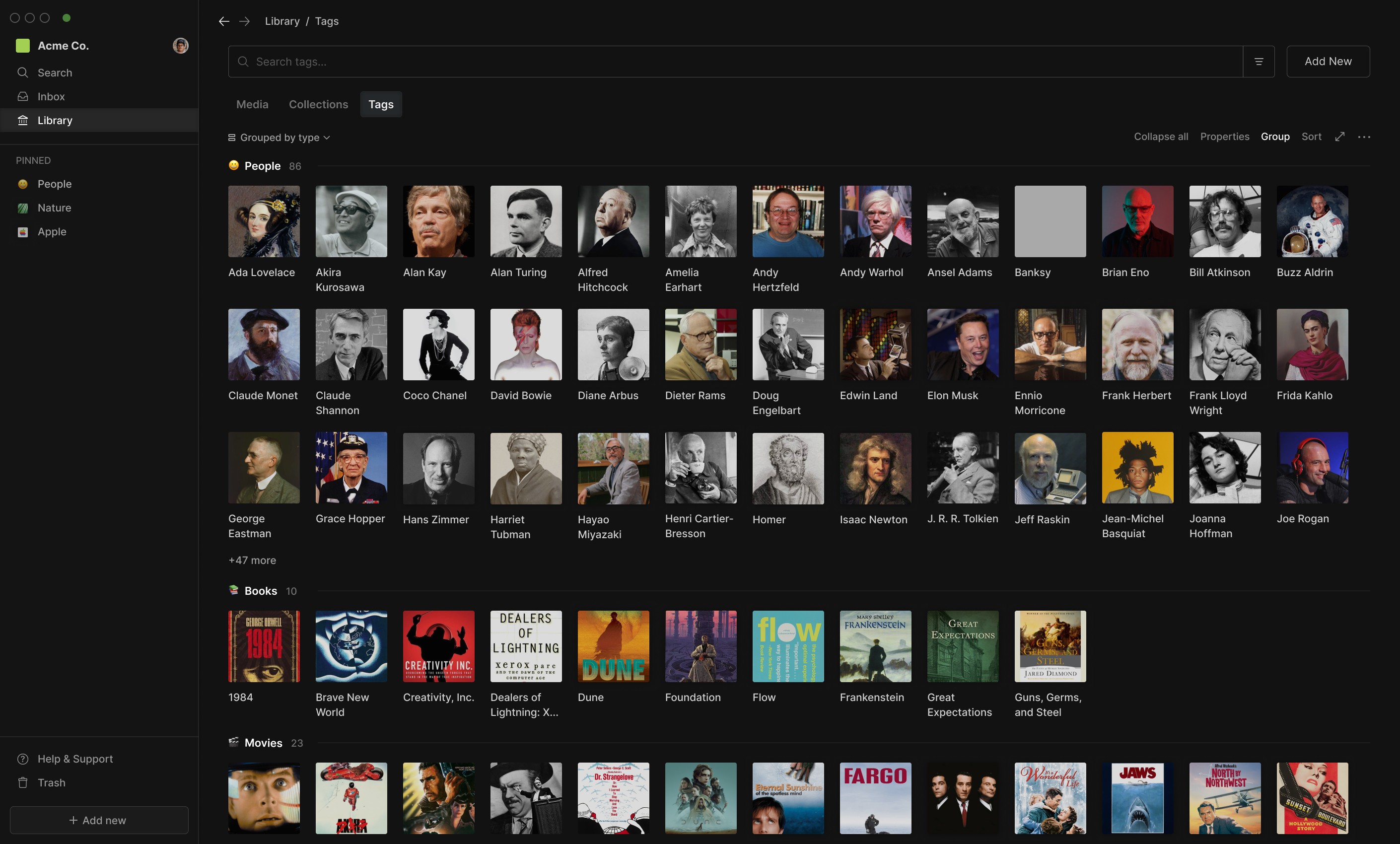
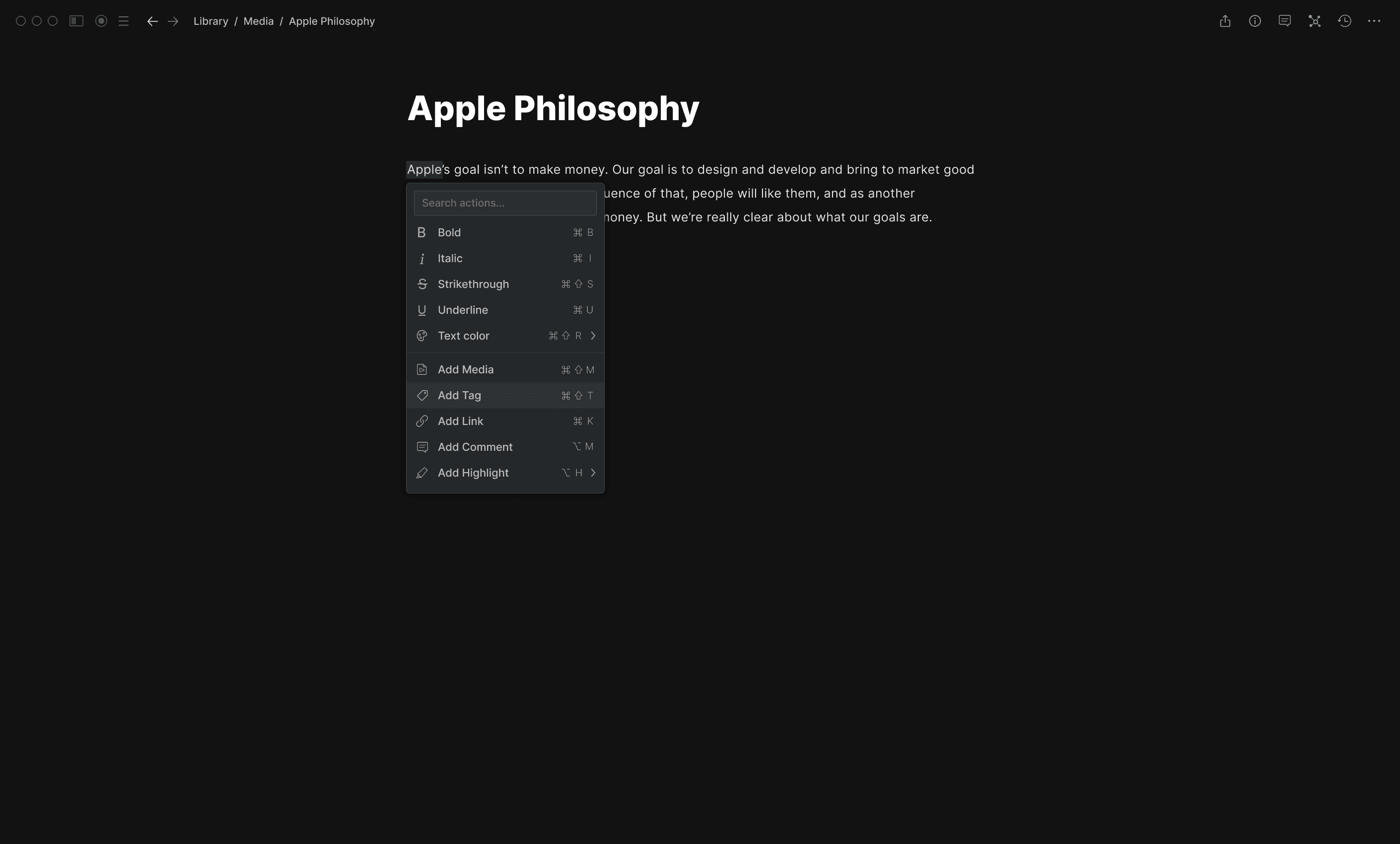
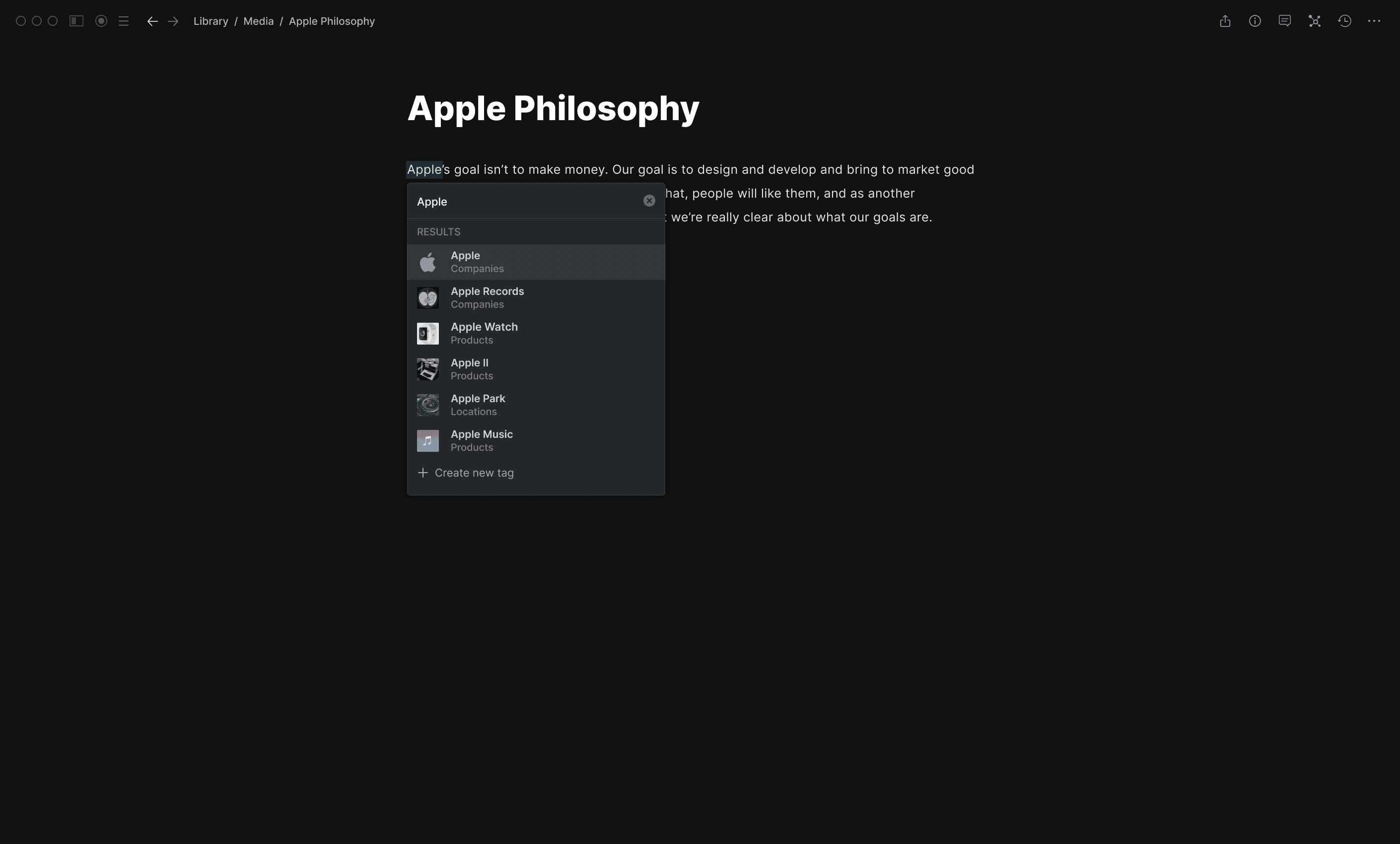
In addition to Collections, Tags were another way of organizing media and related information, as well as powering various search and retrieval workflows.
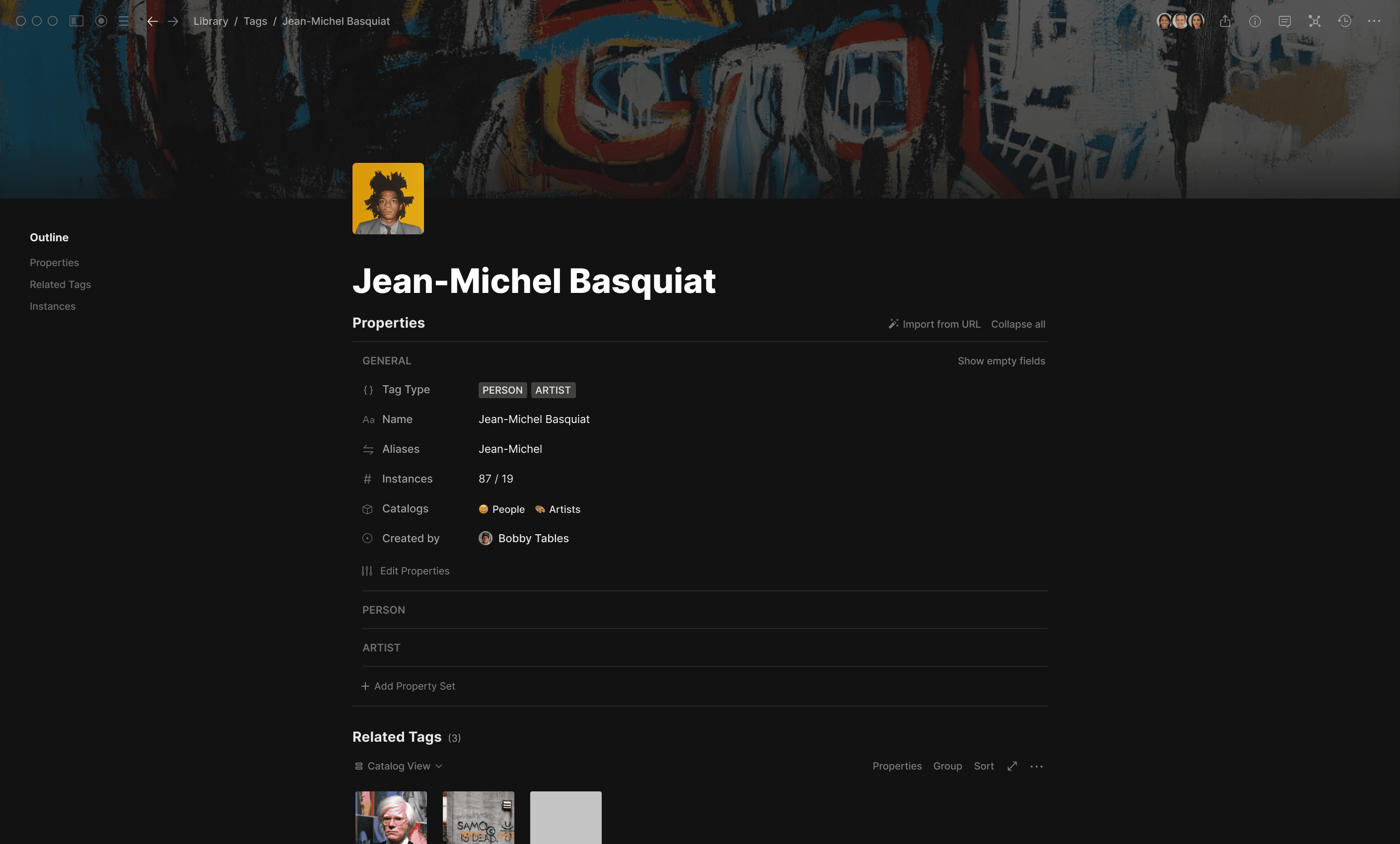
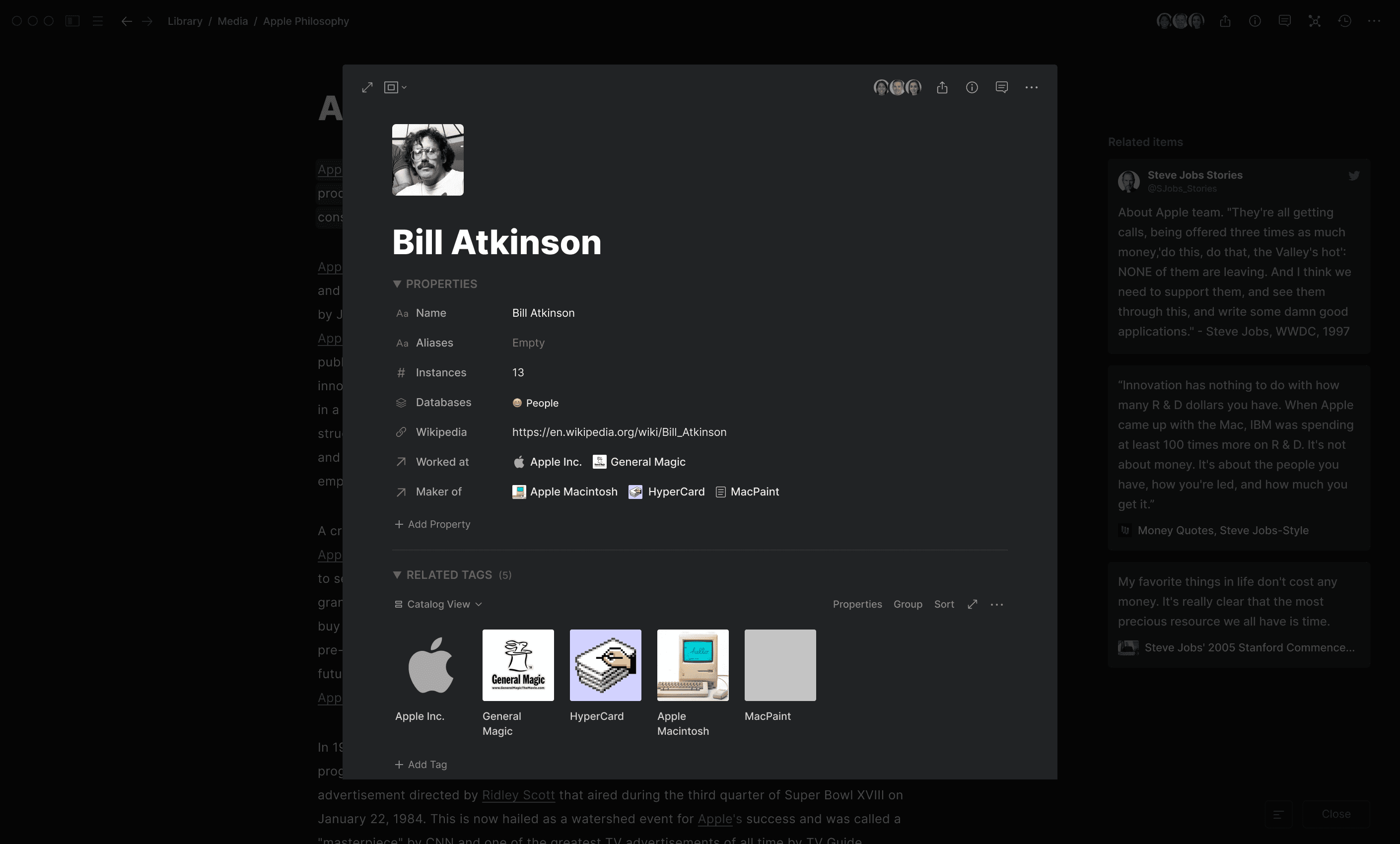
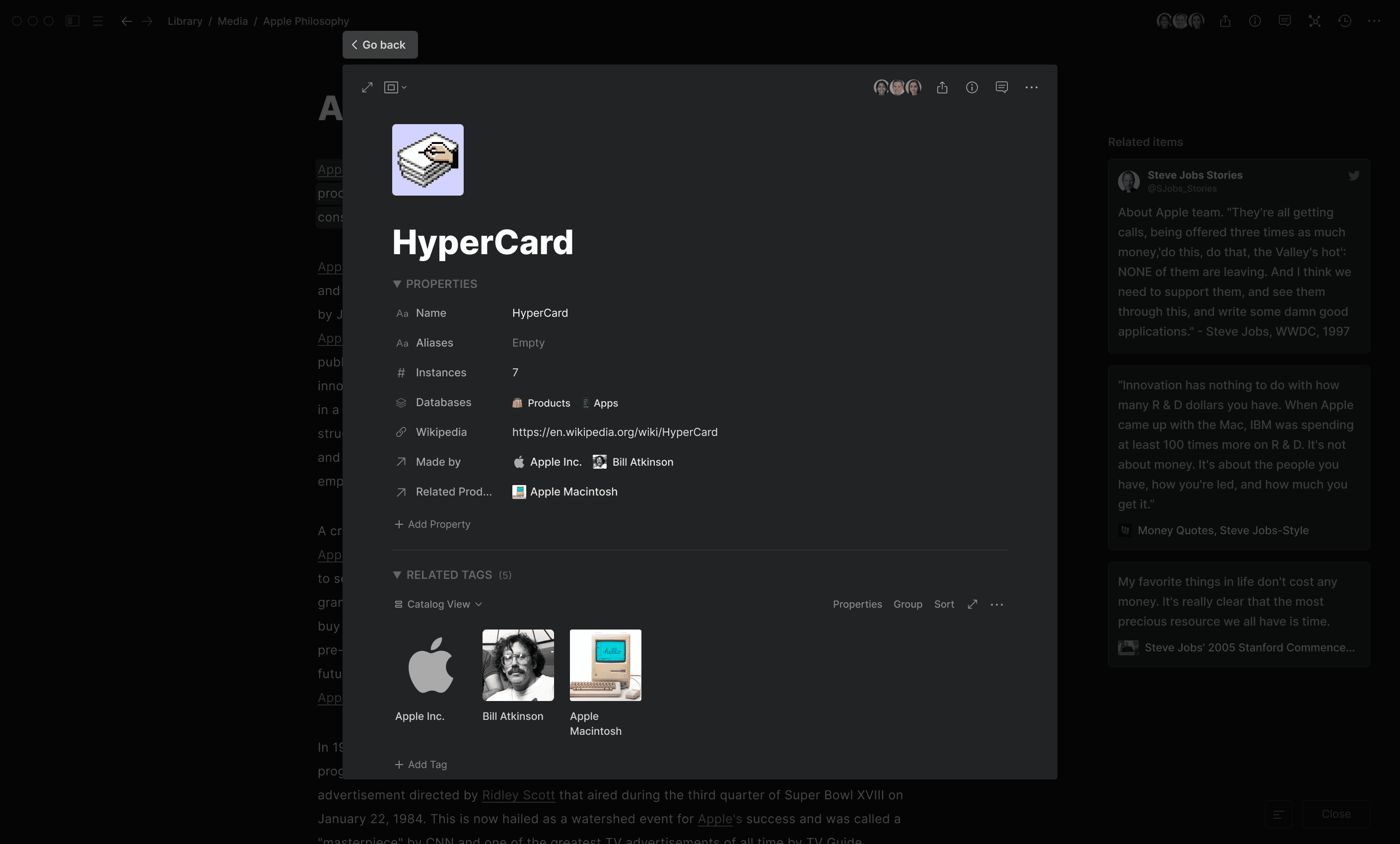
Incorporating concepts from the PKM/tools for thought world, Tags were type-based and could contain their own properties and relationships - essentially allowing users to build their own ‘media knowledge graph’ by interlinking media assets with structured data (unlike the standard ‘flat’ tags found in most apps).
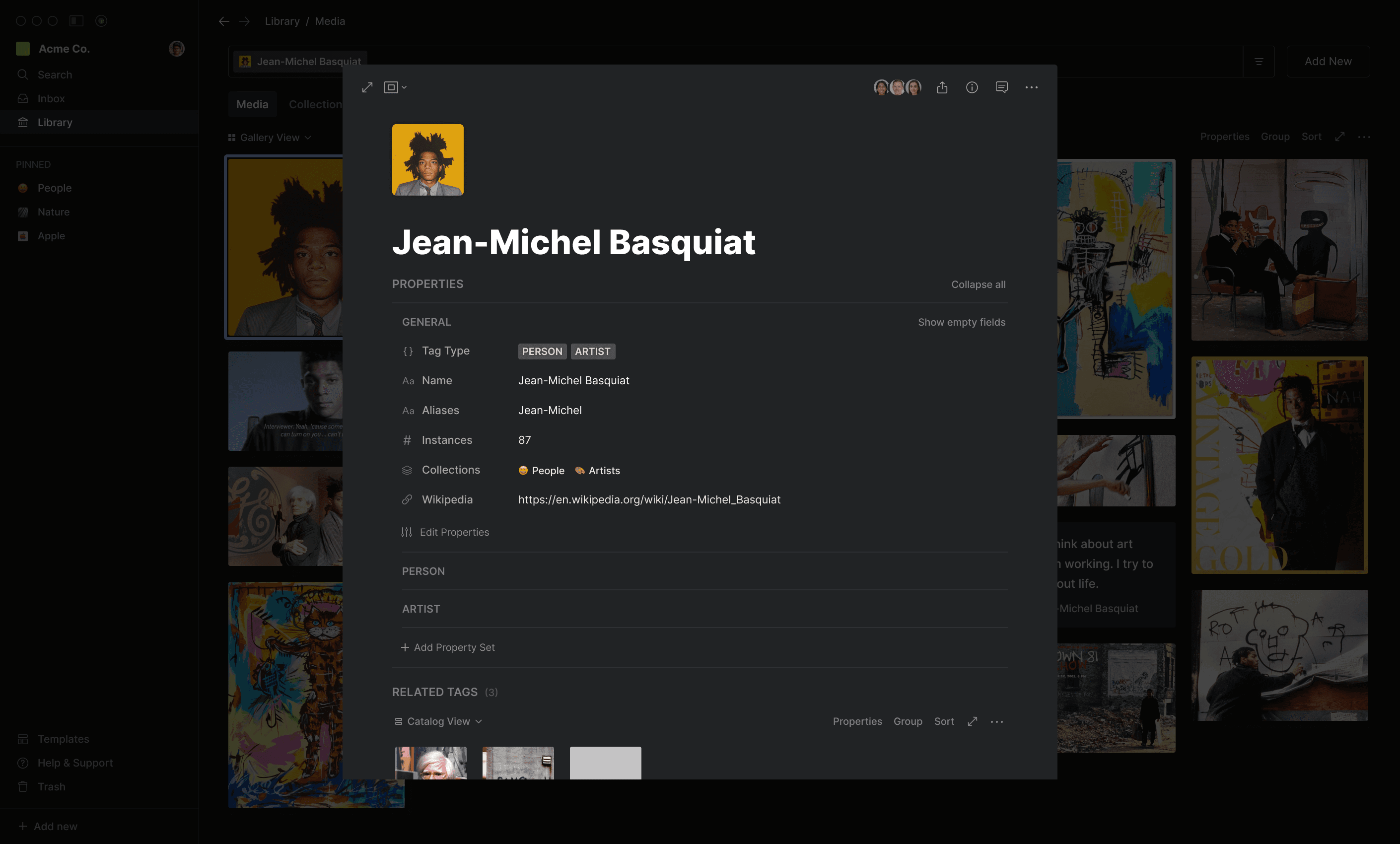
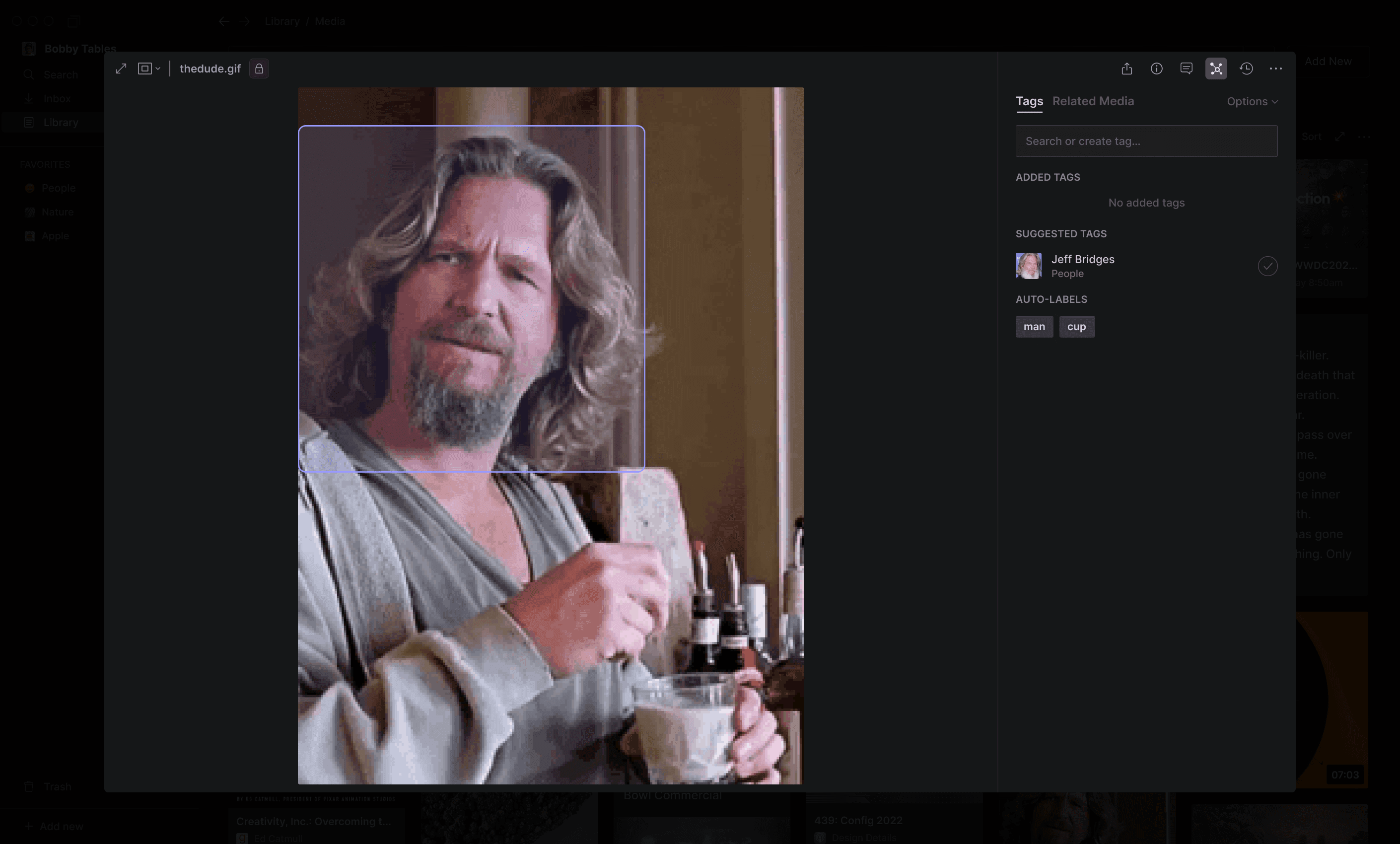
We also prototyped a bunch of workflows for applying tags to media, such as Suggested Tags (using AI-based auto-classification) …
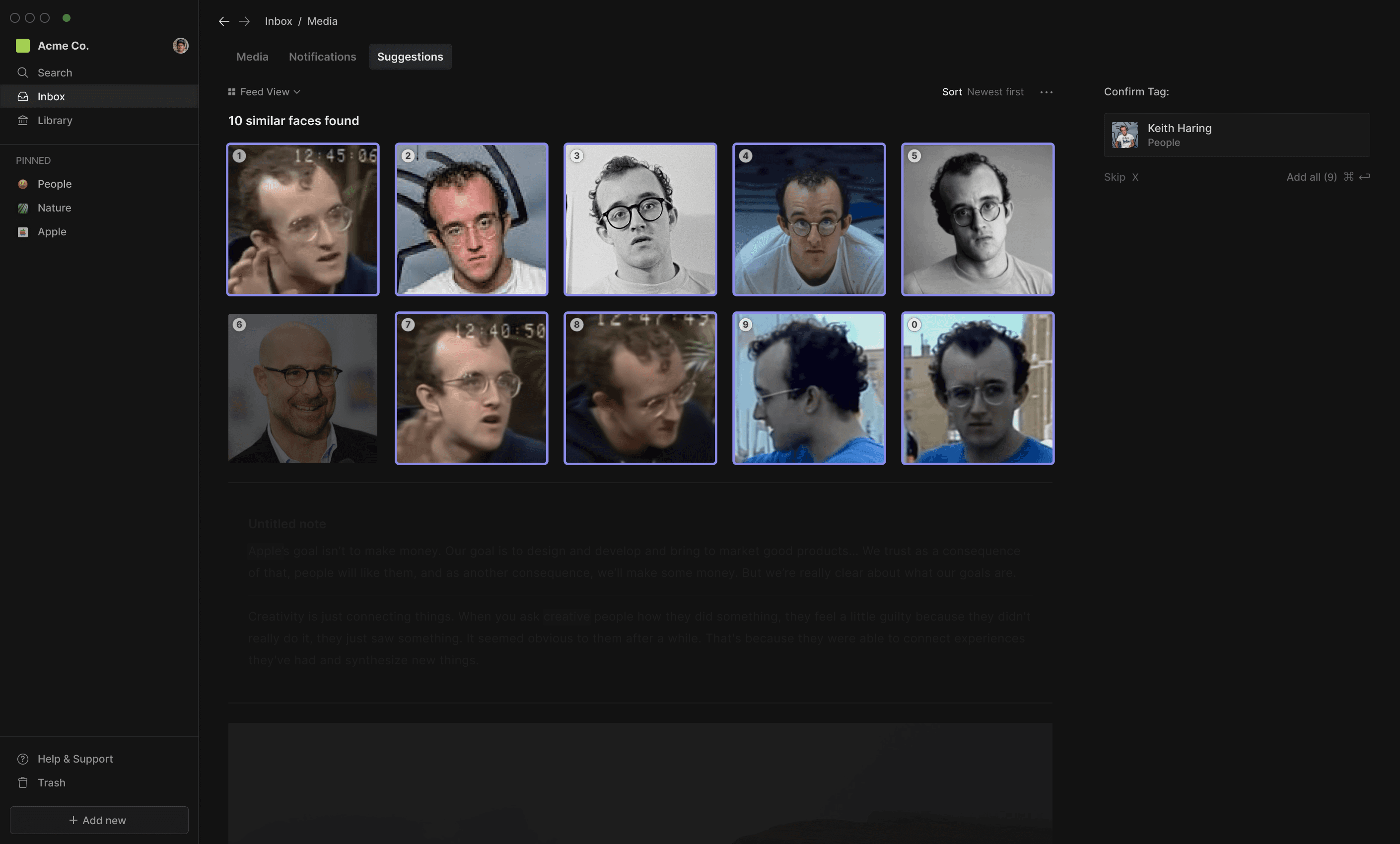
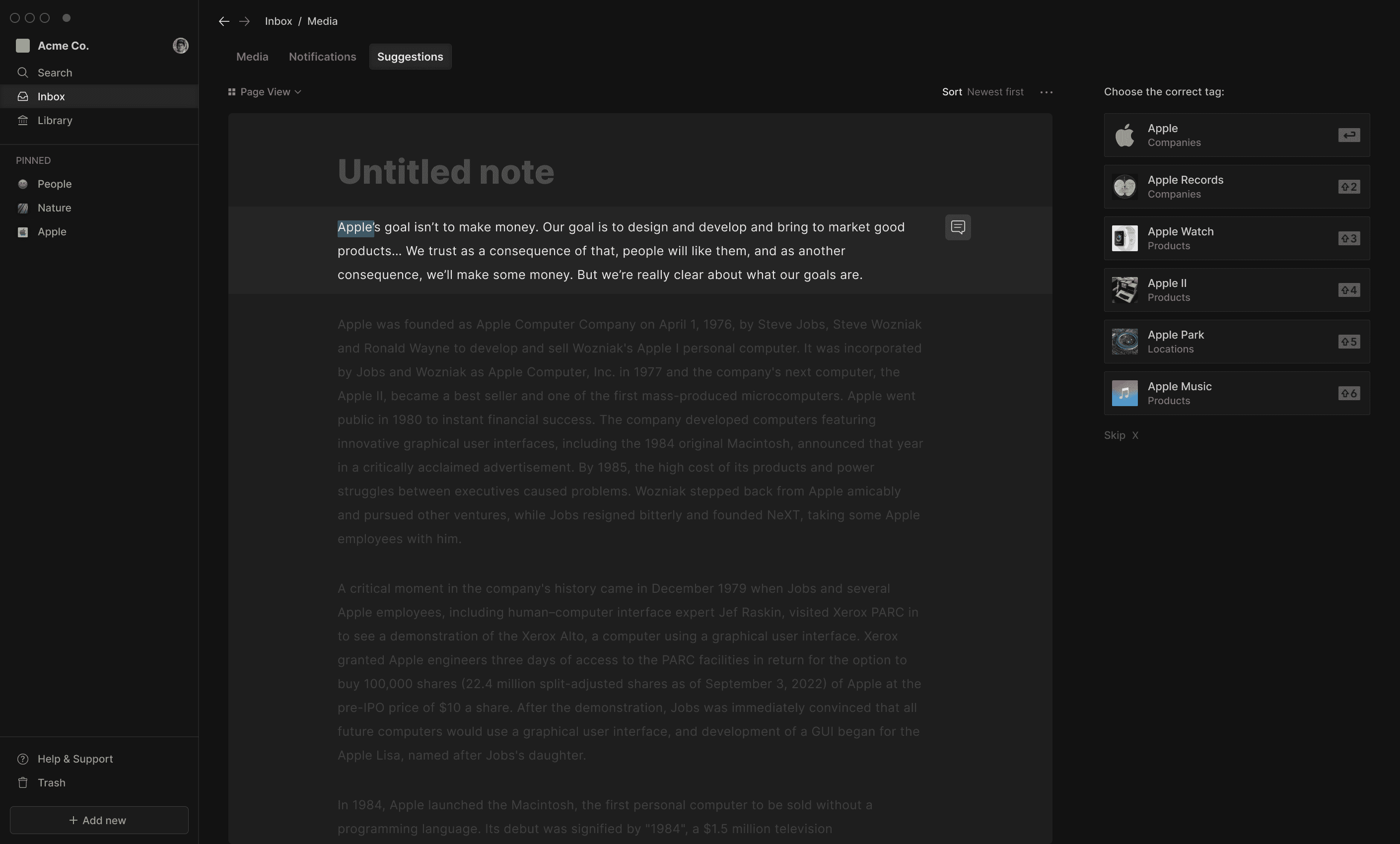
… a ‘logging’ UI for adding tags within pre-defined taxonomies/ontologies ...
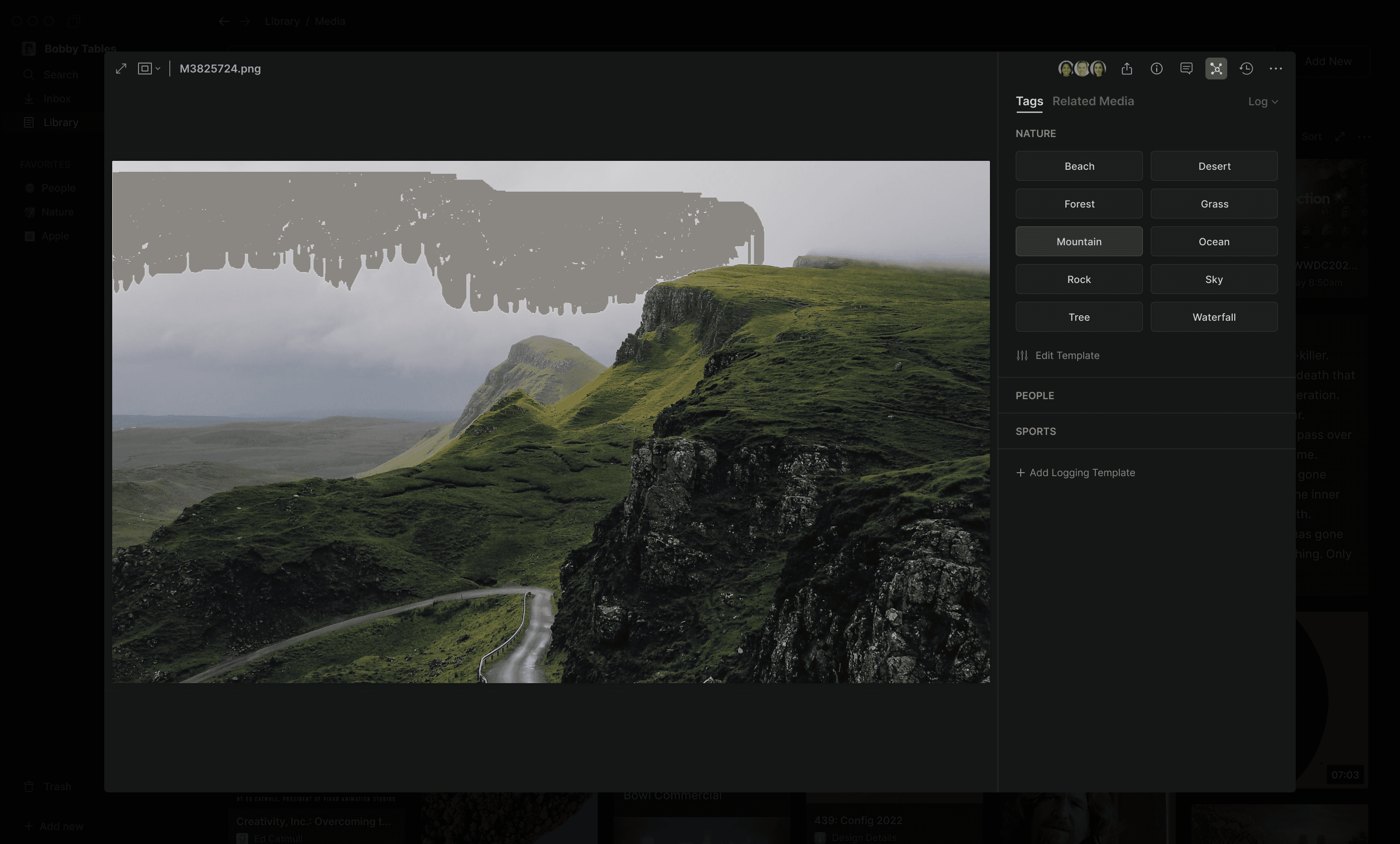
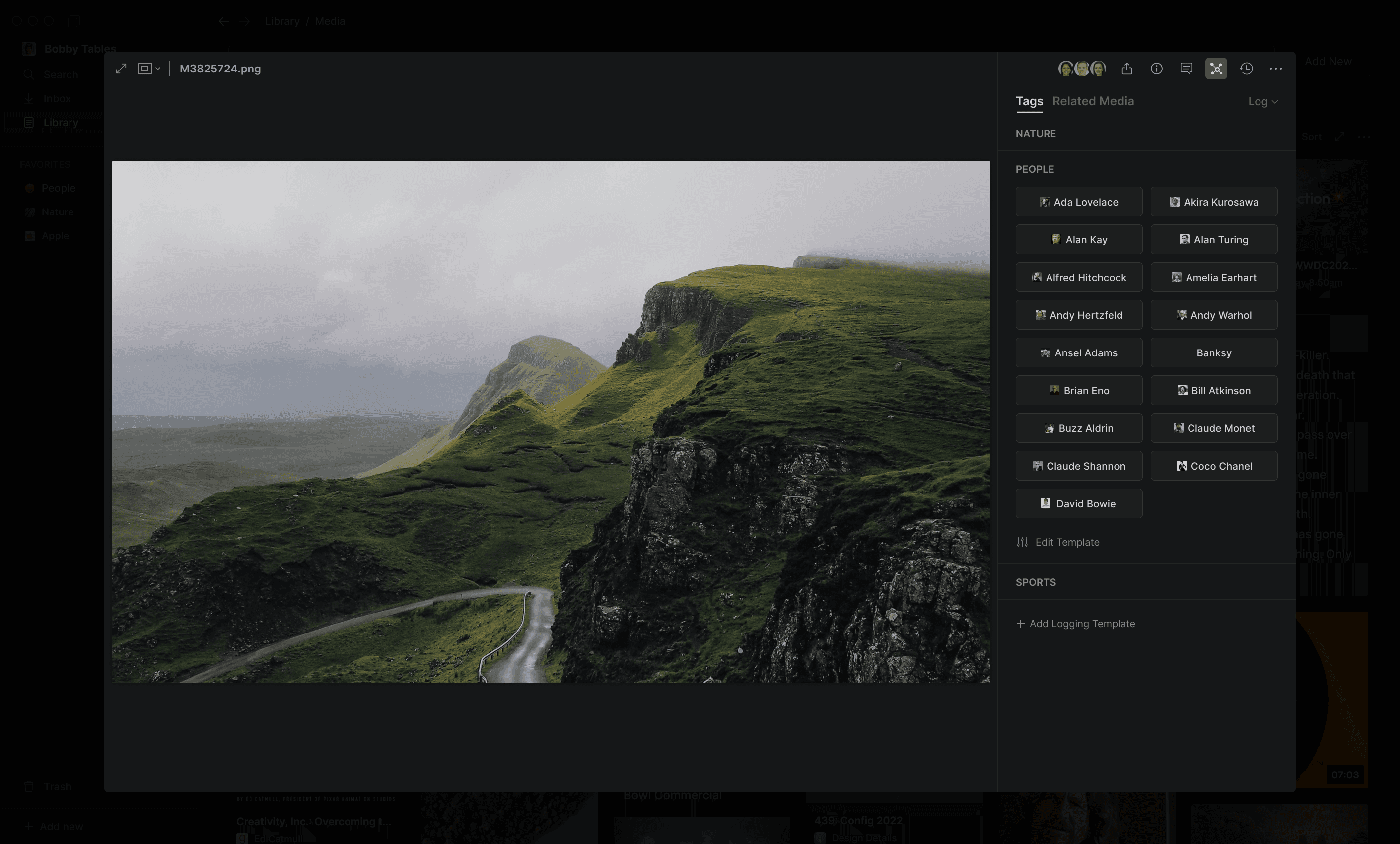
... UIs for adding time-based tags to videos and audio transcripts ...
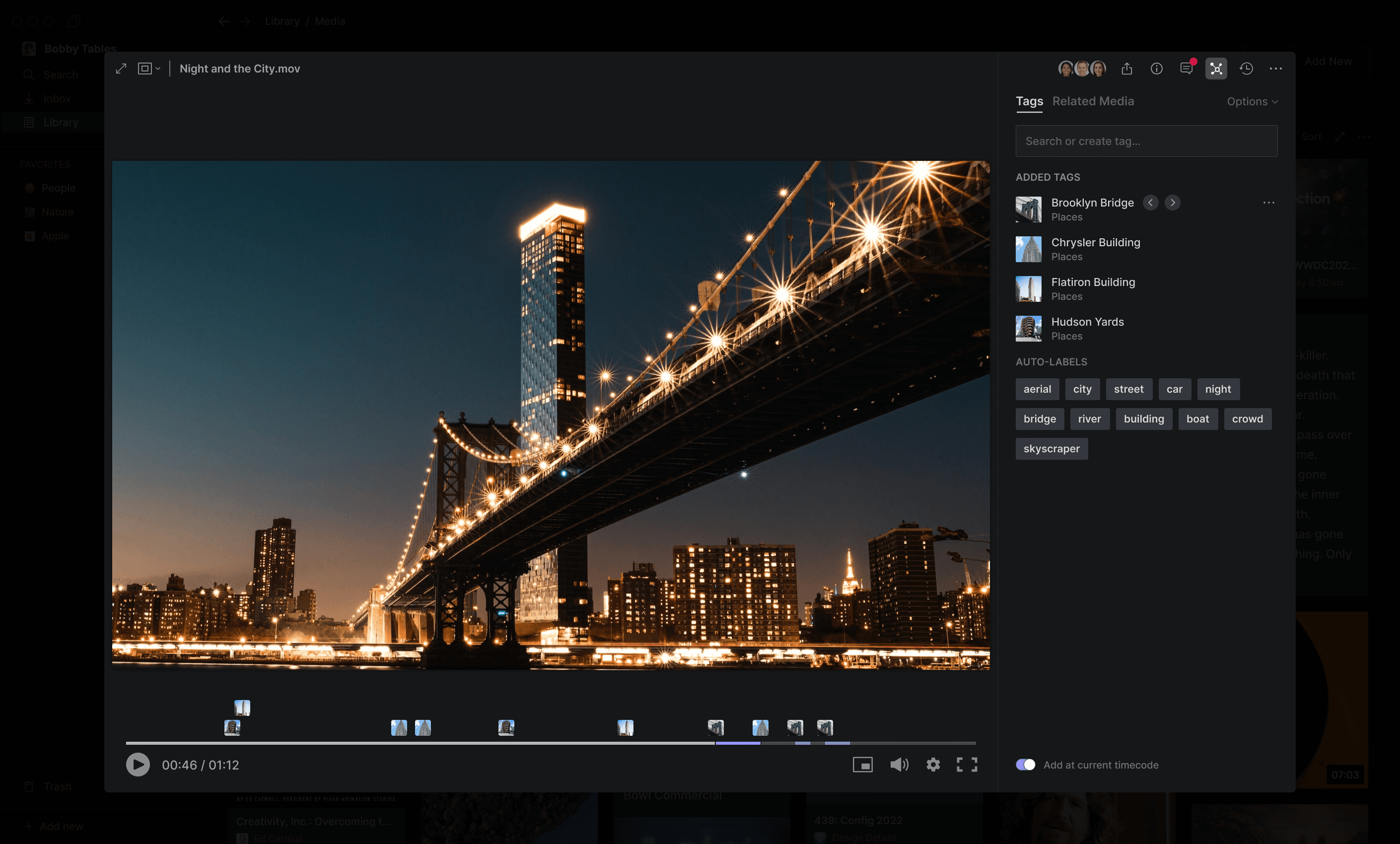
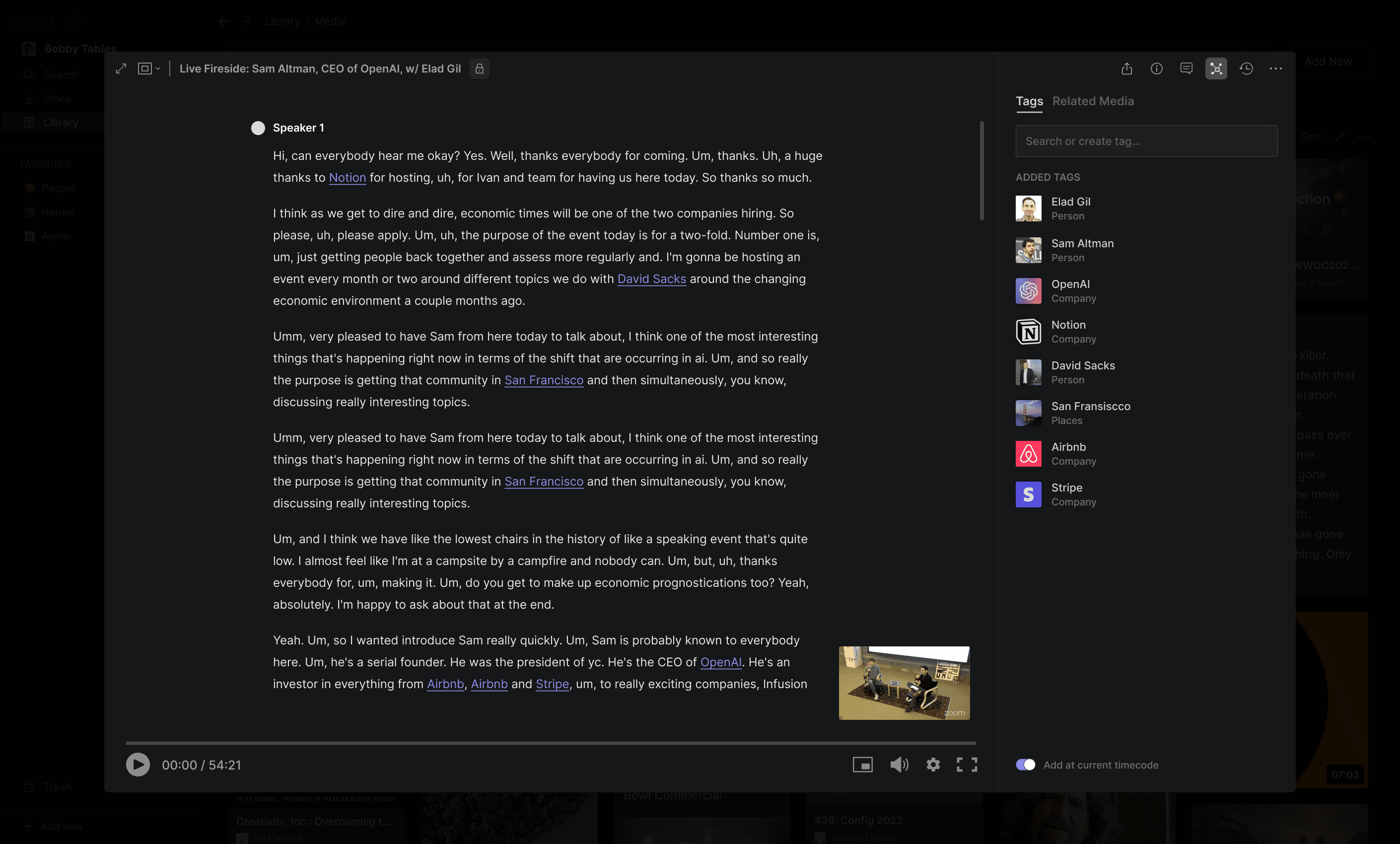
... as well as ways of streamlining and semi-automating manual tagging tasks (using things like fuzzy autocomplete).
Search and Retrieval
One of the core problems we were trying to solve with Hyperflow was the inability for users to quickly and easily find media and related information spread across multiple siloed apps, folders, and file systems.
We prototyped a bunch of search-related features, eventually deciding to use them in concert (to accommodate the range of ways that people remember things).
Library Search
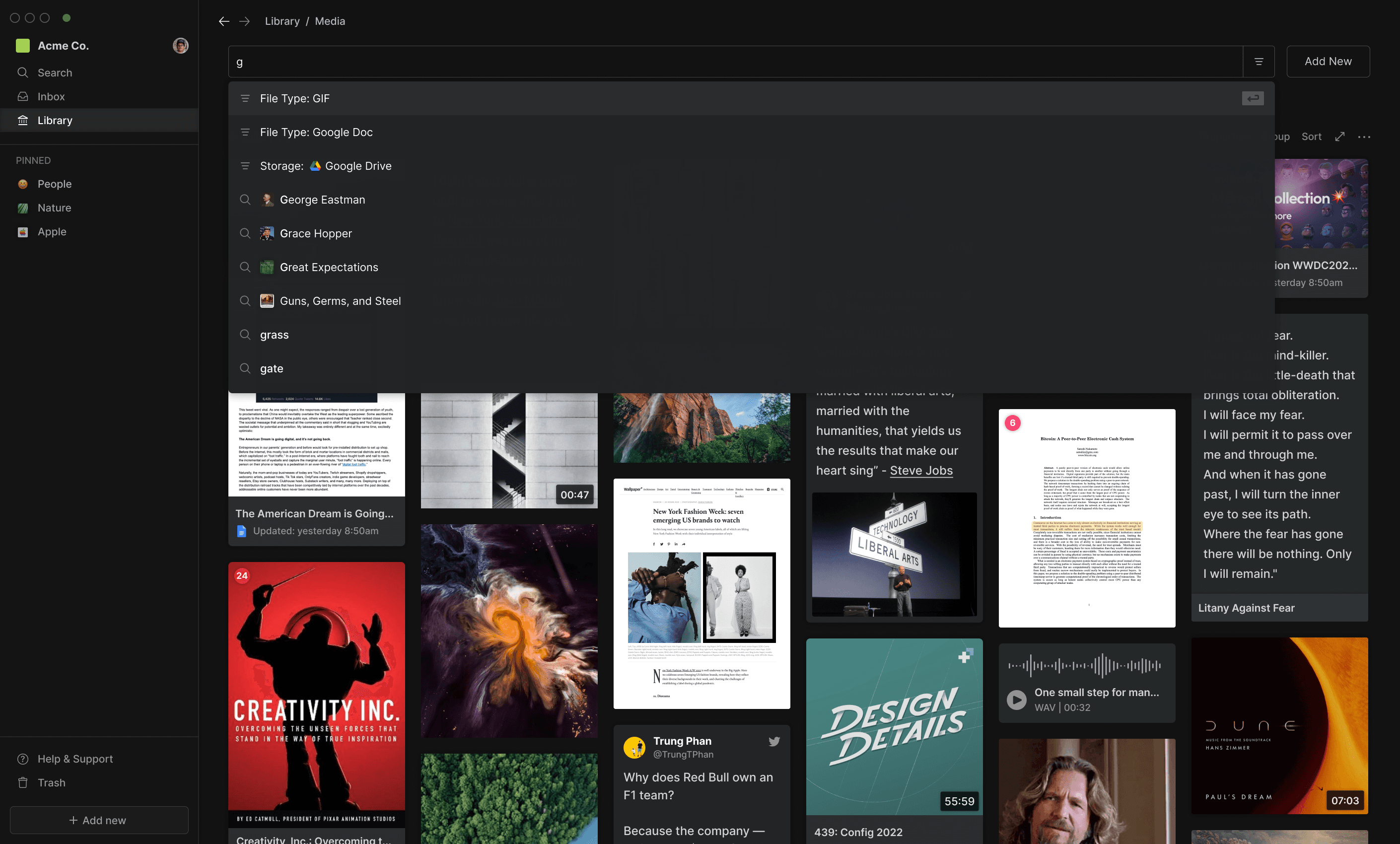
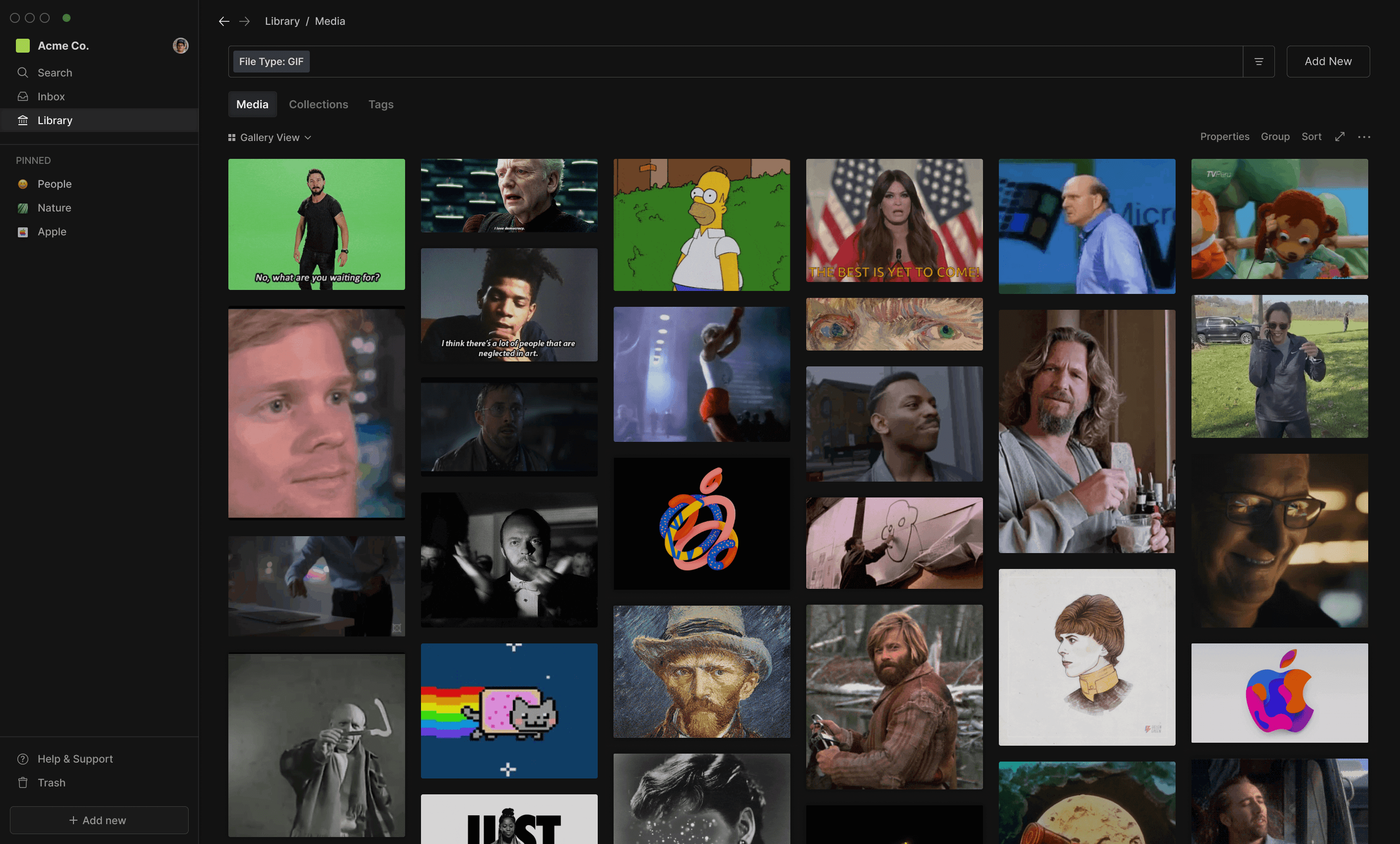
Users could query their Library using a combination of natural language and structured facets.
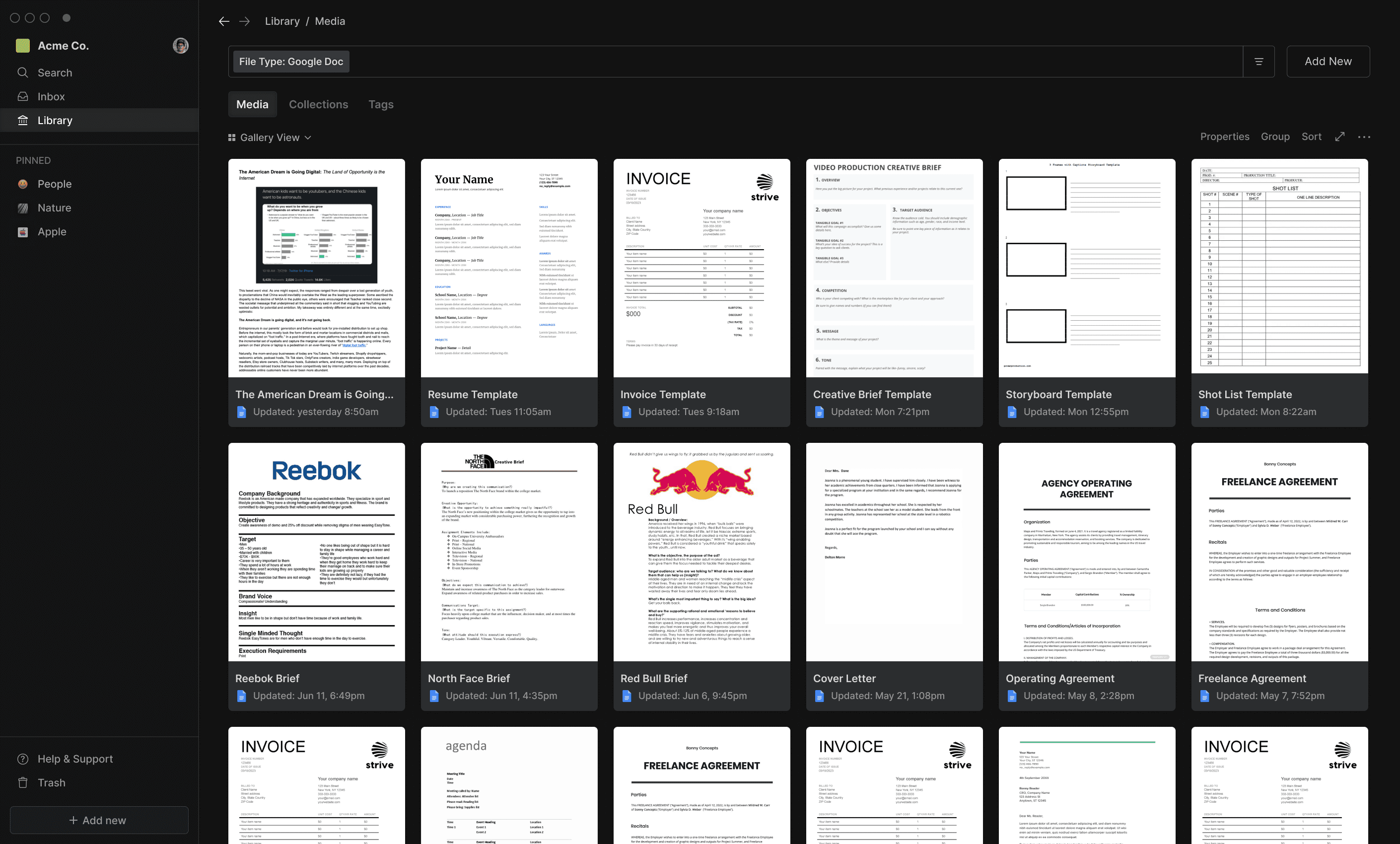
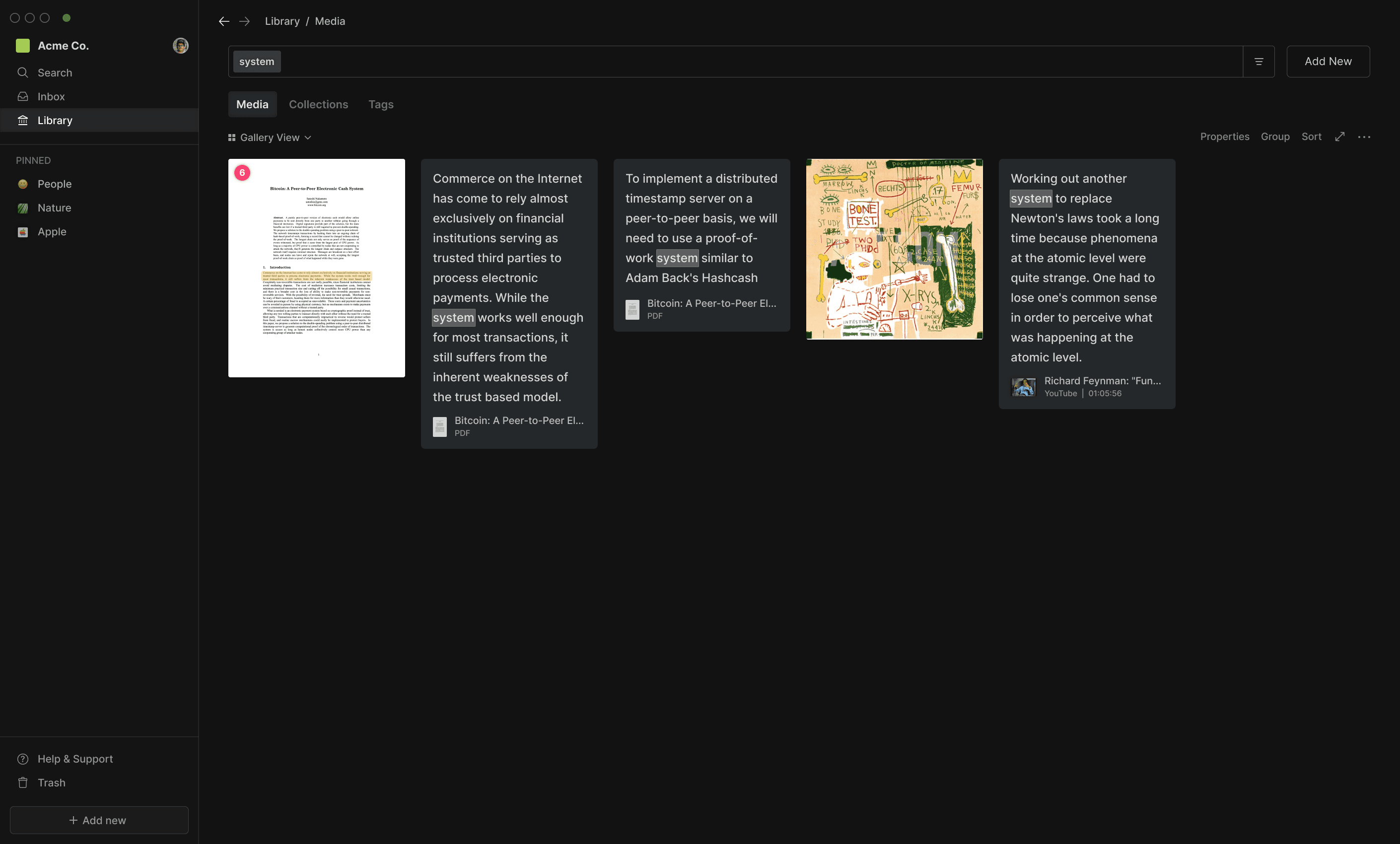
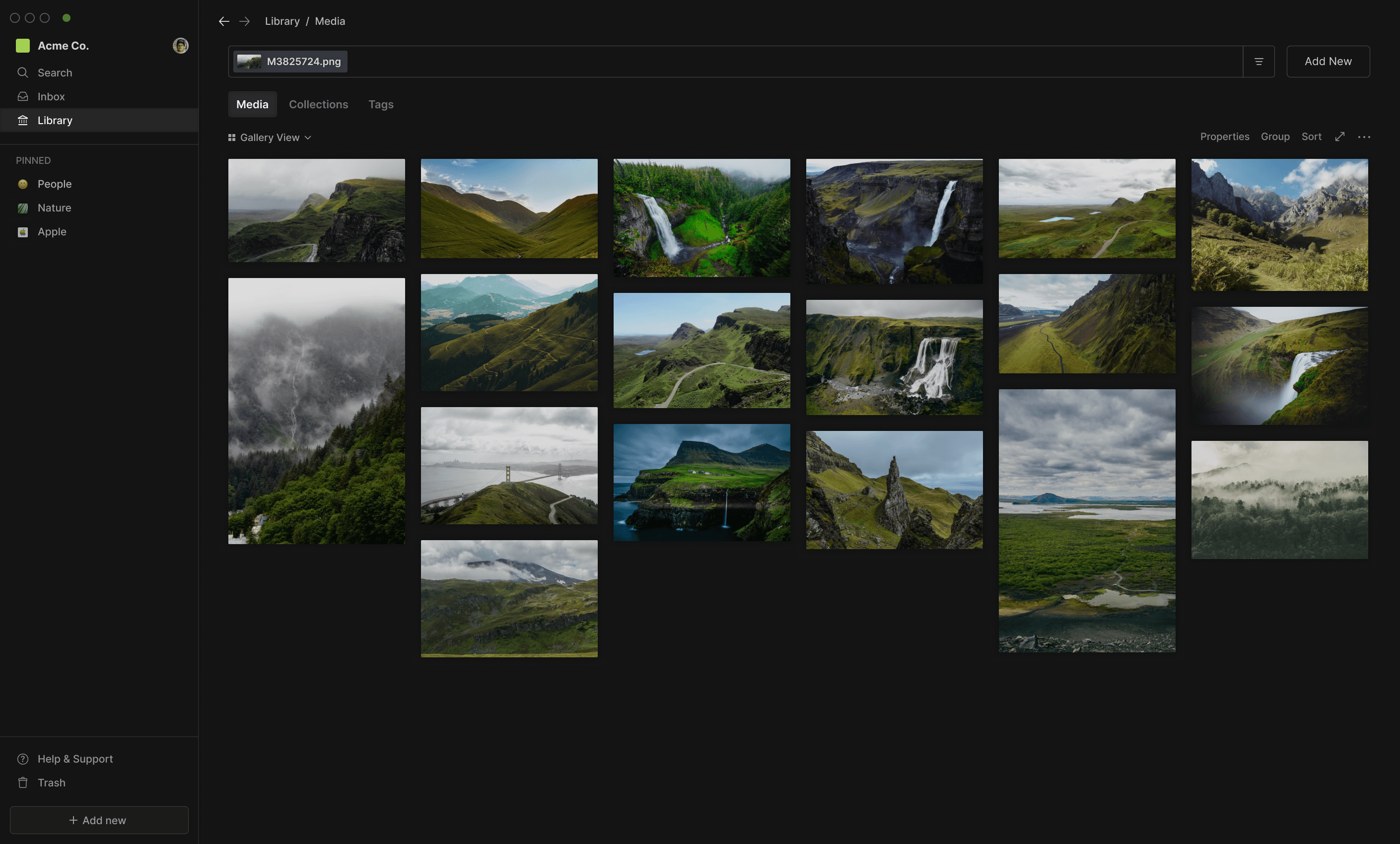
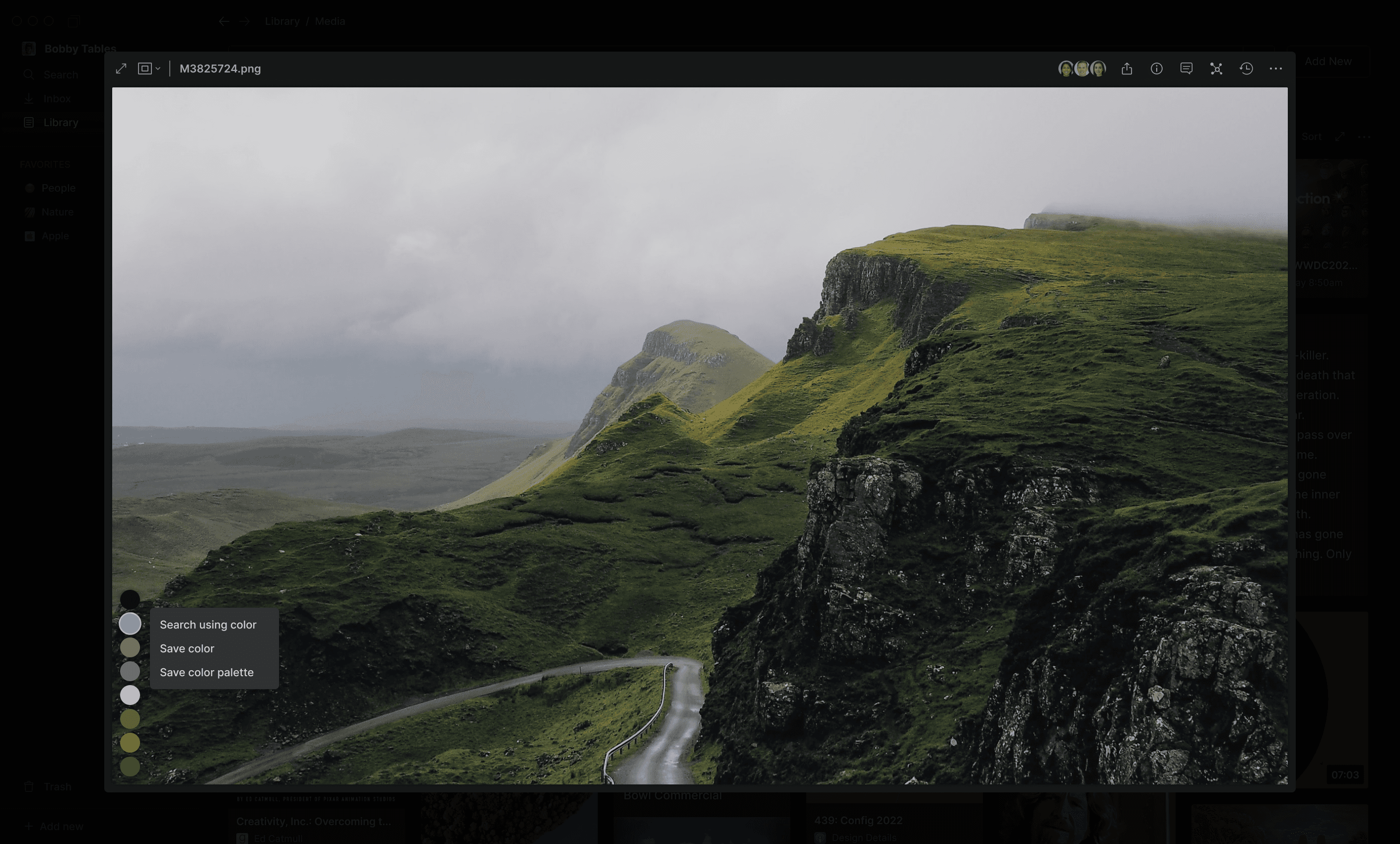
Visual Search / Similarity Search
Users could search for items (either specific items or similar items) using non-textual input (such as images or colors).
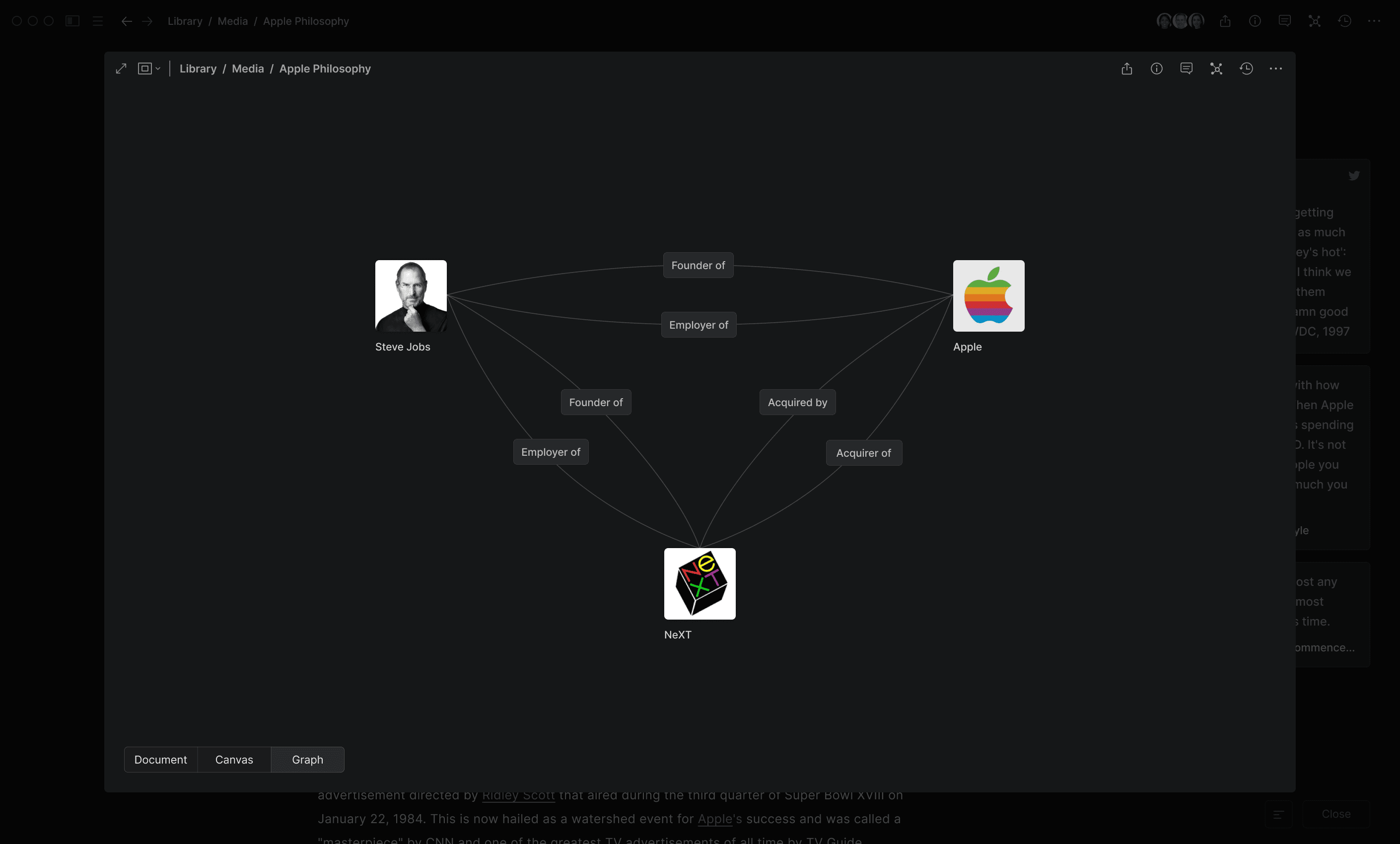
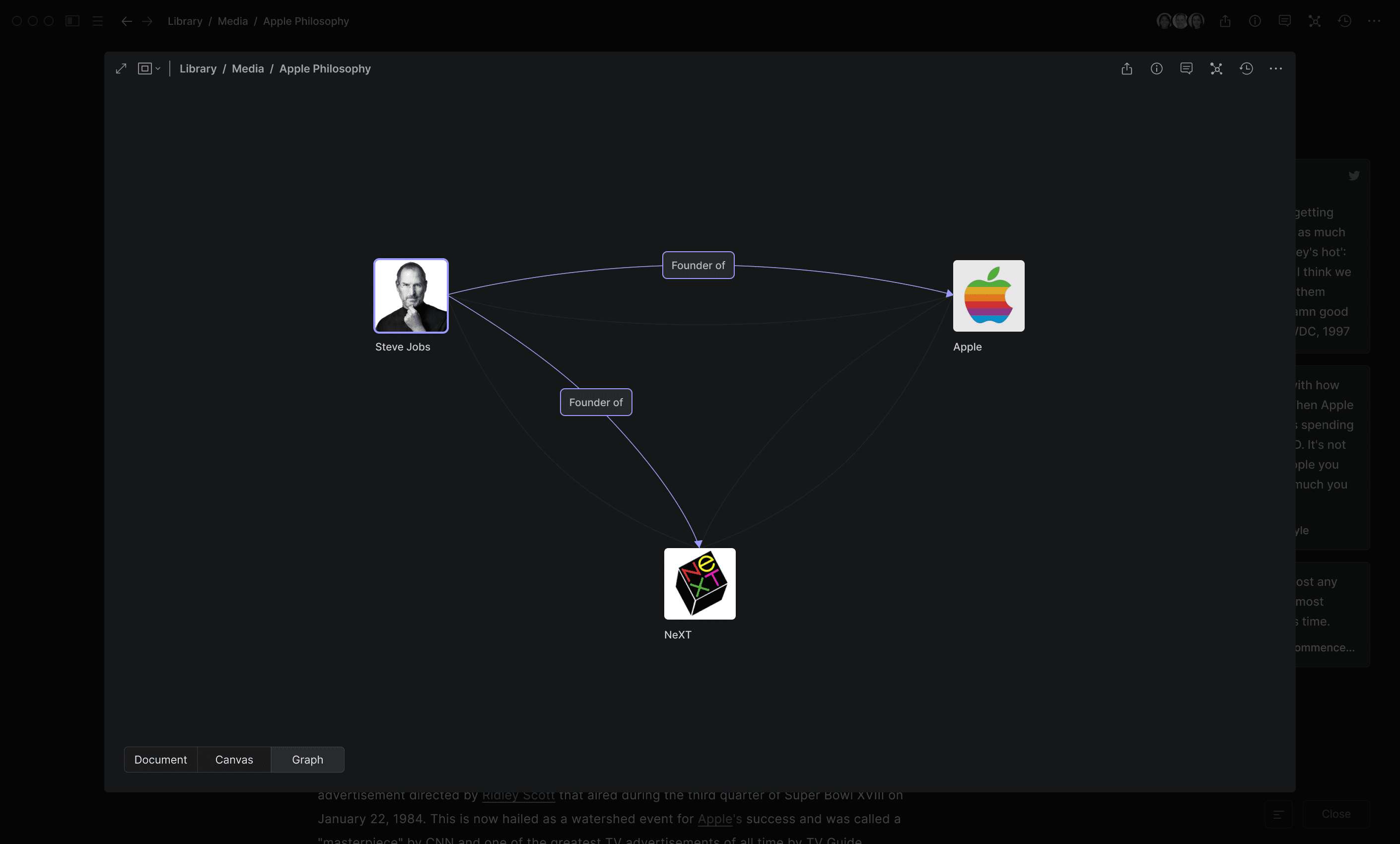
Relationships / Graph-based Retrieval
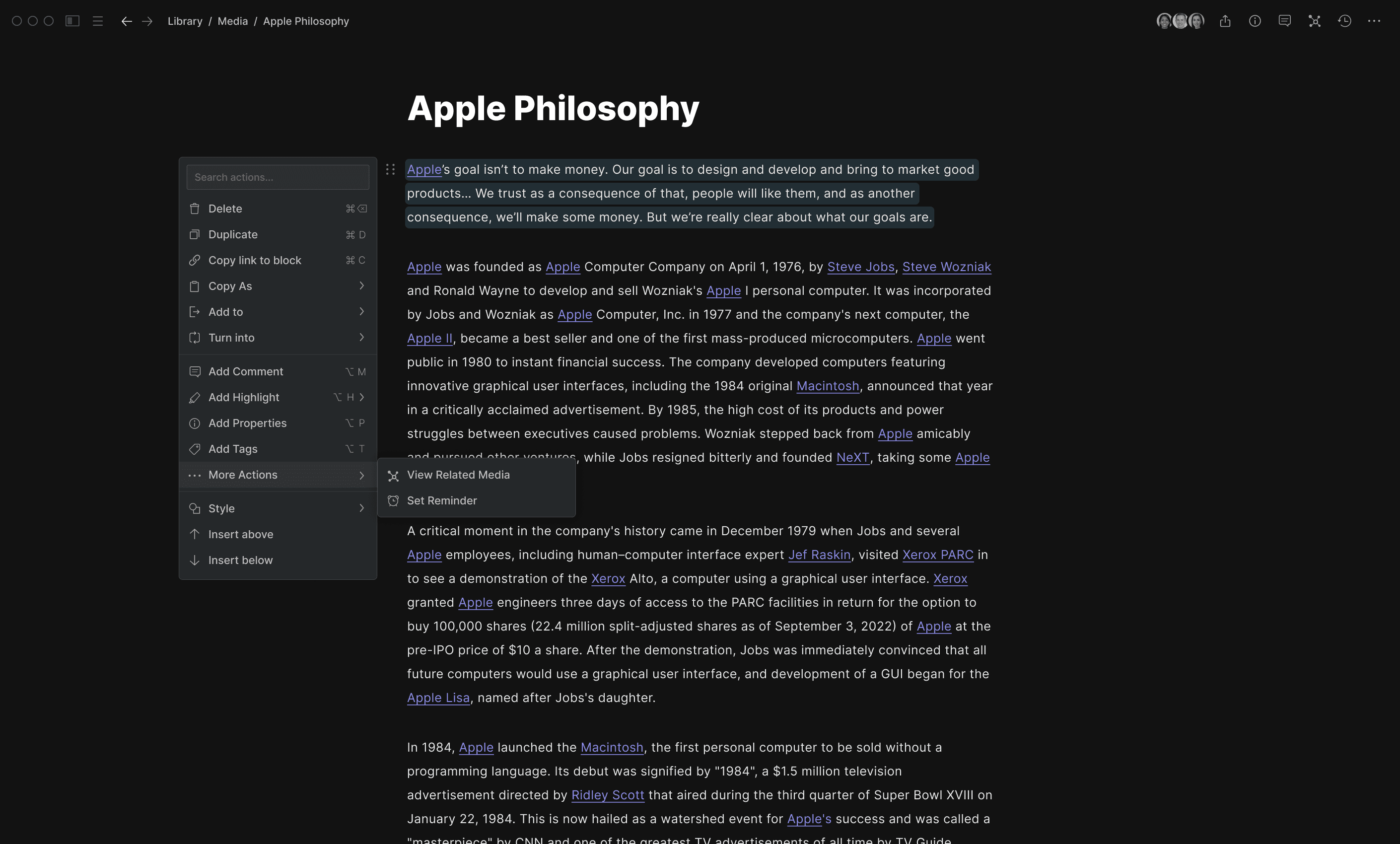
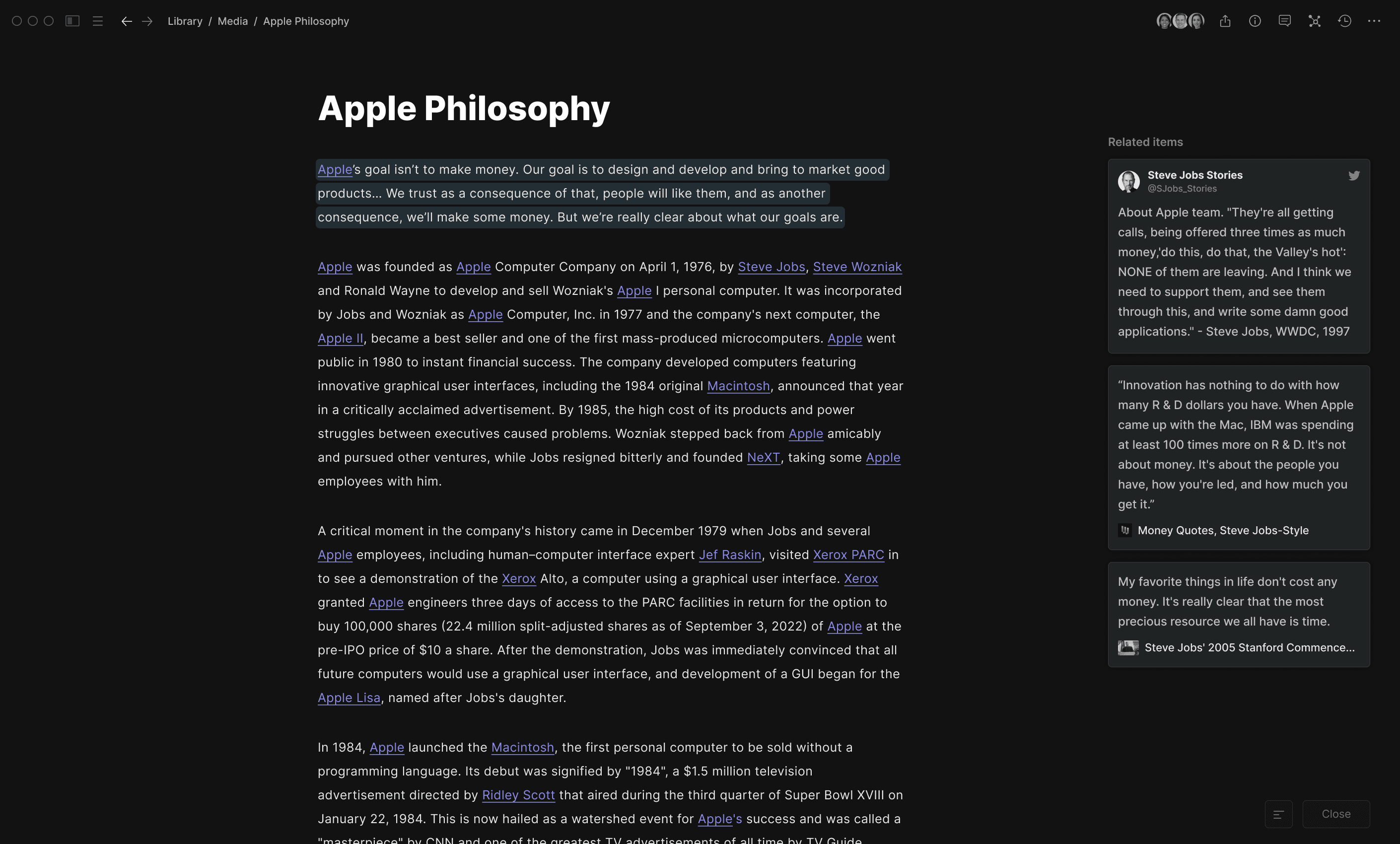
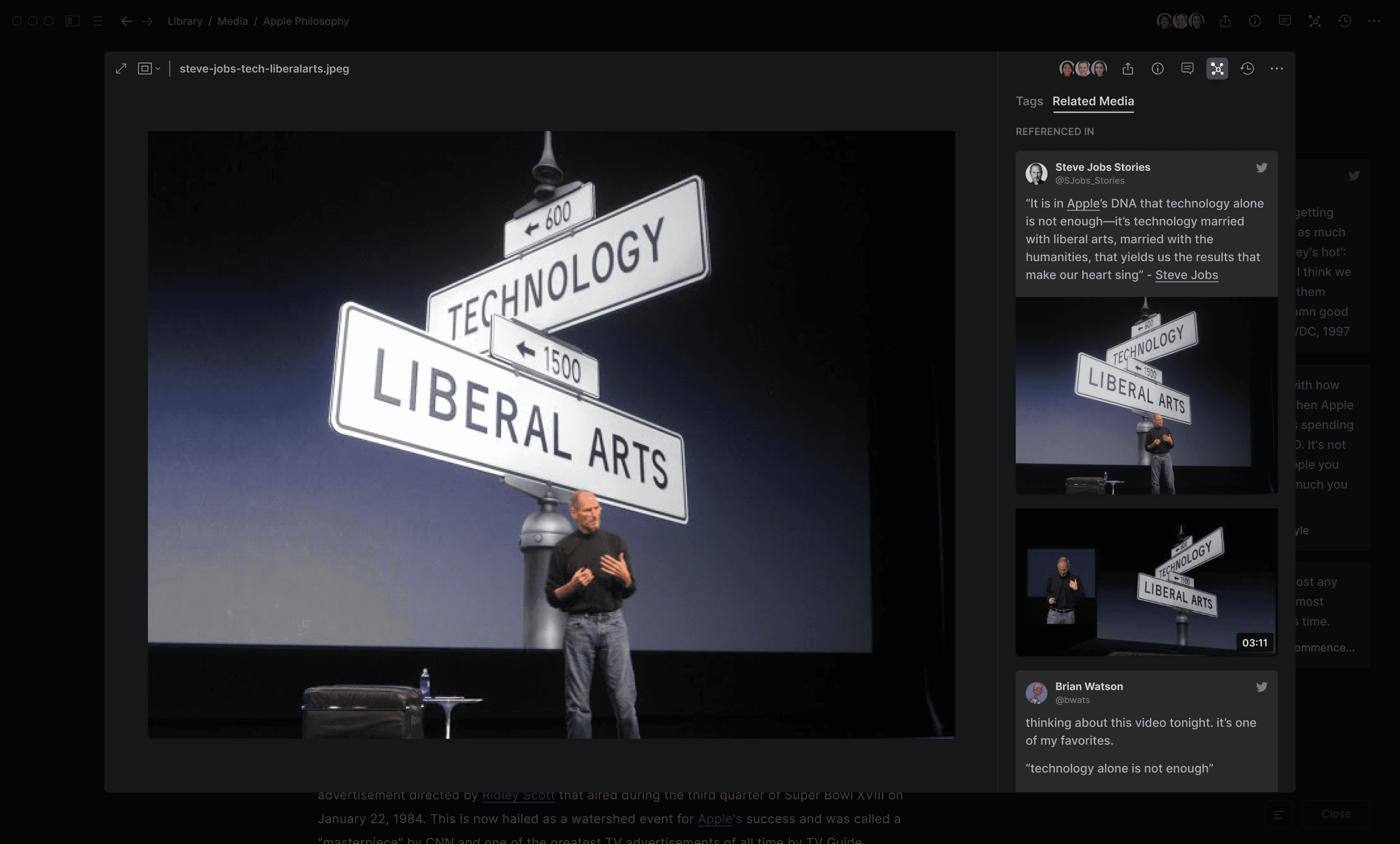
We also spent a lot of time thinking about how we could enable more explorative search experiences and opportunities for serendipitous discovery of content, primarily by allowing users to view and traverse relationships (ie bidirectional links) between items in their graph.
Quick Search
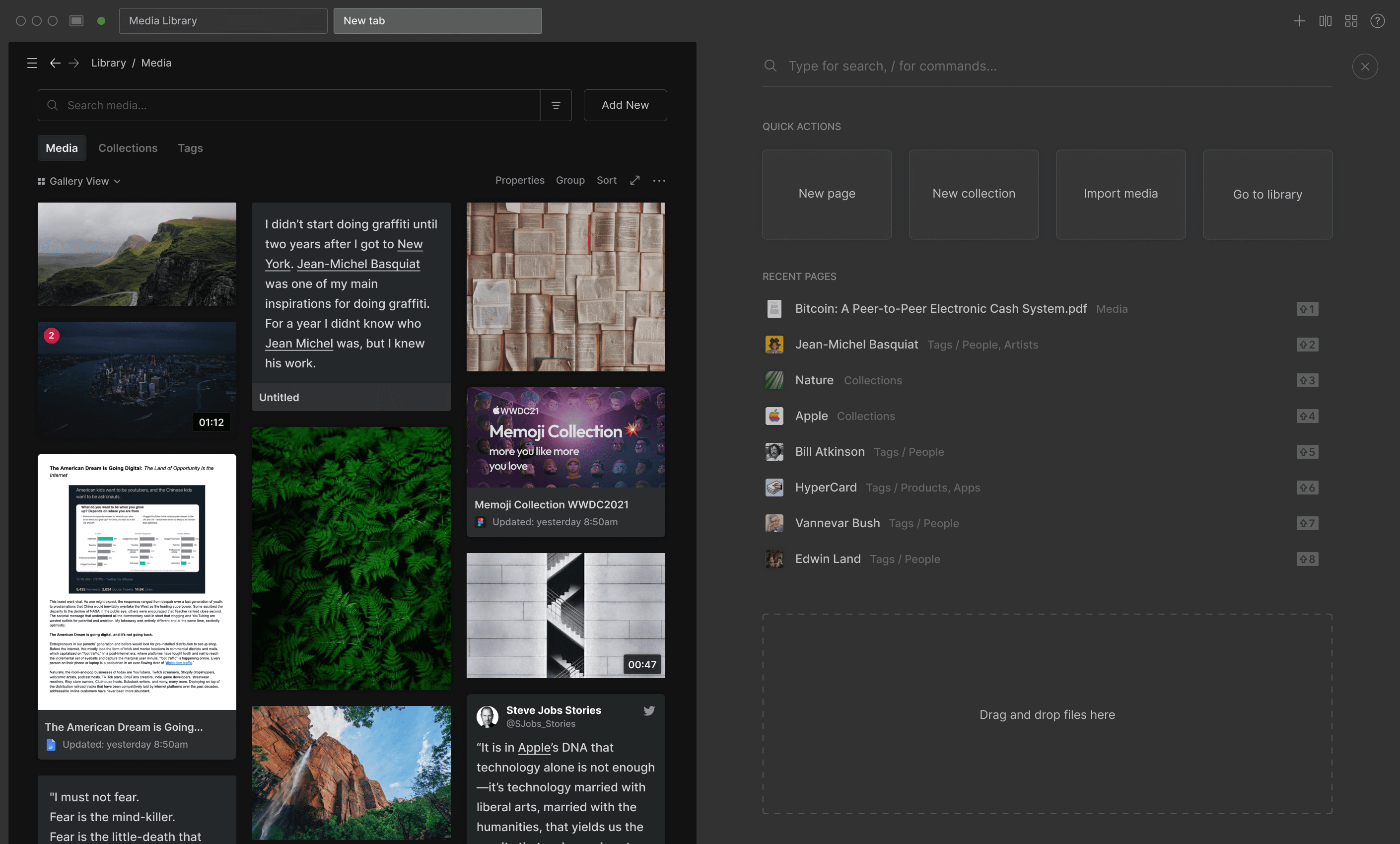
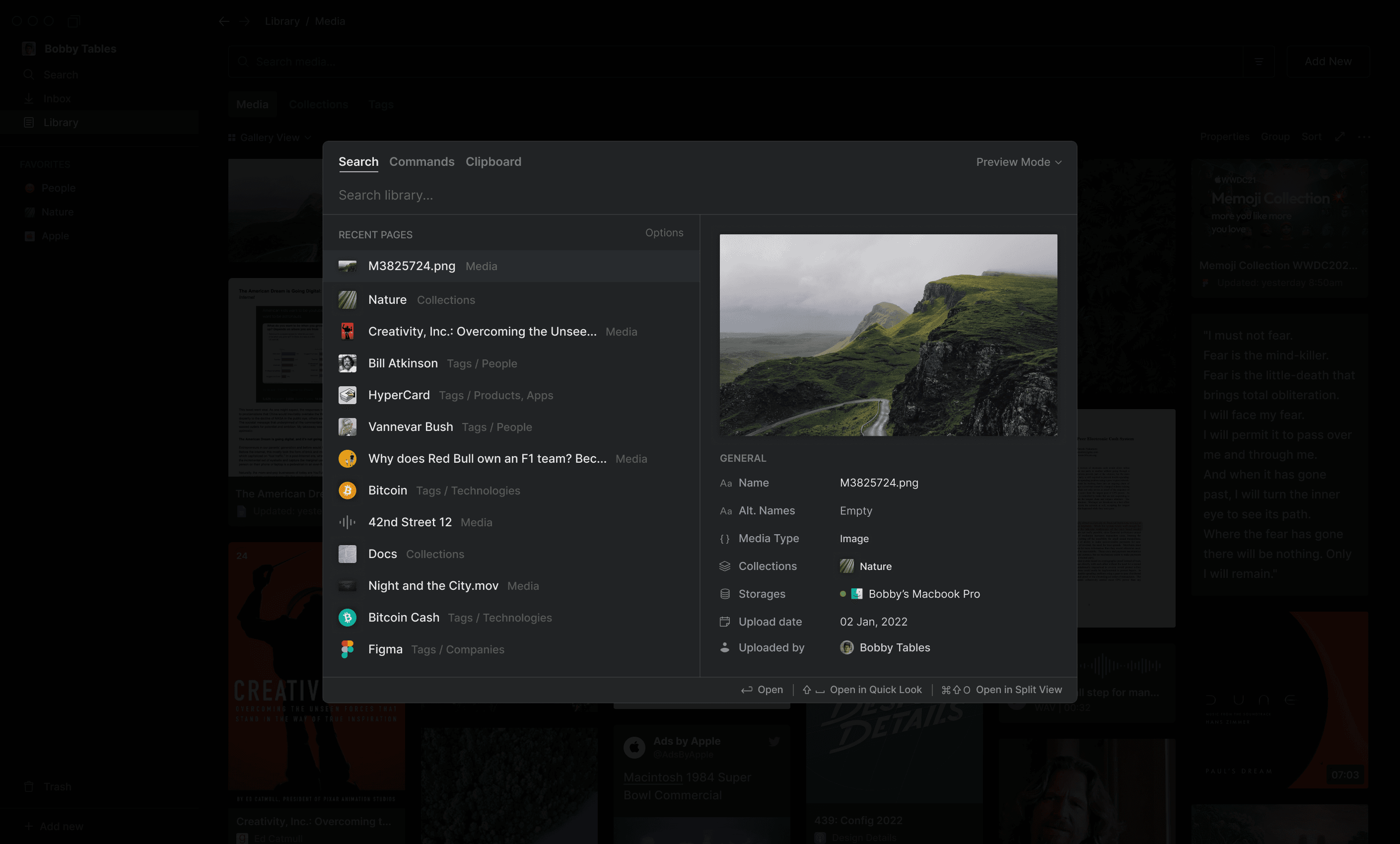
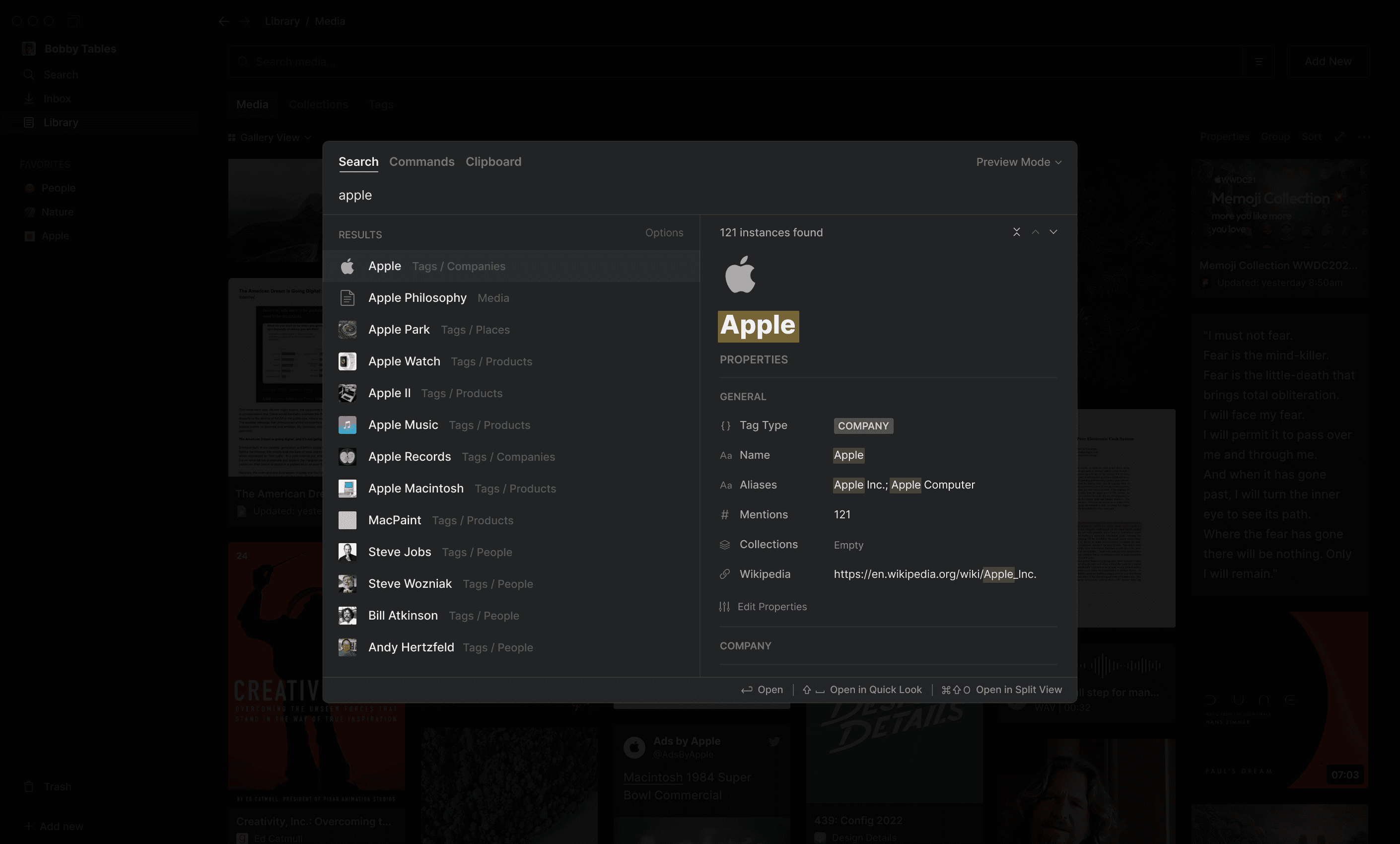
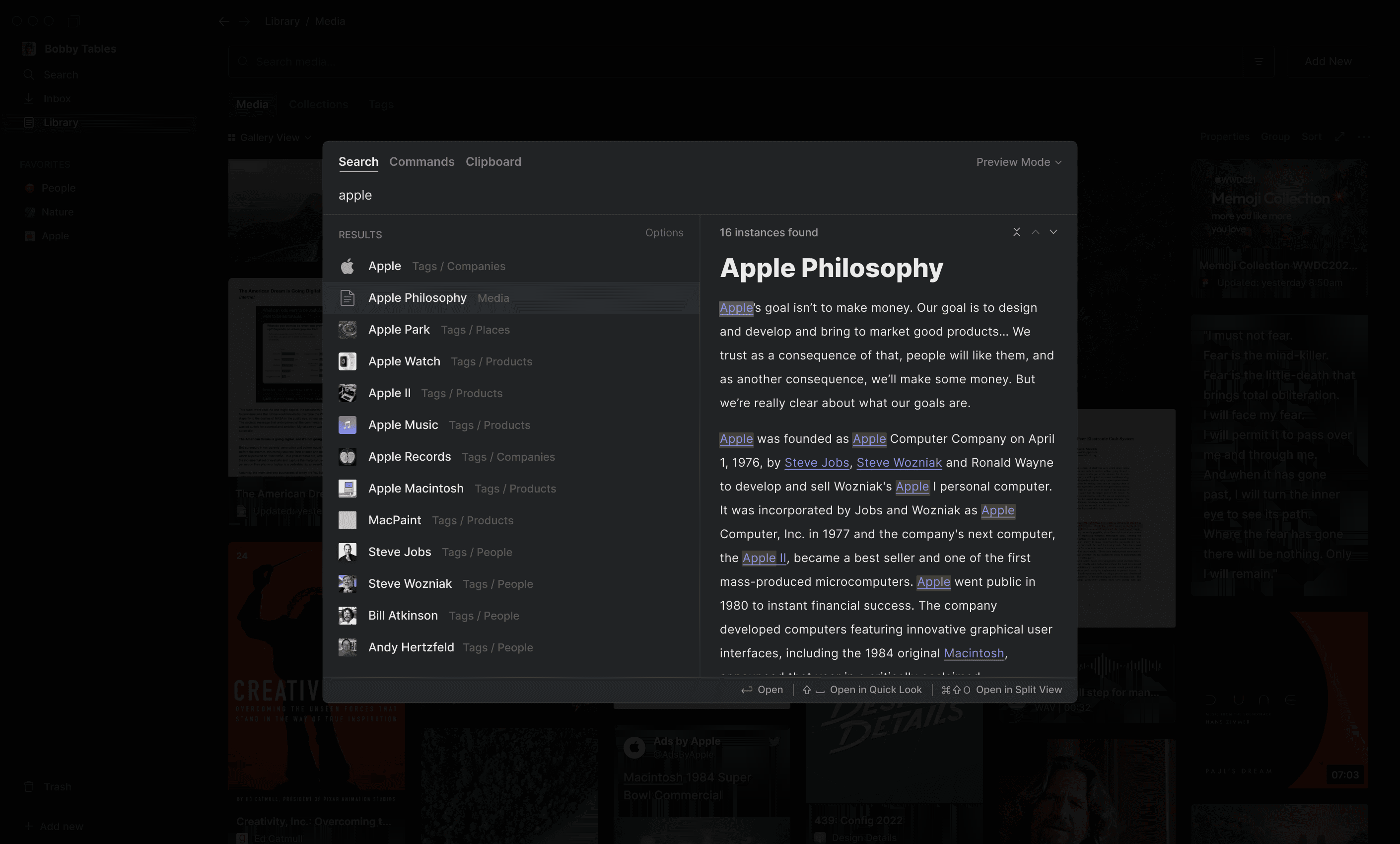
Finally, users could quickly search and navigate to items in their workspace using the CMD+K menu, which included a ‘Preview Mode’ for displaying thumbnails and high-level information for results.
Commands and Clipboard Manager
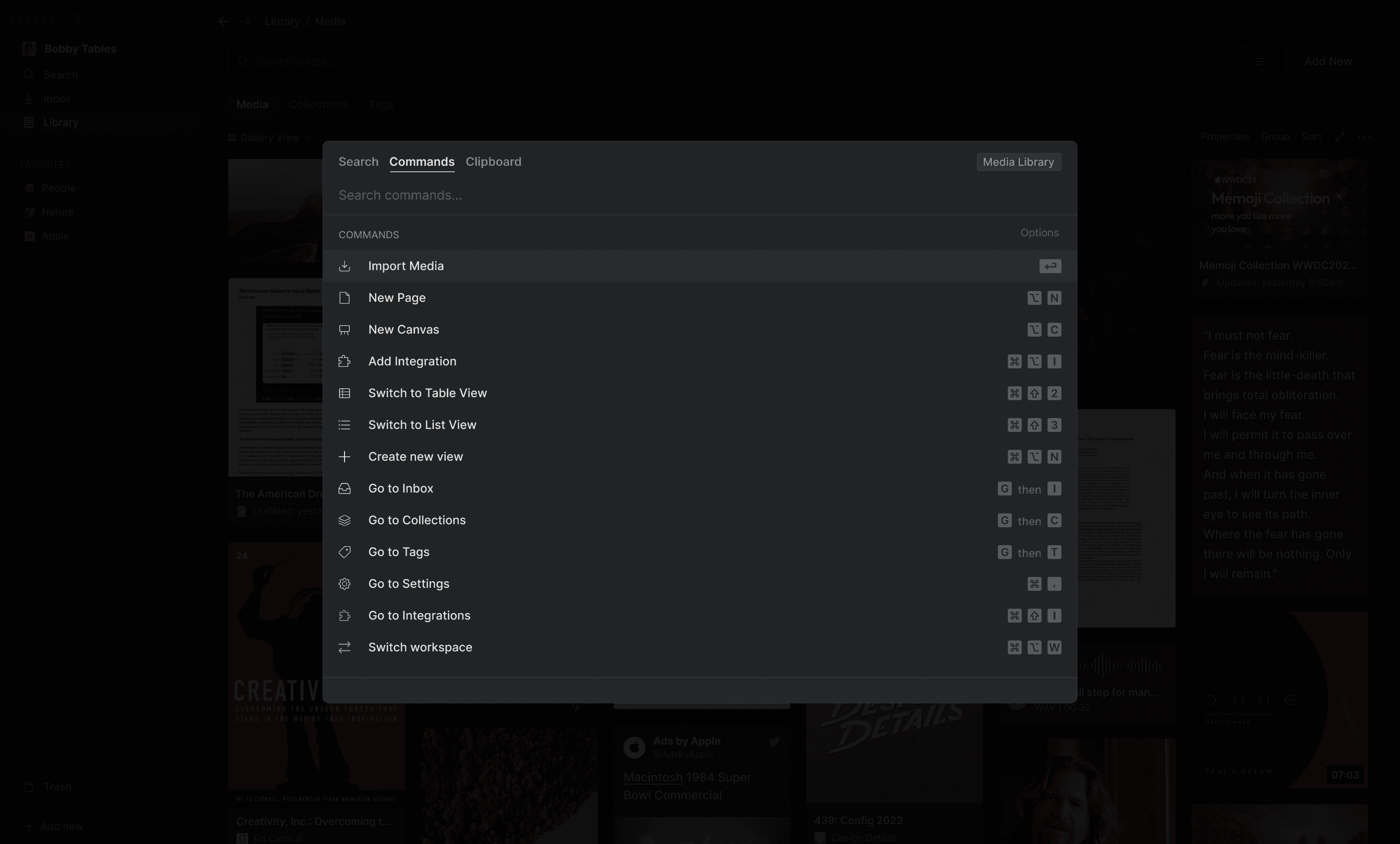
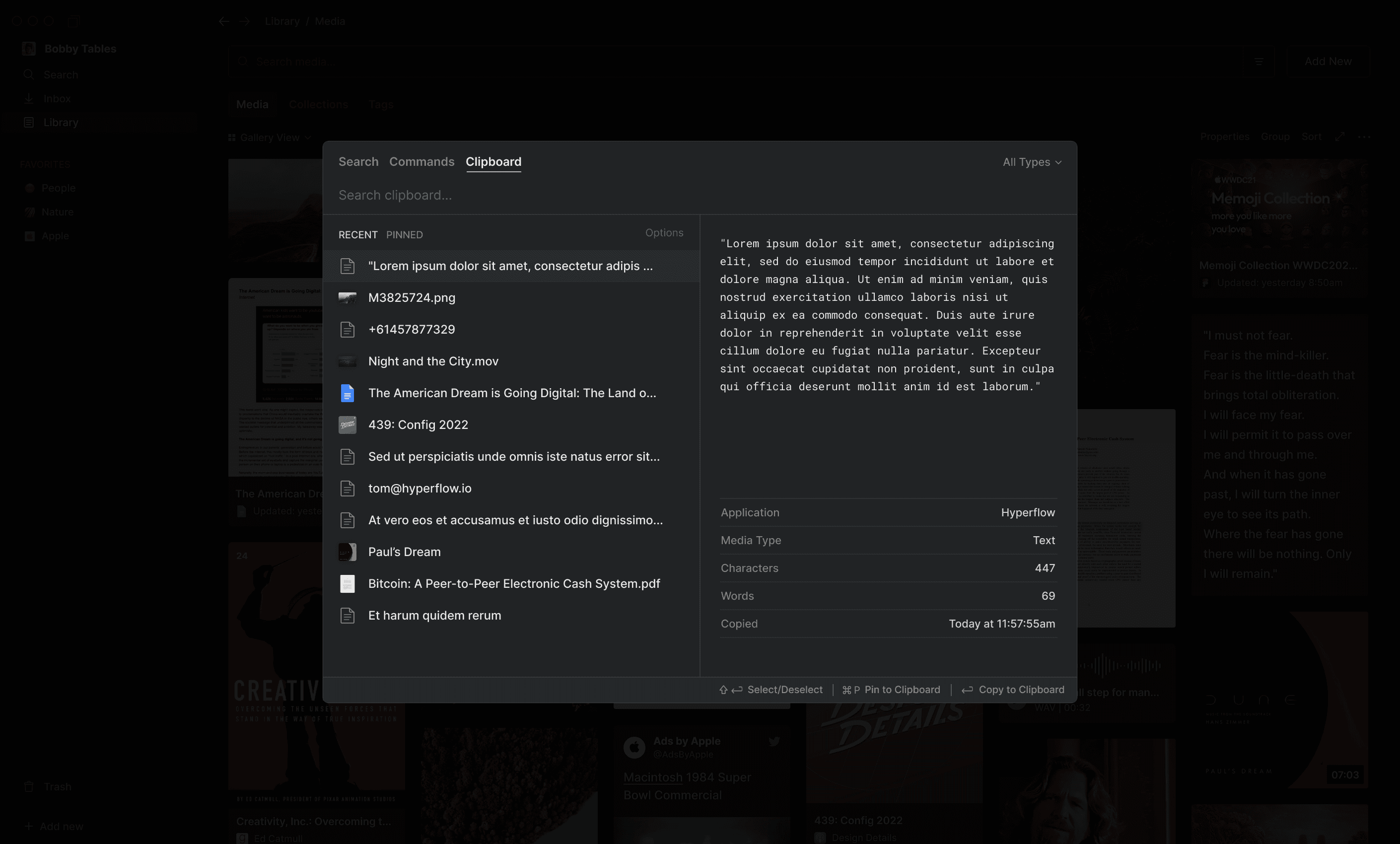
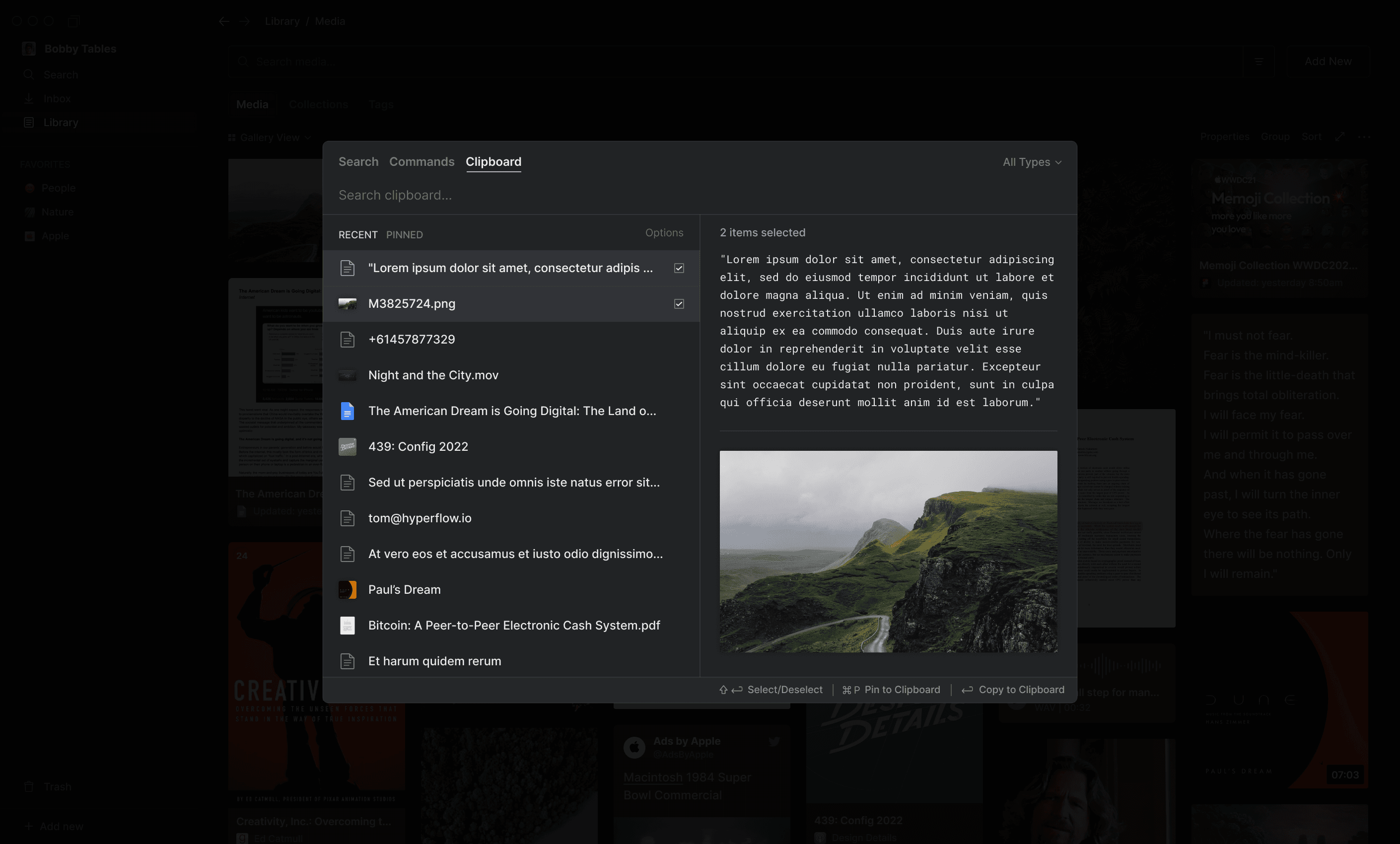
In addition to the Quick Search capabilities mentioned above, we eventually decided to incorporate both Commands and a lightweight Clipboard Manager into the CMD+K menu.
Collaboration and Annotation
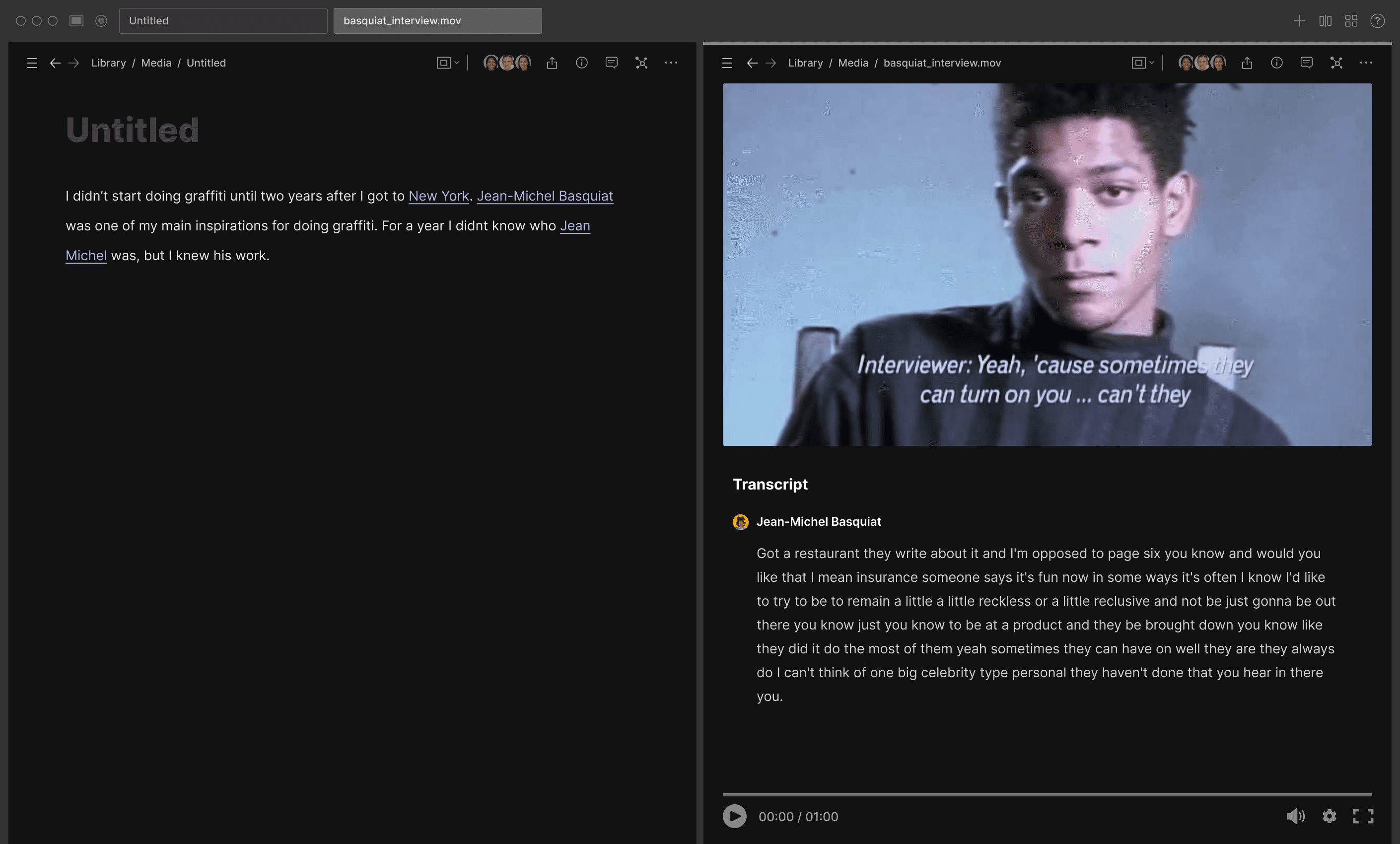
One aspect of creative workflows we went deep on was the ‘review and approval’ process for video/audio/photo post-production, prototyping features for temporal and spatial commenting/annotation of video, audio, and image files.
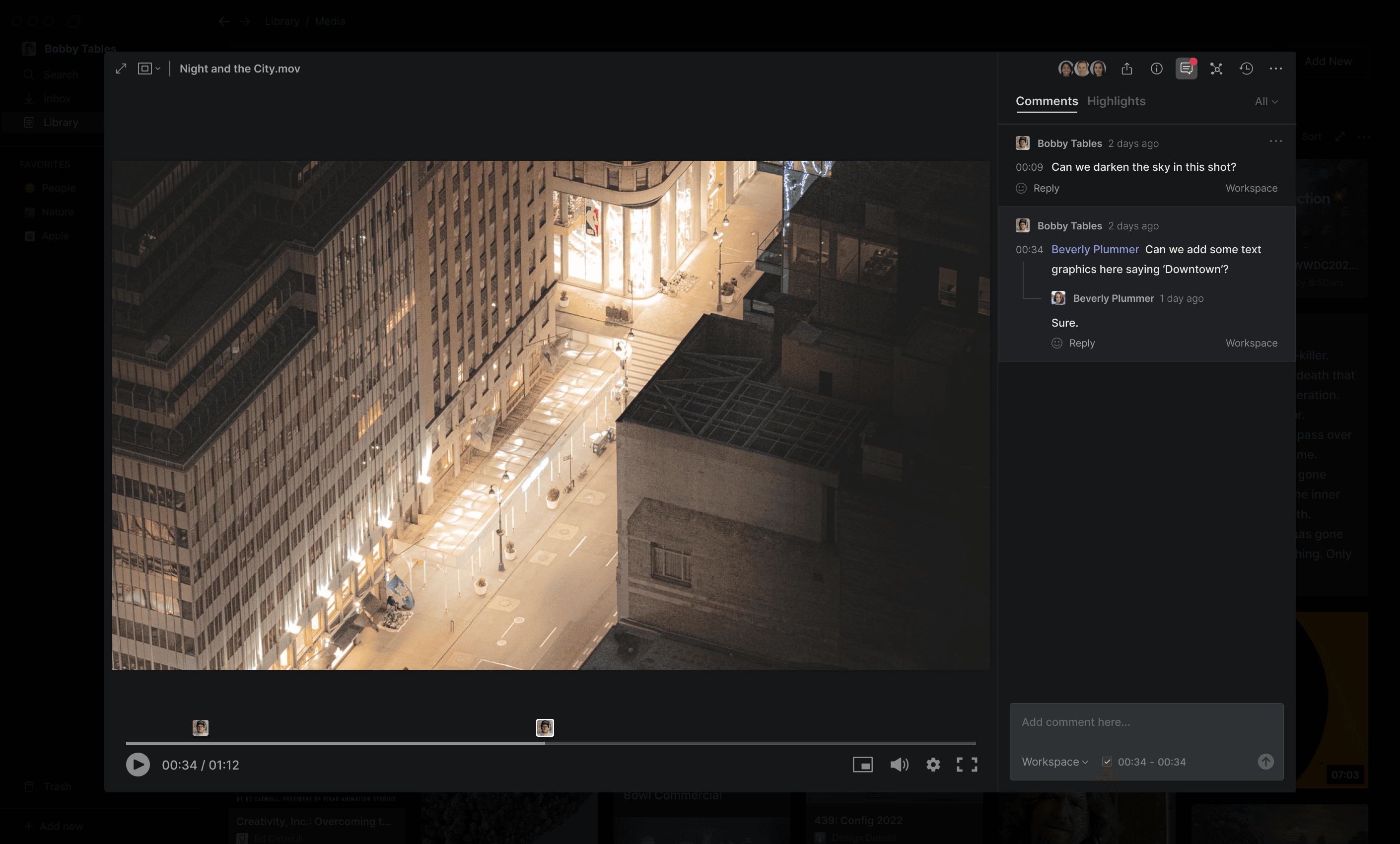
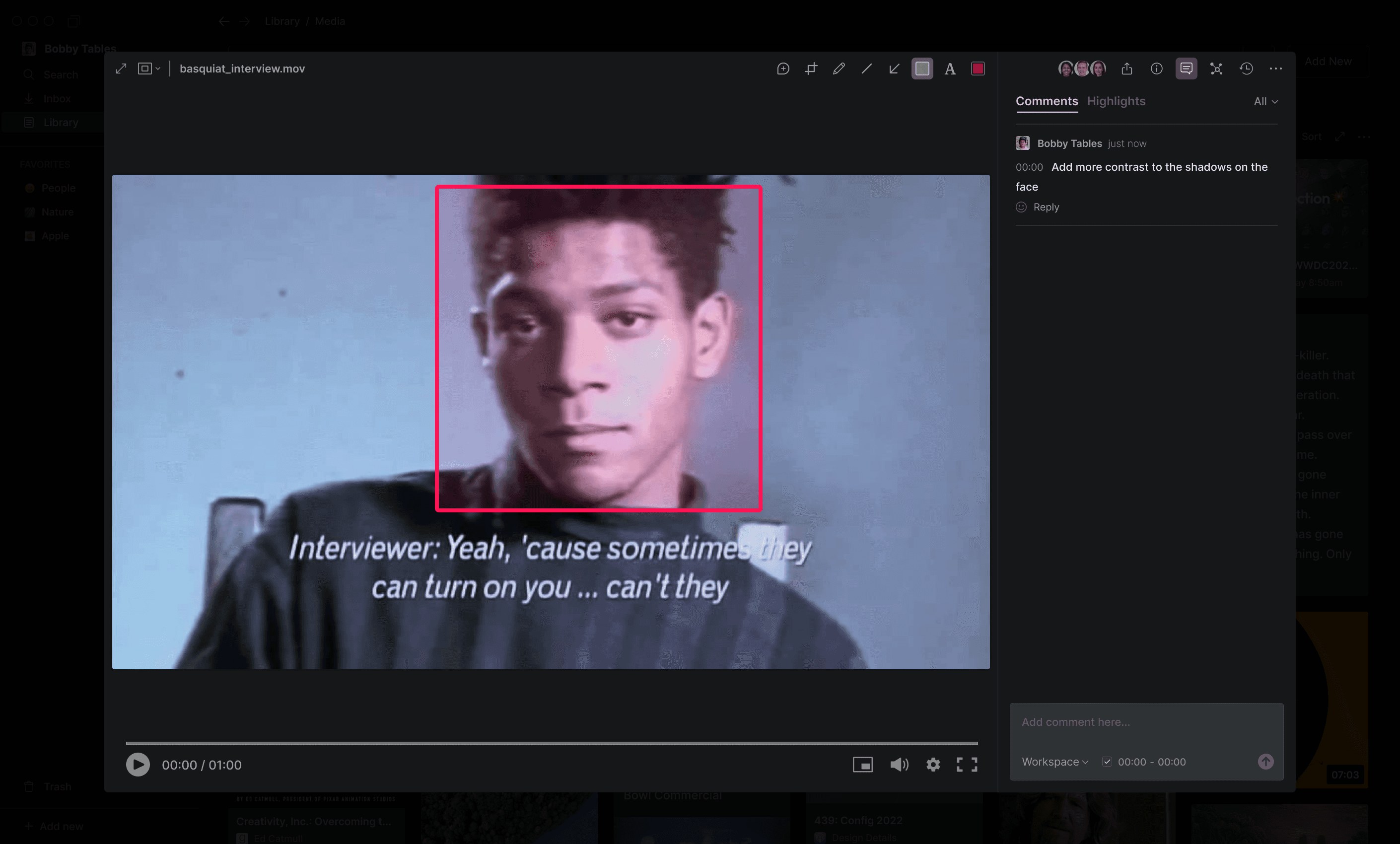
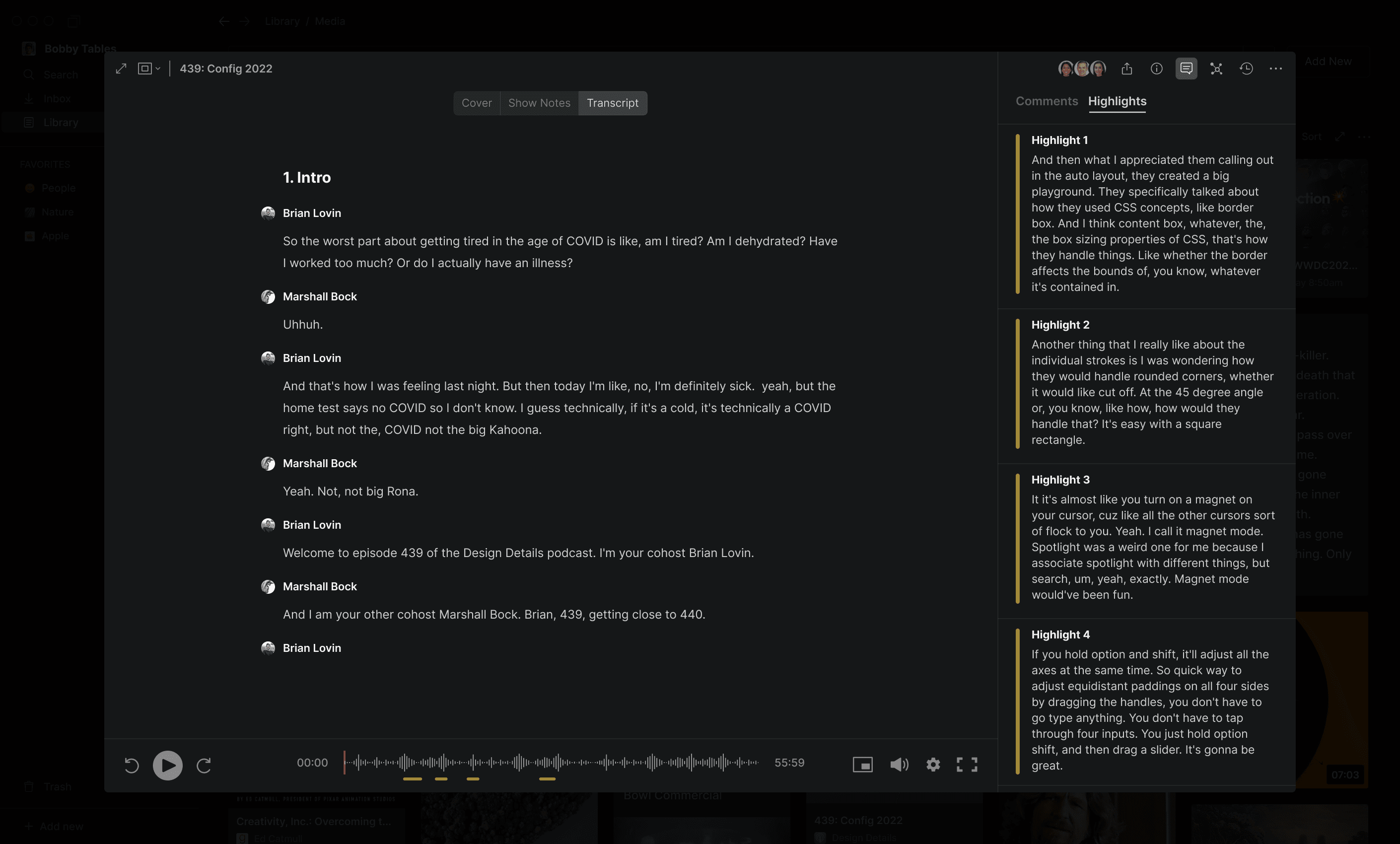
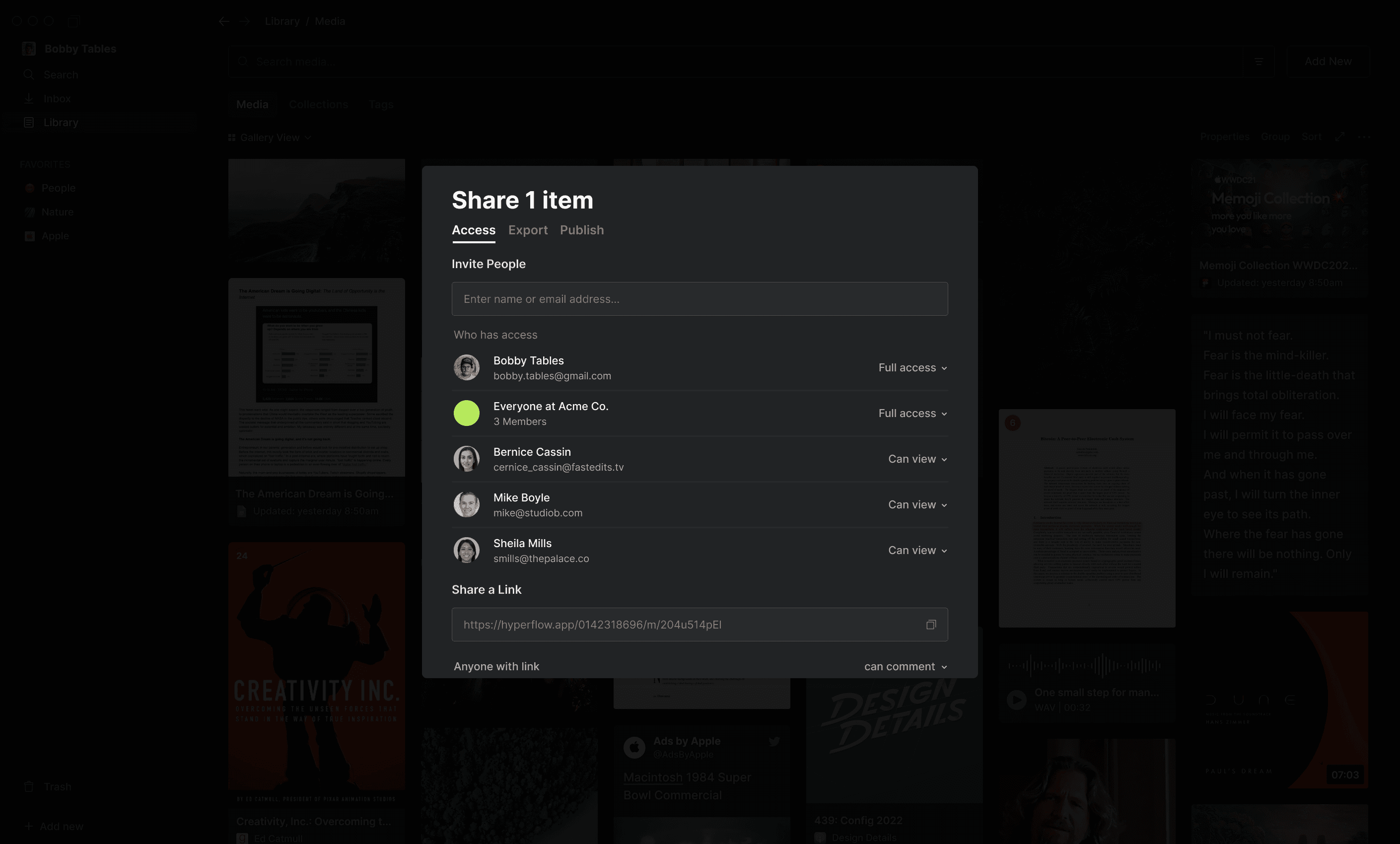
... in addition to more common sharing and access control features.
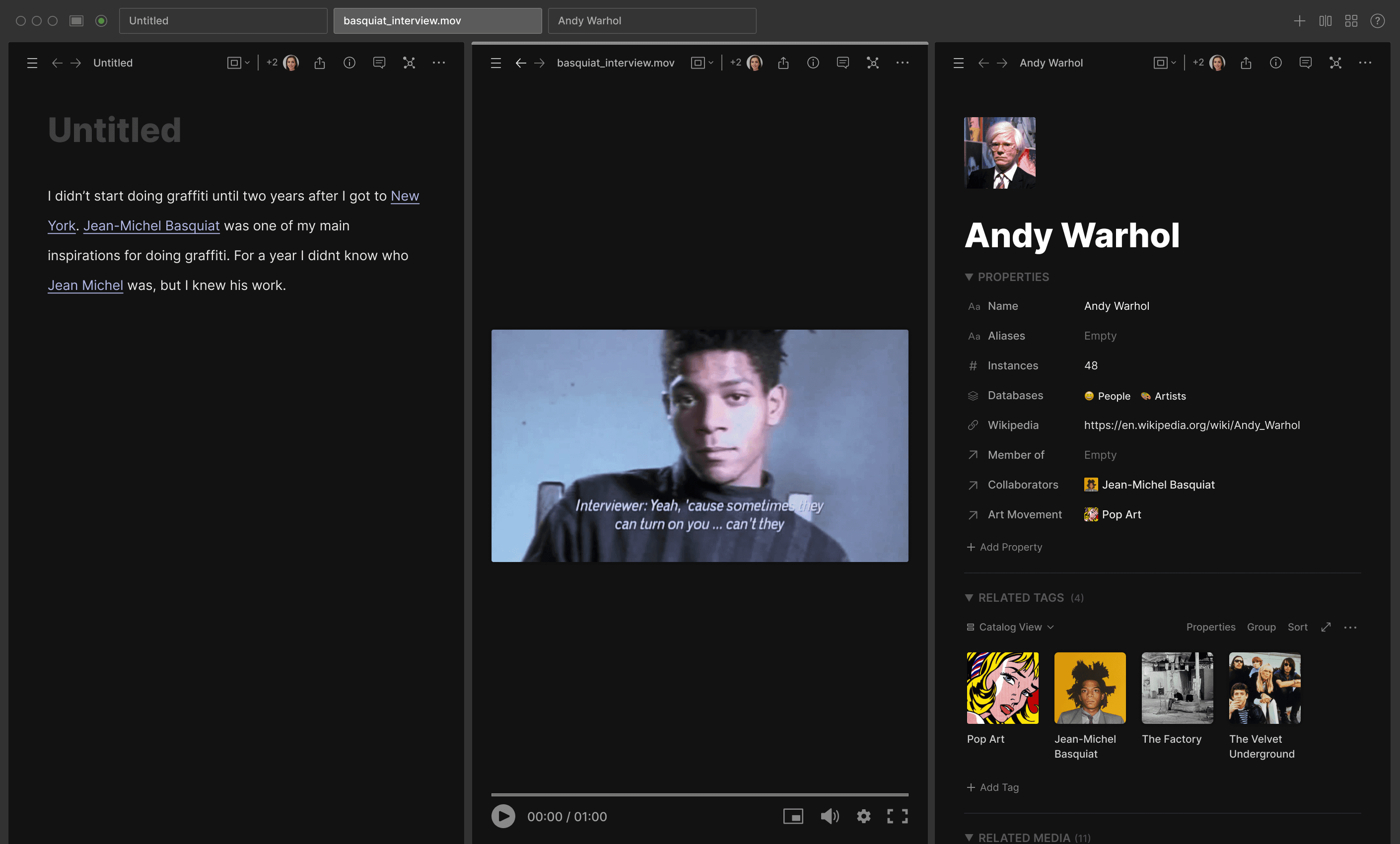
Split View
Split View was a native tab/window management feature designed to enable various multitasking workflows, as well as simplify in-app navigation.